How to recover data from a USB flash drive? Whether the files were deleted accidentally, removed by someone else, lost because the drive was formatted without a backup, deleted due to a system or software failure, or are inaccessible due to issues with the flash drive itself—this guide covers solutions for all these cases.
Contents
- Recovering deleted data from a flash drive
- Recovering data from a flash drive after formatting
- Recovering data when the flash drive asks to be formatted
- Recovering data from a RAW flash drive
- Recovering data when the flash drive is not detected by the computer
- Recovering data from a damaged flash drive
Recovering deleted data from a flash drive
If files were deleted by the user, use data recovery software. In Windows, start with free tools—for example, the built-in Windows File Recovery. It supports all file systems recognized by Windows: NTFS, ReFS, FAT, and exFAT.
If tools like Windows File Recovery cannot restore the files, use a more capable data recovery application. These are usually paid and more effective. They can recover data even in difficult scenarios:
- when data was deleted a long time ago;
- when files disappeared due to a system or software crash;
- after formatting, repartitioning, file system corruption, etc.
One such application is RS Partition Recovery. It recovers data from flash drives as well as other external and internal storage devices. It supports file systems not only used by Windows, but virtually all existing ones.
Download and install the software.

All-in-one data recovery software
Follow the recovery wizard that starts automatically.
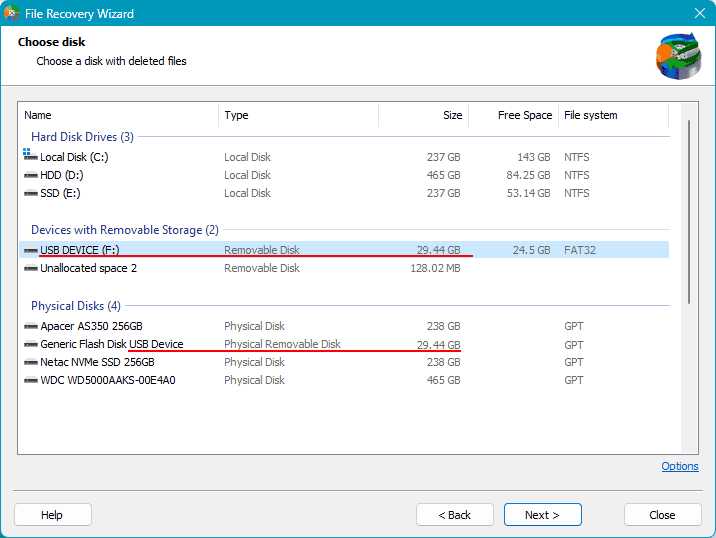
In the list of disks, select the flash drive.
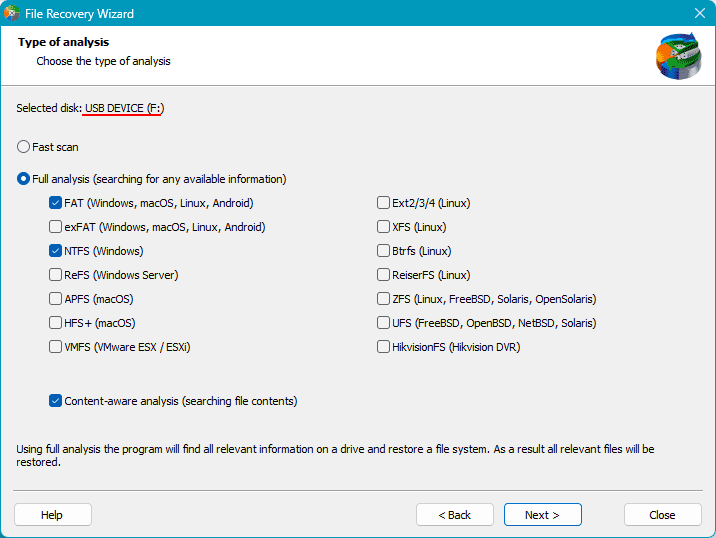
Next, choose one of two scan types.
Quick scan is fast and suitable for extracting data that is not accessible in the OS and for recently deleted files.
Full scan takes longer but is more effective. Use it for complex cases: accidental deletion, drive formatting, file system damage (RAW), etc.
In any case, you can start with a quick scan. If it does not find the required data, run recovery again with a full scan.
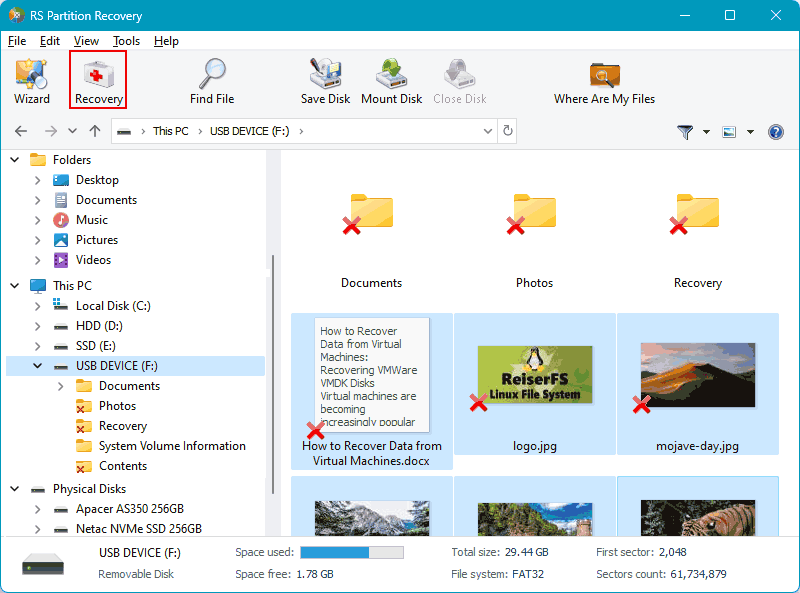
You will then see the scan results. Deleted items are marked with a cross. Select the required files or folders and click Recover.
Choose how to save the data and proceed. Important: specify a destination other than the source device. Save the recovered data anywhere except the flash drive you’re recovering from.
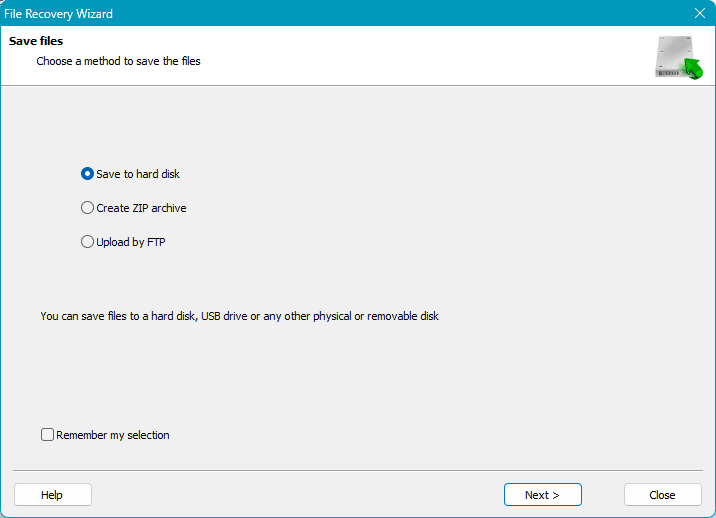
That’s it—the files will be available at the chosen location.
Recovering data from a flash drive after formatting
How to recover data from a flash drive after formatting? If the drive has been formatted, you can also first try free recovery tools. If that doesn’t work, switch to a more powerful data recovery application.
In this case, follow the same procedure described in the first section.
The scenarios above assume the flash drive is healthy and operational. Next, consider situations where the flash drive has issues.
Recovering data when the flash drive asks to be formatted
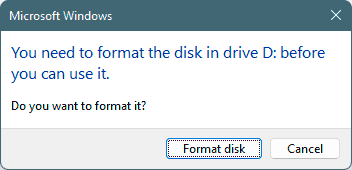
This usually happens when the flash drive is formatted with a file system not supported by the current operating system. As a result, the drive and its contents are inaccessible.
Access can be restored by using an operating system that supports the drive’s file system. Alternatively, install a driver in the current OS that adds support for the required file system.
You can also use RS Partition Recovery to extract the data. Follow the steps described in the first section.
Recovering data from a RAW flash drive
How to recover data if the flash drive won’t open? In such cases it usually appears as a device marked RAW, meaning the file system is critically damaged or missing.
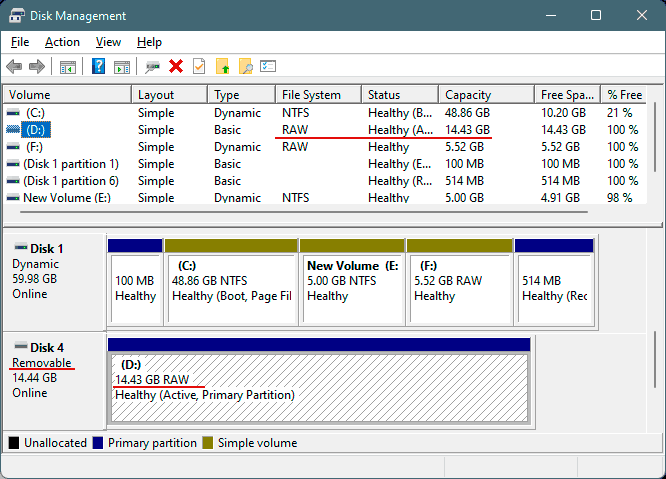
In Windows, first try to run chkdsk to check the drive for file system errors.
If that does not help, you will not be able to access a RAW drive. In this case, extract the data with tools like RS Partition Recovery. Follow the steps described in the first section.
Note: after extracting the data, a RAW flash drive can usually be restored for further use. See “Recovering a flash drive after an unsuccessful formatting” for details.
Recovering data when the flash drive is not detected by the computer
How to recover data if the flash drive is not detected by the computer? First, address the root cause. Ideally, regain normal access to the drive; if not, use data recovery software.
To make the flash drive show up in Windows, the first step is to Scan for hardware changes in Device Manager. Open Device Manager via system search or the Win+X menu, then click Scan for hardware changes. The flash drive should appear under Disk drives.
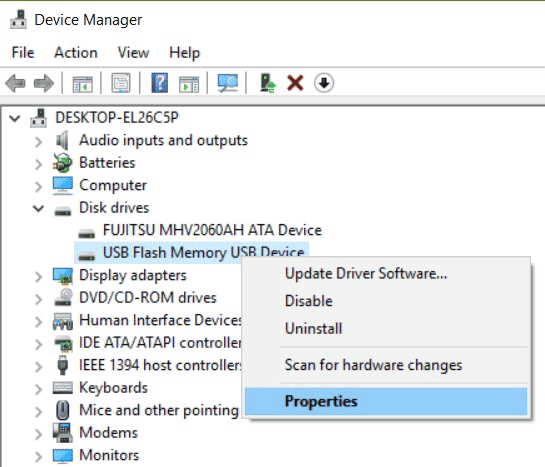
If it still doesn’t appear, try the following:
- Restart the computer; the issue may be specific to the current OS session;
- Connect the flash drive to a different USB port. If it’s plugged into a front panel port, connect it directly to a rear I/O USB port on the motherboard. If it’s connected via a USB hub or extension cable, plug it directly into the PC or laptop. Test both USB 3.0 and USB 2.0 ports;
- Check whether the OS assigned a drive letter. If not, assign a drive letter;
- Update the flash drive’s driver; the problem may be caused by a faulty USB device driver;
- Scan the computer for malware; malicious software can sometimes block access to USB drives;
- Test the flash drive on another computer, in a WinPE environment, or from a Linux Live Disk. The issue may be caused by OS problems (buggy build, failed update/installation, etc.).
The flash drive may also be undetected if it is not partitioned. In that case, first recover the data using software like RS Partition Recovery by following the steps in the first section. Afterwards, create a partition to use the drive again.
Recovering data from a damaged flash drive
How to recover data if the flash drive is damaged? Try the following:
- Disassemble the flash drive and remove any debris;
- Inspect all contacts inside; if a contact is detached, resolder it;
- Seal the drive in a bag and place it in a freezer for one hour;
- Reflash the controller firmware.
If you can at least get the flash drive to be detected by the operating system, you can then recover data with software like RS Partition Recovery by following the steps in the first section.
If the flash drive cannot be repaired, contact a professional data recovery service.