
Recovering data from a BitLocker-encrypted drive isn’t the same problem in every case. A forgotten password with the recovery key still in hand is a five-minute fix. A corrupted partition table on an encrypted volume, or a system drive that lost its TPM binding after a hardware change, is a different situation entirely — the volume is still there, but locating and unlocking it takes more than typing a password into Windows. This guide covers both, for the system volume (C) and any additional encrypted data volume (D).
Contents
- Volumes, Not Disks: What BitLocker Actually Protects
- Why a BitLocker-Encrypted Drive Becomes Inaccessible
- Where to Find Your BitLocker Recovery Key
- How to Recover Data from a BitLocker-Encrypted Drive with RS Partition Recovery
- Why Raw Scanning Doesn't Work on a Locked BitLocker Volume
| Situation | What to do | Difficulty |
|---|---|---|
| Forgot the password, but the 48-digit recovery key or BEK file is available | Unlock directly with the key during recovery | Low |
| TPM won’t unlock the drive after a motherboard/UEFI change | Use the recovery key instead of TPM auto-unlock | Medium |
| Partition table damaged, volume shows as RAW or unallocated | Recovery software locates the volume by its FVE signature, not by the partition table | High |
| Encryption or decryption was interrupted mid-process | Volume is partially encrypted; unlock with the key and scan as usual | Medium |
| Recovery key lost entirely, no backup anywhere | No way to recover the data — encryption is doing its job | Not recoverable |
Volumes, Not Disks: What BitLocker Actually Protects
BitLocker encrypts a volume, not a physical disk. A disk can hold several partitions, and only some of them may be BitLocker-protected — the recovery process depends on which one you’re dealing with and what state it’s in.
Under the hood, BitLocker generates a Full Volume Encryption Key (FVEK) and encrypts every sector of the volume with AES, in CBC or XTS mode, with the Elephant Diffuser added on older Windows versions. The FVEK is wrapped by a Volume Master Key (VMK), and the VMK is protected by one or more mechanisms: TPM (Trusted Platform Module), a PIN, a password, a smart card, or the 48-digit recovery key. None of this requires knowing the FVEK directly — one working protector is enough to unwrap the VMK and get to the volume. You can check which protectors are configured on a live system with:
manage-bde -protectors -get C:
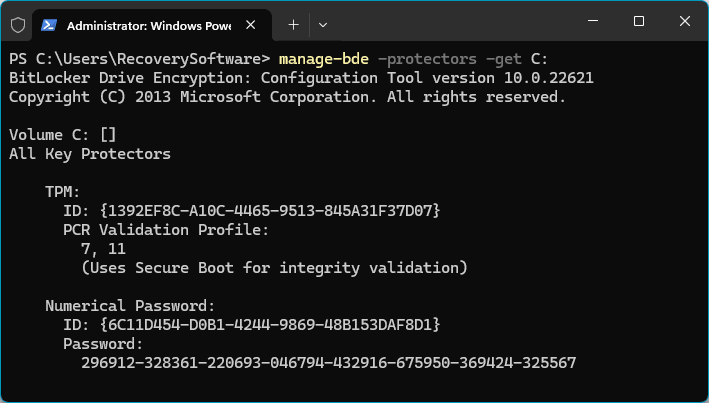
That also explains why a corrupted partition table isn’t a dead end for BitLocker data recovery.
The FVE metadata that describes the volume is independent of the partition table — it’s a separate structure with its own signature. If the partition table is gone, the volume shows up as RAW or unallocated space in Windows, but the encrypted sectors and the FVE header haven’t moved. A tool that only reads the partition table reports “no partitions found.” RS Partition Recovery scans for the FVE signature directly at the disk level, before any key is entered, so it identifies the BitLocker volume even when the partition table doesn’t exist anymore.
Don’t run a quick format or “initialize disk” on a volume that shows as RAW or unallocated if it might be BitLocker-protected. Both operations can overwrite the partition table region and the FVE metadata needed to locate the volume, turning a recoverable situation into an unrecoverable one.
The protectors themselves usually differ between the system volume and a data volume, even though the FVE metadata format is identical for both:
- System/boot volume (C): typically protected by TPM, often paired with a PIN. TPM ties the key to the specific motherboard and boot configuration, so moving the drive to another machine makes the TPM protector useless — the only way in is the recovery key or password, if one was configured.
- Data volume (D): commonly uses a password, a smart card, or auto-unlock, where the VMK for D is encrypted with a key stored (itself encrypted) on the system volume and released automatically once Windows boots on the original machine. Outside that original OS, auto-unlock doesn’t trigger, and D needs its own working protector — usually a separate recovery key from the one used for C.
This is why the same disk can prompt for a recovery key on C at boot, then refuse everything except a completely different key for D: the two volumes aren’t necessarily protected by the same mechanism, even though the decryption process itself is identical once a valid protector is supplied.
Why a BitLocker-Encrypted Drive Becomes Inaccessible
The protector failing is only one category of problem. In practice, access issues fall into a few recurring patterns:
- A motherboard replacement, UEFI/BIOS update, or Secure Boot configuration change invalidates the TPM state, and the system falls back to asking for the recovery key.
- Encryption or decryption gets interrupted — power loss, a forced shutdown, a crashed
manage-bdeprocess — leaving the volume partially encrypted. - The disk is moved to a different machine that has no TPM binding for it at all, and only the recovery key or password works.
- The partition table is damaged or overwritten (disk manager errors, a failed OS reinstall, accidental repartitioning), and the volume shows as RAW or unallocated even though it’s still encrypted and intact underneath.
- The domain controller holding the recovery key becomes unreachable, or the key was never escrowed anywhere the current user can access.
- A drive with bad sectors touches the region holding the FVE metadata, and BitLocker itself can no longer parse its own header.
Quick way to check volume and protector status before doing anything else:
manage-bde -status C:
This reports encryption percentage, method, and lock state — useful for telling an interrupted encryption pass apart from a genuinely damaged volume before deciding on a recovery approach.
Where to Find Your BitLocker Recovery Key
Before assuming the data is gone, it’s worth checking the usual places a BitLocker recovery key ends up:
- A Microsoft account — if the PC was set up with one, the key is often uploaded automatically and visible at account.microsoft.com/devices/recoverykey.
- A printed copy or a text file saved during setup, typically named with the drive’s unique ID (e.g.,
BitLocker Recovery Key XXXXXXXX-XXXX-...txt). - Azure AD / Entra ID, for work or school-managed devices — an administrator can look it up by device or Key ID.
- A domain administrator, if the machine is joined to an on-premises Active Directory domain that escrows BitLocker keys.
- A saved USB key, if the volume was configured to unlock with a startup key file (BEK) rather than a typed password.
If more than one key turns up, match it by Key ID — the same ID shown on the unlock screen or reported by RS Partition Recovery when it detects the volume, since each protector is tied to a specific VMK.
How to Recover Data from a BitLocker-Encrypted Drive with RS Partition Recovery
RS Partition Recovery detects a BitLocker volume during the initial disk scan, independent of whether the partition table is intact. The key, password, or BEK file is requested before analysis starts, not partway through — so the workflow is:
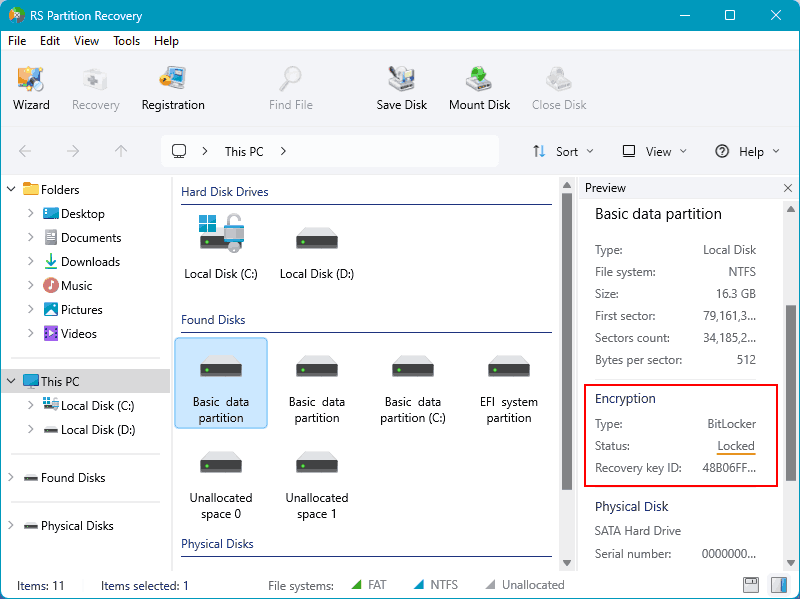
Connect the drive and start a scan. The program identifies the BitLocker volume by its FVE signature, even if the partition table is missing or the volume shows as RAW.
When prompted, provide a password, the 48-digit recovery key, or one or more .bek key files. Multiple BEK files can be added at once if it’s unclear which one matches.
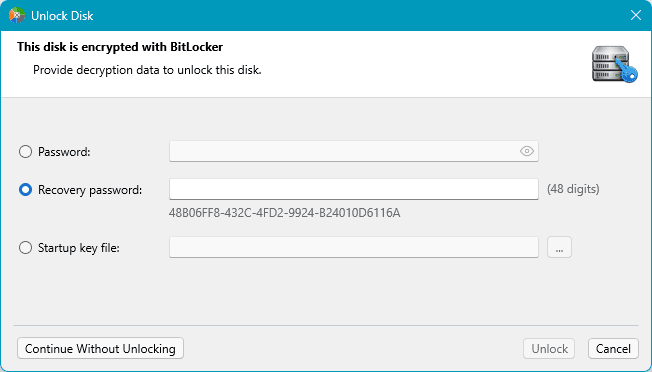
If the key is wrong, the program reports an unlock error directly — it doesn’t fall back to blindly scanning encrypted sectors as if they were plain data.
Once unlocked, the volume is decrypted on the fly during analysis, the same way the built-in BitLocker driver decrypts it during normal Windows use.
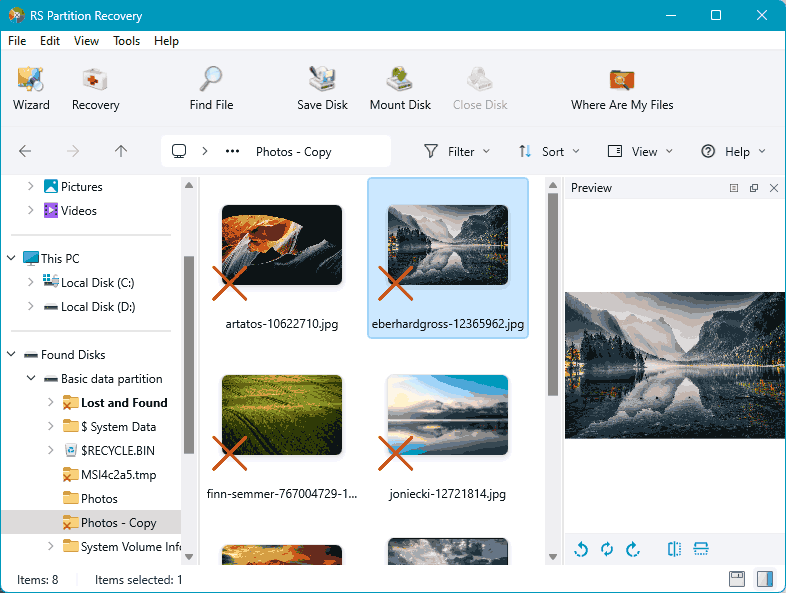
Review the recovered file tree and save the results to a different physical drive than the source.
A partially encrypted volume — one where encryption or decryption was interrupted midway — is handled the same way: supply the working protector, and the tool proceeds with analysis rather than requiring the process to be completed or rolled back first.
Why Raw Scanning Doesn’t Work on a Locked BitLocker Volume
Encrypted sectors are statistically indistinguishable from random data. A recovery tool that scans a locked BitLocker volume by looking for file-type signatures — the JPEG header, the ZIP local file header, and so on — will occasionally match those byte patterns by pure chance inside the encrypted stream. The result looks like a normal scan: a list of “recovered” .jpg, .zip, or .docx files. None of them will open, because there was never a real file there to begin with — the signature match was coincidental. This is a common source of confusion when a tool doesn’t recognize BitLocker at all and just treats the volume as unstructured data.
A forgotten BitLocker password is not recoverable the way a forgotten Windows account password is, with a hash-cracking tool. Windows login passwords are checked against a stored hash on the same machine; BitLocker’s protectors derive a key used directly in AES encryption, with no equivalent shortcut. The only way in without the original password is the recovery key or, where configured, a BEK file.
Frequently Asked Questions
manage-bde -resume C:. If that fails, or the goal is just to get the files off, unlocking the volume with the recovery key and scanning it directly works regardless of how far the process got.