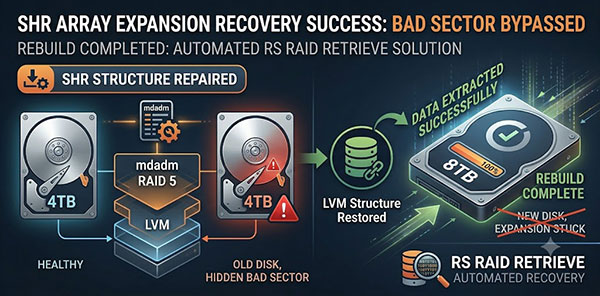
You replaced a 4 TB drive in your Synology SHR array with an 8 TB drive. The rebuild started, ran for a while — and then stopped. DSM shows Degraded, Crashed, or the progress bar has not moved in hours. The NAS may have become unresponsive entirely. This article covers data recovery after an SHR rebuild crash: what actually happened inside the array, how to read the current state without making it worse, and how to get your files back.
Before Touching Anything
Three actions feel logical when a rebuild freezes — and all three can turn a recoverable situation into a permanent one:
Rebooting the NAS
A degraded array holds its member state in memory. A reboot forces mdadm to re-read superblocks from disk — if those superblocks are out of sync due to the interrupted rebuild, the array may fail to reassemble at all after the reboot.
Pulling drives
Even the drive DSM marks as Faulty. Removing a member changes the array count and triggers mdadm to update superblocks on remaining drives, recording the removal as a permanent event. This can permanently exclude a drive that was actually readable.
Clicking Repair in Storage Manager
Repair starts a new rebuild attempt. If the original rebuild failed due to read errors on an existing drive, a second attempt reads the same sectors again — extending the damage on an already stressed drive and risking a second failure.
Force-powering off
A hard power cut during an active (even frozen) rebuild can write partial parity blocks to the new drive, leaving the array in a state where neither the old nor new data is consistent. Always use DSM’s shutdown procedure if the interface is still accessible.
Running fsck or btrfs check
Filesystem repair tools operate on the volume layer — one level above the array. Running them on a degraded array means they read reconstructed data that may contain parity errors, and can write corrupted metadata back to disk.
Adding another drive
Inserting a spare drive into a Crashed array causes DSM to attempt an automatic rebuild. Without understanding why the first rebuild failed, a second attempt runs into the same problem — and now with one more round of full-array reads on already stressed hardware.
Why the Rebuild Failed
When SHR replaces a drive of a different capacity, it does significantly more than copy data. The sequence looks like this:
mdadm reads all data partitions from the remaining drives at sustained sequential throughput — for hours or days on multi-terabyte arrays.
Parity is computed and written to the new drive. For SHR with mixed drive sizes, mdadm uses multiple md devices of different sizes stacked together, so parity calculation is more complex than in a fixed-geometry RAID 5.
LVM recalculates Physical Extent allocation across the expanded storage pool. If the new drive is larger, this means remapping the Volume Group layout — a separate operation that runs in parallel with or after the mdadm rebuild.
Any error at any stage aborts the sequence. Three root causes account for the majority of SHR rebuild failures:
Unrecoverable Read Errors (URE)
Consumer drives have a URE rate of roughly 1 in 1014 bits read. On a 4 TB drive, this means a statistically likely read error somewhere during a full sequential pass. During normal operation these sectors are rarely touched. During a rebuild, every sector is read — and a single unreadable sector stops parity computation for the entire stripe. The drive does not have to fail; it just has to produce one read error at the wrong moment.
SATA timeouts under load
A cable or backplane connection that is marginal under normal workloads can fail consistently under the sustained high-throughput reads of a rebuild. The kernel logs a SATA error, mdadm interprets the drive as unreachable, and marks it as Faulty — even though the drive itself is physically healthy. The drive comes back after a reconnect, but mdadm has already removed it from the array.
Background DSM tasks
Synology schedules S.M.A.R.T. tests, media indexing (for Photo Station, Video Station), and Btrfs scrubs automatically. Any of these running concurrently with a rebuild competes for the same disk I/O bandwidth. On a system already running a sustained full-disk read, additional I/O can push read latency high enough to trigger drive timeouts — producing the same outcome as a physical connection problem.
For a broader comparison of rebuild risk versus direct data recovery, see our article on RAID rebuild vs. software recovery.
Read the Current State of the Array
Before any recovery attempt, determine exactly what mdadm is reporting. If SSH access is available, two commands give you the full picture. For a complete walkthrough of interpreting mdadm output, see our mdadm RAID recovery guide. Below are the specific patterns to look for in this scenario.
cat /proc/mdstat — shows assembly status and, if a rebuild is running, the current progress and speed.
A frozen rebuild looks like this:
Personalities : [raid5] [raid6] [raid1]
md3 : active raid5 sdb3[0] sdc3[1] sdd3[2]
      5860468736 blocks super 1.2 level 5, 64k chunk, algorithm 2 [3/2] [UU_]
      [================>....]  recovery = 83.2% (2436352/2930234) finish=∞ speed=0K/sec
unused devices: <none>
finish=∞ and speed=0K/sec confirm the rebuild has stalled — mdadm is blocked waiting for a sector it cannot read.
A crashed array looks like this:
Personalities : [raid5] [raid6] [raid1]
md3 : inactive sdb3[0](S) sdc3[1](S)
      5860468736 blocks super 1.2
unused devices: <none>
inactive with (S) (spare) flags means mdadm has no active array — the devices are present but not assembled. Data is physically on the disks but inaccessible.
The table below maps the DSM status you see to what is actually happening and what to do next:
| What DSM shows | What it means | Do not do | Next step |
|---|---|---|---|
| Rebuild frozen, speed = 0 Degraded | URE on an existing drive is blocking parity writes. Array degraded but intact. | Do not wait; do not restart rebuild | RS RAID Retrieve |
| One drive marked Faulty, rebuild stopped Degraded | mdadm dropped a drive after repeated read or SATA errors. Running without redundancy. | Do not remove the Faulty drive | S.M.A.R.T. check, then RS RAID Retrieve |
| Storage Pool: Crashed Crashed | mdadm could not maintain quorum. Array inactive — data present but inaccessible. | Do not click Repair; do not reboot | RS RAID Retrieve |
| NAS unresponsive, DSM not loading Unknown | Possible kernel hang during rebuild I/O. Array state unknown. | Do not force power off if avoidable | Clean shutdown via power button hold, then RS RAID Retrieve |
Data Recovery with RS RAID Retrieve
RS RAID Retrieve reconstructs the SHR array configuration from mdadm superblocks on the remaining drives, works with degraded arrays where one member is missing or marked Faulty, and provides read-only access to the volume for selective file recovery — without initiating another rebuild attempt.
Step 1 — Connect drives and check S.M.A.R.T.
Shut down the NAS cleanly if possible. Connect all drives — including the one DSM flagged as Faulty — to a recovery machine and open the built-in S.M.A.R.T. monitor in RS RAID Retrieve. Check every drive, not just the one that failed. During a rebuild, the drive that appears healthy is often the one that caused the failure through read errors on the existing member.
Step 2 — Image any drive with elevated S.M.A.R.T. values
If any drive shows non-zero Reallocated Sector Count, Pending Sectors, or Uncorrectable Errors, create a sector-level image of that drive using RS RAID Retrieve’s built-in imaging function before scanning. All subsequent recovery work is performed on the image. This protects the source drive from additional reads during the scan and prevents further degradation on a drive that is already stressed.
Step 3 — Automatic array reconstruction
RS RAID Retrieve reads the mdadm superblock from each connected drive or image, identifies the array UUID, member roles, RAID level, and stripe parameters, and reconstructs the SHR volume structure. For a degraded array with one missing or failed member, the program can reconstruct using the remaining drives — computing missing data from parity, the same way mdadm would in degraded mode, but without writing anything back to disk.
Step 4 — Browse and recover files
Shut down the NAS cleanly if possible. Connect all drives — including the one DSM flagged as Faulty — to a recovery machine and open the built-in S.M.A.R.T. monitor in RS RAID Retrieve. Check every drive, not just the one that failed. During a rebuild, the drive that appears healthy is often the one that caused the failure through read errors on the existing member.
Works on degraded and crashed arrays
Reconstructs SHR volumes from remaining members without requiring a complete, healthy array — including inactive arrays that mdadm refuses to assemble.
S.M.A.R.T. monitor
Review drive health before scanning. Identifies which drive caused the rebuild failure and whether imaging is needed before recovery.
Drive imaging
Create a sector-level image of a stressed drive before recovery. All work uses the image — protecting the original from additional read cycles.
SSH connection
If the NAS is still powered on and reachable over the network, RS RAID Retrieve can connect via SSH — without physically removing drives from the chassis.
When Software Recovery Is Not Enough
If multiple drives fail to appear when connected to the recovery machine, or if S.M.A.R.T. shows critical values across more than one array member, the situation has moved beyond software. An SHR-1 array with two failed drives has no parity to reconstruct from — there is no mathematical path to the missing data through software alone.
Stop and contact a recovery lab if you observe
- Two or more drives not detected, or showing immediate S.M.A.R.T. failure on power-up
- Clicking, grinding, or repeated failed spin-up on any drive
- RS RAID Retrieve cannot reconstruct the array even in manual mode
- Drives are hot to the touch within minutes of connection
Physical recovery — head replacement, platter transfer — requires a cleanroom environment. Each additional power cycle on a mechanically failing drive reduces recovery probability.
After Recovery: Preventing the Next Rebuild Failure
A rebuild crash during drive replacement is not random. It targets a specific vulnerability: all remaining drives are under maximum sustained read load at the exact moment the array has no redundancy. The following steps reduce the probability of repeating this scenario.
Check S.M.A.R.T. before replacing a drive
Run a full S.M.A.R.T. extended test on all remaining drives before pulling the old one. A drive with reallocated sectors or pending errors will likely produce a URE during the rebuild that follows.
Disable background DSM tasks during rebuild
Go to Control Panel → Task Scheduler and suspend scheduled S.M.A.R.T. tests, Btrfs scrubs, and media library scans for the duration of the rebuild. Competing I/O is one of the most preventable causes of rebuild failure.
Reseat SATA cables before starting
A marginal connection that works under light load will fail under the sustained throughput of a multi-day rebuild. Unplug and reseat all SATA data and power cables before initiating the replacement process.
Do not mix drive batches
Drives purchased at the same time from the same production run accumulate wear at the same rate. When one fails, its peers are statistically close behind. Source replacement drives from a different manufacturer or production batch.
Enable email notifications in DSM
Control Panel → Notification → Email. DSM can alert you the moment a drive is marked Faulty or a storage pool degrades. Catching the failure early — before the rebuild has run for 60 hours — preserves more options for recovery.
Keep an independent backup
SHR provides fault tolerance, not backup. A degraded array during rebuild has no protection against a second failure. Hyper Backup to an external drive or cloud destination is the only guarantee that a rebuild crash does not become permanent data loss.
A rebuild failure during drive replacement is one of the more common SHR data loss scenarios precisely because it strikes at the worst possible moment: maximum I/O load on the oldest hardware in the array, with zero redundancy margin. Once your data is recovered, treat the event as a signal — not just about the drive that failed, but about the health of everything it was running alongside.