USB flash drives have become essential for transferring documents, photos, presentations, and project files between computers. However, their portability makes them vulnerable to data loss. Whether you’ve accidentally deleted files, formatted your drive, or encountered corruption, this guide will show you proven methods for USB data recovery Mac.
Contents
- USB Flash Drive Recovery: Quick Solutions Guide
- Understanding Why Files Disappear from USB Flash Drives
- Method 1: Recover Files with USB Data Recovery Software
- Method 2: Check Your Mac's Trash
- Method 3: Recover Hidden Files on USB Drive
- Understanding Why Some Files Can't Be Recovered
- Preventing USB Flash Drive Data Loss
The good news is that files deleted from a USB flash drive aren’t necessarily gone forever. With the right knowledge and tools, you can often recover your lost data successfully. This comprehensive guide will walk you through proven methods to recover files from USB flash drive on Mac, explain why data loss happens, and show you how to prevent future incidents.
USB Flash Drive Recovery: Quick Solutions Guide
Don’t have time to read the full article? This quick reference table shows you exactly what to do based on your data loss situation. Choose the method that matches your problem, follow the steps, and if you need more details, scroll down to the detailed sections below.
| Solution | What to do |
|---|---|
| Recover deleted files from Mac Trash | Check Mac Trash for recently removed items from the USB drive. Use “Put Back” to restore files to the flash drive. Helps when dealing with recently deleted USB files on macOS. |
| Access hidden .Trashes folder on USB | Open the USB in Finder → press Command + Shift + . to show hidden files. Check the .Trashes folder and restore items. Works for USB data recovery Mac when files don’t appear in system Trash. |
| Scan USB with data recovery software for Mac | Use professional USB data recovery software, such as RS Partition Recovery, to scan for lost files using deep, sector-by-sector scanning. Best for permanently deleted, overwritten or formatted flash drives. |
| Repair USB drive with Disk Utility First Aid | Open Disk Utility → First Aid to fix file system corruption (FAT32 / exFAT / APFS). Useful when USB is not recognized, shows errors, or mounts as RAW file system. |
| Restore deleted USB files from Time Machine | If your USB drive was included in Time Machine backup, restore previous versions of files or folders. Ideal for Mac USB file recovery after accidental deletion or pen drive recovery. |
| Recover files from formatted flash drive | Stop using the drive immediately. Run a deep scan with recovery software to recover files from formatted USB flash drive without overwriting sectors. |
🚨 Critical First Step: Stop Using Your USB Drive Immediately
This is the most important advice in this entire guide: As soon as you realize you’ve lost files from your USB flash drive, stop using it immediately. Don’t save any new files to the drive, don’t format it again, and keep it disconnected from your Mac except when following recovery procedures.
Here’s why this matters: When you delete a file from a USB drive, the data isn’t actually erased right away. Instead, your Mac simply marks the space that file occupied as “available for new data.” The actual file content remains intact on the drive until new data overwrites it. Every time you copy files to the USB drive, take photos, or save documents, you risk overwriting the deleted files you’re trying to recover.
Think of it like a library where books are never physically removed—instead, the librarian just erases them from the catalog and marks their shelf space as available for new books. The original books remain in place until new ones take their spots. Understanding why and how deleted files can be undeleted will help you appreciate the importance of this step.
⚡ Tips for Maximum Recovery Success
- Act fast: The sooner you begin recovery, the better your chances
- Never recover to the same drive: Always save recovered files to your Mac’s internal drive or a different external drive
- Try simple methods first: Start with Trash, then move to software recovery if needed
- Preview before recovering: Use preview features to verify files aren’t corrupted before recovery
- Read the full sections below: For detailed explanations and additional tips for each method
Understanding Why Files Disappear from USB Flash Drives
Before diving into recovery methods, it’s essential to understand the common reasons behind USB data loss. Knowing what caused your data loss will help you choose the most effective recovery approach and prevent similar incidents in the future. If you’re experiencing data loss with removable storage devices, understanding these causes is crucial.
Accidental Deletion or Formatting
The most common cause of USB data loss is human error. A single misplaced click can delete critical files, or you might format the wrong drive while trying to clean up storage space. Perhaps you were organizing files late at night and accidentally selected “Delete” instead of “Copy,” or you formatted your USB drive thinking the data was backed up elsewhere when it wasn’t.
Malware and Virus Infections
USB flash drives are particularly vulnerable to malware because they’re frequently connected to different computers. If you plug your USB drive into an infected computer, malicious software can hide, corrupt, or delete your files. Some viruses specifically target removable storage devices, making your files appear to vanish even though they might still exist on the drive in a hidden state.
Improper USB Ejection
One of the most overlooked causes of USB data loss is improper ejection. When you simply unplug a USB drive without using the “Eject” function on your Mac, you risk interrupting active read/write operations. Your Mac might be updating file system information or finishing a background save operation. This can lead to data corruption on hot-swappable devices.
Physical Damage
USB flash drives are small and portable, which means they’re easily damaged. Dropping your flash drive, exposing it to water or extreme temperatures, or bending the USB connector can cause physical damage. While solid-state storage in USB drives is more durable than spinning hard drives, physical trauma can still damage the memory chips or controller board, leading to data loss.
File System Corruption
The file system is like a detailed map that tells your Mac where each file is stored on the USB drive. Various factors can corrupt this map: sudden power loss during file transfers, unexpected disconnection, software bugs, or conflicts between different operating systems. When dealing with RAW file system errors, your Mac may not be able to locate your files, even though they’re still physically present on the drive.
Hidden Files
Sometimes your files aren’t actually lost — they’re just hidden. This can happen accidentally through Terminal commands, malicious software that changes file attributes, or system errors. macOS hides certain system files by default, and occasionally user files can become hidden through various mishaps.
Method 1: Recover Files with USB Data Recovery Software
When files aren’t in Trash — perhaps because you’ve emptied the Trash, formatted the drive, or experienced file system corruption—you need specialized USB drive data recovery software. This is where professional recovery tools become essential for restoring your lost data. Understanding how data recovery works can help you better understand this process.
How Data Recovery Software Works
Data recovery software for Mac works by performing a deep, sector-by-sector scan of your USB flash drive. Unlike your Mac’s normal file browsing, which relies on the file system’s index, recovery software examines every sector of storage looking for traces of deleted files. It can identify file signatures, reconstruct file structures, and recover data even when the file system is corrupted or formatted. Learn more about data carving technology.
The software can recover files in these scenarios:
- Files deleted and removed from Trash
- Data lost after formatting the USB drive
- Files lost due to file system corruption
- Data on drives that won’t mount normally
- Files affected by malware or virus attacks
Step-by-Step Recovery with RS Partition Recovery
RS Partition Recovery is a comprehensive data recovery solution that works effectively with USB flash drives on Mac. Here’s how to use it to recover your lost files:
Step 1: Download and Install RS Partition Recovery

All-in-one data recovery software
Step 2: Connect Your USB Flash Drive
Connect your USB flash drive to your Mac using an available USB port. Make sure the connection is secure. Wait a moment for your Mac to recognize the drive. If the drive appears damaged or doesn’t mount automatically, don’t worry — RS Partition Recovery can often still detect and scan it.
Step 3: Select Your USB Drive
When RS Partition Recovery opens, you’ll see a list of all storage devices connected to your Mac. Locate your USB flash drive in this list. The drives are typically identified by their name, size, and file system type (such as FAT32, exFAT, or APFS, HFS+). Select your USB drive by clicking on it.
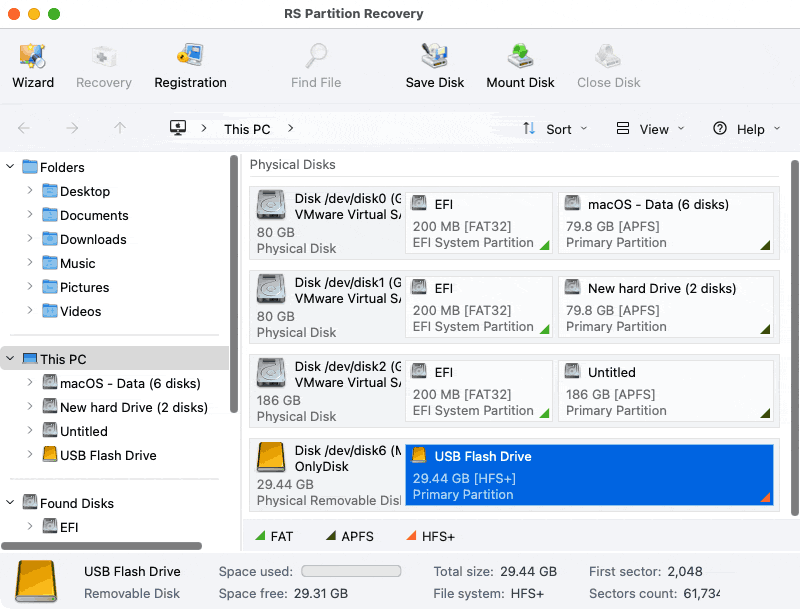
Step 4: Choose the Scan Type
RS Partition Recovery offers different scan options:
Quick Scan: This fast scan looks for recently deleted files that are easily recoverable. It examines the file system’s index and can recover files deleted through normal deletion. This scan typically takes just a few minutes.
Full Analysis: This comprehensive deep scan performs a sector-by-sector examination of the entire drive. It finds files that quick scan might miss, including data from formatted drives, corrupted partitions, or severely damaged file systems. This scan takes longer (anywhere from 10 minutes to several hours depending on drive size) but finds significantly more recoverable files.
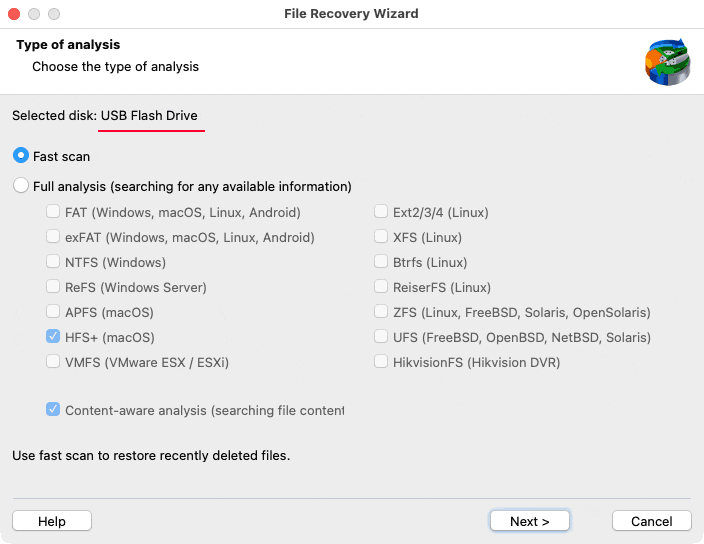
For most data loss situations, start with Quick Scan. If it doesn’t find your files, run Full Analysis.
Step 5:Wait for the Scan to Complete
During the scan, RS Partition Recovery displays progress information showing how much of the drive has been analyzed. You can see the number of files found in real-time.
Step 6:Preview Recoverable Files
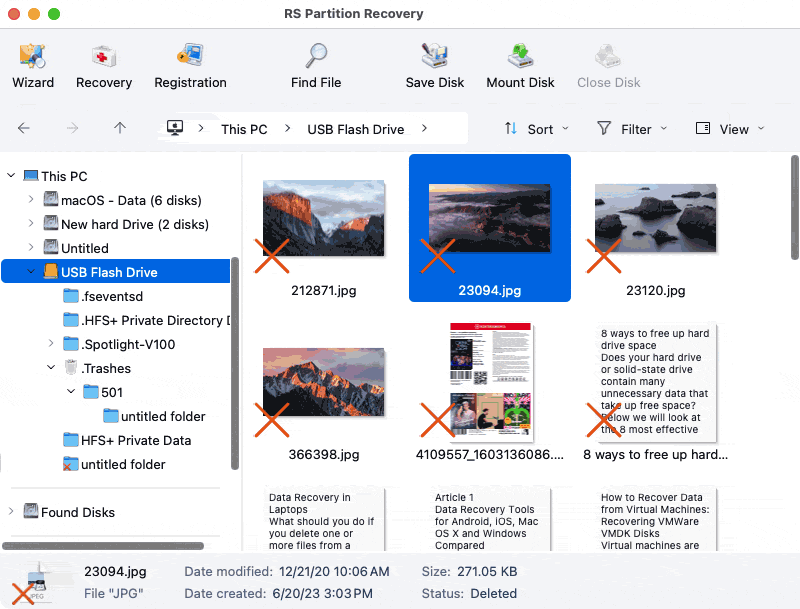
Once the scan completes (or even during scanning), you can browse through the recovered files. RS Partition Recovery organizes found files in several ways:
- By file type: Photos, documents, videos, archives, etc.
- By original folder structure: If the file system information is intact
- By file status: Existing files vs. deleted/lost files
Use the preview feature to verify your files before recovery. Click on individual files to preview their contents. This is especially useful for photos and documents, ensuring the files aren’t corrupted before you recover them. The preview feature helps you avoid recovering files that are damaged beyond use.
Step 7:Select Files for Recovery
Check the boxes next to the files and folders you want to recover. You can:
- Select individual files by checking boxes next to them
- Select entire folders to recover everything inside
- Use “Select All” if you want to recover everything found
- Use Command+Click to select multiple non-adjacent files
Step 8:Choose Recovery Destination
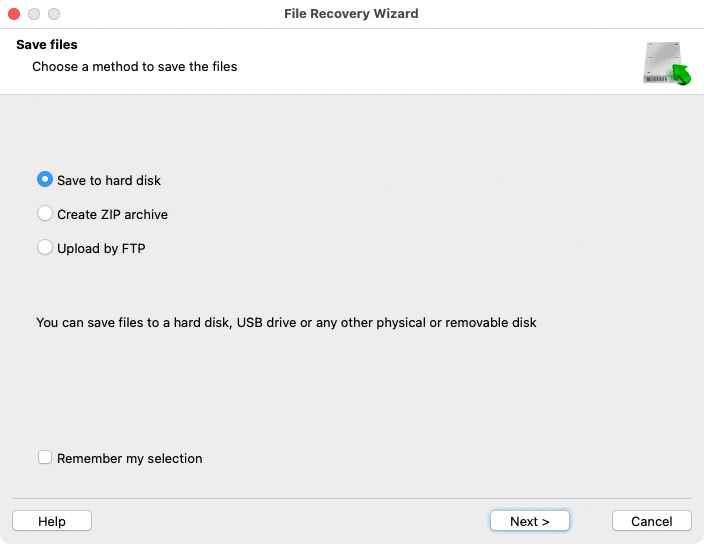
Click the “Recover” button after selecting your files. A dialog window will appear asking you to choose where to save the recovered files.
⚠️ Critical warning: Never recover files directly back to the same USB drive you’re recovering from. Always choose a different location, such as: your Mac’s internal hard, a different external drive drive. Recovering files to the same USB drive can overwrite other recoverable data still on the drive, permanently losing files you haven’t recovered yet.
Step 9:Complete the Recovery
Click “Next” to begin the file recovery process. RS Partition Recovery will copy the selected files to your chosen destination. The recovery time depends on the number and size of files being recovered. Once complete, navigate to your chosen recovery location to access your restored files.
Tips for Successful Recovery
Maximize your recovery success rate with these recommendations:
- Don’t install recovery software on the USB drive itself. Install it on your Mac’s internal drive or another external drive.
- Recover files as soon as possible. The longer you wait, the higher the chance of data being overwritten.
- If the first scan doesn’t find your files, try the full/deep scan option. Quick scans are faster but less thorough.
- Check file previews carefully. Just because a file is found doesn’t mean it’s fully intact—preview confirms recoverability.
- Organize recovered files immediately. Recovered files often lose their original names and may be named generically (like “File001.jpg”), so organize them right away while you remember what they are.
Method 2: Check Your Mac’s Trash
The simplest solution is often the best place to start. When you delete files from a USB flash drive connected to your Mac, those files don’t immediately vanish into the digital void. Instead, they go to a special location that gives you a chance to recover them.Learn more about recovering files from Trash.
How Mac Trash Works with USB Drives
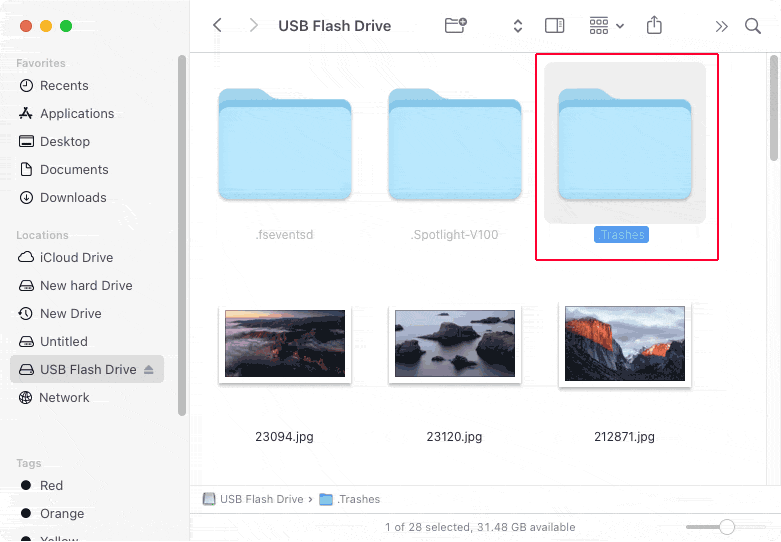
Your Mac handles trash differently for external drives compared to the internal storage. When you delete files from a USB flash drive, they’re stored in a hidden folder called .Trashes on that specific drive. The Trash icon in your Dock aggregates and displays files from all connected drives, making it seem like there’s one centralized trash location when there isn’t.
Important note: You must have the USB drive connected to your Mac to see files deleted from that drive in your Trash. If you deleted files from a USB drive yesterday and disconnected it, those files won’t appear in your Trash until you reconnect the drive.
Step-by-Step Recovery from Trash
- Connect your USB flash drive to your Mac if it isn’t already connected.
- Open Trash by clicking the Trash icon in your Dock (located on the right side or bottom of your screen, depending on your Dock position).
- Locate your files. Browse through the Trash contents to find the files you want to recover. If you have many files in Trash, use the search bar at the top right or sort by date deleted to find your files more quickly.
- Restore the files. Right-click (or Control-click) on the file you want to recover and select “Put Back.” The file will automatically return to its original location on your USB drive. You can select multiple files by holding Command while clicking each file.
Accessing the Hidden .Trashes Folder Directly
Advanced users can access the .Trashes folder directly on the USB drive. This can be useful if the standard Trash recovery isn’t working or if you want to verify what’s actually stored on the drive.
To view hidden files and folders:
Press Command + Shift + . (period) in Finder while viewing your USB drive. Hidden files and folders will appear semi-transparent. Look for the .Trashes folder and open it to see deleted files.
To hide hidden files again:
Press Command + Shift + . (period) again to toggle hidden files off. It’s recommended to hide system files again after you’re done, as accidentally modifying or deleting hidden system files can cause problems.
Using Terminal for Advanced Access
If you’re comfortable with Terminal commands, you can access the .Trashes folder with more control:
- Open Terminal (press Command + Space, type “Terminal,” and press Enter).
- Navigate to your USB drive by typing:
cd /Volumes/YOUR_DRIVE_NAME
ReplaceYOUR_DRIVE_NAMEwith your actual USB drive name. - List the contents of the .Trashes folder:
ls -la .Trashes
This method requires granting Terminal full disk access in System Preferences → Security & Privacy → Privacy → Full Disk Access.
Method 3: Recover Hidden Files on USB Drive
Sometimes your files aren’t actually lost — they’re just hidden from view. This situation is more common than you might think and has a simple solution that doesn’t require any special software.
Why Files Become Hidden
Files on your USB drive can become hidden due to several reasons:
- Terminal commands: Accidentally running commands like
chflags hiddencan hide files - Malware: Some malicious software hides files as part of its operation
- System errors: Glitches during file operations can inadvertently set the hidden attribute
- Cross-platform issues: Moving a drive between Mac and Windows can sometimes cause visibility problems
Making Hidden Files Visible
Method 1: Quick Toggle with Keyboard Shortcut
This is the fastest way to view hidden files on your USB drive:
- Connect your USB flash drive to your Mac
- Open Finder and navigate to your USB drive
- Press Command + Shift + . (period) simultaneously
- Hidden files and folders will now appear semi-transparent in Finder
- Press the same key combination again to hide them once more
Permanently Unhiding Files with Terminal
If you want to permanently remove the hidden attribute from specific files:
- Open Terminal (Applications → Utilities → Terminal, or press Command + Space and type “Terminal”)
- Type the unhide command but don’t press Enter yet:
chflags nohidden
Make sure there’s a space after “nohidden” - Drag the hidden file from Finder directly into the Terminal window. This automatically inserts the full file path.
- Press Enter to execute the command. The file is now permanently unhidden.
- Repeat for each file you want to unhide, or unhide entire folders at once using the same method.
Example command:
chflags nohidden /Volumes/MyUSB/HiddenFolder
Checking for Hidden System Files
Your USB drive may contain hidden system files like .DS_Store, .Spotlight-V100, or .Trashes. These are normal macOS system files and folders. Don’t delete them unless you’re certain they’re not needed, as they help your Mac manage the drive properly.
Understanding Why Some Files Can’t Be Recovered
Despite your best efforts and the most advanced recovery software, some files simply cannot be recovered. Understanding why helps set realistic expectations and informs better data management practices going forward. Learn more about how data gets lost.
Data Overwriting
The primary reason files become unrecoverable is data overwriting. Remember, deleted files aren’t immediately erased—they’re just marked as “available space.” Once new data is written to those sectors, the original file is gone permanently. It’s like recording over a cassette tape or VHS video—once new content replaces the old, there’s no going back.
The more you use a USB drive after data loss, the higher the probability of overwriting. Even operations that seem harmless—like viewing the drive’s contents or your Mac writing hidden system files—can overwrite deleted data.
Severe Physical Damage
When the memory chips inside your USB drive are physically destroyed, no software can recover the data. Physical damage scenarios include electrical damage from power surges, water damage that corrodes the circuitry, mechanical damage from crushing, heat damage from fire, or wear-out from excessive read/write cycles. If you’re dealing with a damaged drive, consider reading about recovering data from failed drives.
Encryption and Security Features
Some USB drives have built-in hardware encryption. If you’ve lost the encryption key or password, recovery becomes extremely difficult or impossible, even if the files themselves are intact on the drive. This is by design—encryption is meant to make data unreadable without the proper credentials.
File System Complete Destruction
While corrupted file systems can often be worked around by recovery software, completely destroyed file systems make recovery much harder. If the drive has been formatted multiple times, written over with random data, or severely corrupted through malware, the organizational information needed to reconstruct files may be gone.
Age of Deletion
Generally speaking, the older the deletion, the less likely recovery succeeds. Files deleted months or years ago have probably been overwritten many times over, especially on frequently-used drives.
Preventing USB Flash Drive Data Loss
Recovery is valuable when accidents happen, but prevention is always better than cure. Implementing these strategies will significantly reduce your risk of USB data loss and the stress that comes with it. Read our comprehensive guide on securing your files against data loss.
Essential Prevention Strategies
1. Always Eject USB Drives Properly
This is the single most important habit for USB drive longevity. Never just pull out your USB drive when you’re done using it. Proper ejection ensures all file operations are complete and the file system is cleanly closed.
2. Create Regular Backups
Don’t rely on your USB drive as your only copy of important data. For Mac users, Time Machine can backup external drives along with your internal storage. Enable this feature in System Preferences → Time Machine.
3. Scan for Malware Regularly
USB drives are common vectors for malware transmission.
4. Handle USB Drives with Physical Care
Protect your drive from physical damage: always use the protective cap when the drive isn’t plugged in, don’t leave drives in extremely hot or cold environments, avoid exposing drives to moisture or liquids, don’t drop or throw USB drives, and be gentle when plugging and unplugging.
5. Label Your Drives Clearly: Prevent accidental formatting or deletion
6. Enable Write Protection When Possible
Some USB drives have a physical write-protection switch. When important data is stored and you’re just reading from the drive (not adding or modifying files), enable write protection. This prevents accidental deletion or modification of files on the drive.
7. Monitor Drive Health
8. Don’t Overfill Your USB Drive
Keeping your USB drive filled to capacity increases the risk of errors and corruption. Aim to keep at least 10-15% of the drive’s space free for optimal performance and reliability.