Recovering Data from Windows

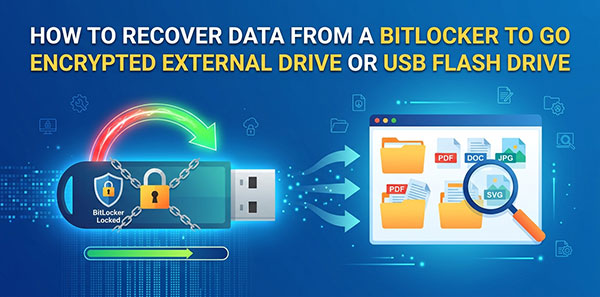
BitLocker To Go is the same encryption engine as system-drive BitLocker, applied to removable media — external HDDs, SSDs, and USB flash drives. The unlock mechanics carry over from our guide to recovering an internal BitLocker volume, but removable drives fail differently in practice: no TPM to fall back on, a visible FAT32 partition that gets mistaken for the whole drive, and a higher rate of physical disconnects mid-operation. This guide covers what's specific to external and USB drives.
Recovering data from a BitLocker-encrypted drive isn't the same problem in every case. A forgotten password with the recovery key still in hand is a five-minute fix. A corrupted partition table on an encrypted volume, or a system drive that lost its TPM binding after a hardware change, is a different situation entirely — the volume is still there, but locating and unlocking it takes more than typing a password into Windows. This guide covers both, for the system volume (C) and any additional encrypted data volume (D).

We've all been there. You're cleaning up your computer, holding down Shift and Delete to remove files quickly, and suddenly realize you've just permanently deleted something important. That sinking feeling in your stomach is all too familiar, but here's the good news: shift deleted files recovery is possible, and those files might not be gone forever.

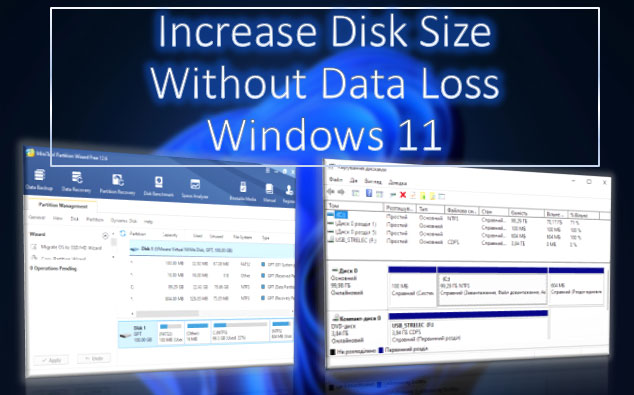
What to do if there is not enough free space on drives C, D, E, etc.? If our needs require a larger disk volume, we can increase the size of one disk by reducing the size of another. This task can be accomplished using the built-in tools of Windows 11 or with third-party disk management programs that offer more flexible operations. Let's take a detailed look at how to extend a disk in Windows 11.

Hard Drive Failure—whether it's an internal or external drive, an HDD or SSD—can lead to significant issues. We might lose a well-configured operating system along with all installed and customized programs. But most importantly, we risk losing valuable data. What are the signs that a hard drive is failing? How can we prevent data loss? And what should we do with the failing hard drive?

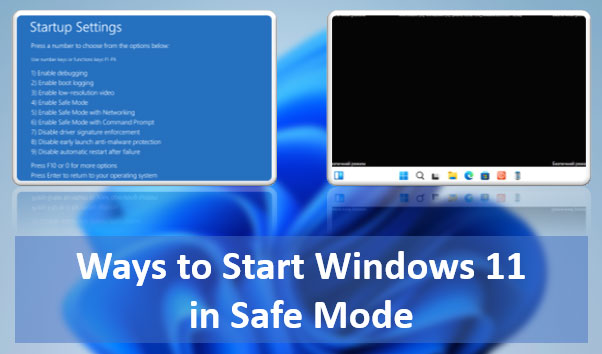
What are the ways to start Windows 11 in Safe Mode? There are many: using both classic and modern functionalities of the operating system, using the command line. It can be launched from various Windows 11 environments – within the running system, on the lock screen, from installation media. You can even make it accessible in the Windows 11 boot menu.

Let's explore all these methods.

System Backup is one of the crucial aspects of working with a computer. It ensures the restoration of the operating system to a functional state after a failure, virus attack, or unwanted user interference. Windows 11 has two built-in backup mechanisms, one of which is Windows 11 Restore Points. What is this mechanism? How do you create a restore point? How do you load a restore point and roll back the system to a working state? How do you do this from the Windows 11 recovery environment? We will address these and other questions below.