
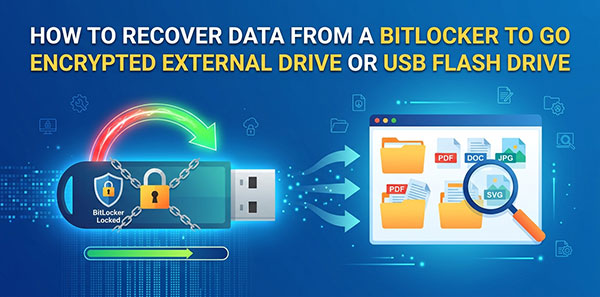
BitLocker To Go is the same encryption engine as system-drive BitLocker, applied to removable media — external HDDs, SSDs, and USB flash drives. The unlock mechanics carry over from our guide to recovering an internal BitLocker volume, but removable drives fail differently in practice: no TPM to fall back on, a visible FAT32 partition that gets mistaken for the whole drive, and a higher rate of physical disconnects mid-operation. This guide covers what’s specific to external and USB drives.
Contents
- What's Different About BitLocker To Go
- Diagnosing the Problem
- When Recovery Is Possible — and When It Isn't
- Where to Find the Recovery Key
- Recovering Data with RS Partition Recovery
| Situation | What to do | Difficulty |
|---|---|---|
| Forgot the password, but the recovery key or BEK file is available | Unlock directly with the key during recovery | Low |
| Drive was unplugged or lost power mid-encryption | Unlock with the key and scan; resume encryption separately if needed | Medium |
| Only a small FAT32 partition is visible, rest of the drive looks empty | The encrypted volume is a separate, hidden partition — not lost | Low |
| Windows asks to format the drive, but it hasn’t been formatted yet | Don’t click Format; scan for the FVE signature directly | High |
| Drive was already formatted (quick or full) | None — formatting destroys the FVE metadata the key is bound to | Not recoverable |
| Recovery key for this specific drive was never saved anywhere | No way to recover the data — encryption is doing its job | Not recoverable |
What’s Different About BitLocker To Go
The volume structure and the FVE (Full Volume Encryption) metadata are identical to an internal drive. What changes is the set of protectors available, because a removable drive isn’t tied to any one machine’s hardware. TPM auto-unlock doesn’t apply here at all — a TPM protector only exists for a machine’s own boot volume, so an external drive needs an explicit password, smart card, or recovery key on every host it’s connected to. Windows Explorer defaults to a password protector when BitLocker To Go is turned on, and generates the same 48-digit recovery key format used for internal volumes, which can be saved to a Microsoft account, printed, or stored as a file.
Auto-unlock exists for external drives too, but it’s scoped per host rather than per drive: once a given Windows machine unlocks the drive with the password, that machine remembers it and skips the prompt on later connections. That state lives on the computer, not on the drive, so the same drive still asks for a password the first time it meets any other machine — a different PC, a Linux live environment, a recovery workstation. The practical effect is that a recovery key or password is never truly optional for an external drive the way it can feel optional for a system drive with working auto-unlock. Sooner or later, on some machine, one of them gets used. Protectors configured on a connected drive can be checked with its assigned letter:
manage-bde -protectors -get E:
Diagnosing the Problem
A drive showing only a small FAT32 partition in File Explorer, with no sign of the rest of the data, isn’t missing anything. Drives encrypted through older Windows setups get a second, small FAT32 partition alongside the encrypted volume, containing the BitLocker To Go Reader — a standalone tool that let Windows 7-era systems without native BitLocker support unlock the drive. The encrypted volume itself is a separate partition that Windows only mounts once it’s unlocked; it hasn’t gone anywhere. Disk Management, or a partition-aware recovery tool, shows both partitions even when only the FAT32 one is assigned a drive letter automatically.
A different pattern is encryption or decryption stopping partway through, usually because the drive was unplugged, lost power, or a USB connection dropped mid-process. This leaves the volume in a mixed state — part processed, part not — which is a separate problem from actual damage and is worth telling apart before spending time on anything else.
When Windows reports the drive as unreadable or offers to format it, that can mean either of two very different things: a damaged partition table sitting on top of an otherwise intact encrypted volume, or genuine physical failure. Drops, a failed USB-to-SATA bridge chip, and controller faults show up more often on portable drives than on ones that stay mounted inside a case, so it’s worth ruling physical damage out — inconsistent detection across USB ports, unusual noise, or the drive dropping out mid-transfer are the usual signs — before assuming the fix is purely logical.
A last pattern worth recognizing rather than troubleshooting: a drive set up with auto-unlock on one machine, connected to a different computer that has never seen it before. It prompts for the password or recovery key as if for the first time, because as far as that machine is concerned, it is the first time.
Check status before doing anything else:
manage-bde -status E:
This reports encryption percentage and lock state, which helps distinguish an interrupted encryption pass from a drive with a different underlying problem before deciding on next steps.
When Recovery Is Possible — and When It Isn’t
Once the problem is identified, whether it’s recoverable comes down to one thing: is the FVE metadata — the structure tying the encrypted volume to its VMK, and through it to the password, recovery key, or BEK file — still intact? A few concrete cases cover most of what comes up in practice:
- Deleted or lost files, volume still unlocks normally. The simplest case — the FVE metadata was never touched, only the file system entries for specific files were removed. A working password, recovery key, or BEK file unlocks the volume exactly as it always did.
- Volume shows as RAW, unallocated, or “needs to be formatted.” As long as nothing has actually been written to the drive since that happened, the FVE metadata and encrypted sectors typically survive even when the partition table doesn’t — the partition table and the FVE header are separate structures, and losing one doesn’t take the other with it.
- Encryption or decryption was interrupted partway through. The volume ends up in a mixed state, part processed and part not, but the FVE header itself isn’t affected by an interruption — unlocking with a working protector and scanning works regardless of how far the process got.
- Drive moved to a computer with no auto-unlock state for it. Nothing about the volume changed; the new machine just has no cached unlock state. The recovery key or password works the same as it would on the original machine.
- The disk was formatted, but it held more than one partition. If the first partition was deleted and the disk was then reformatted, that reformat typically only overwrites the region it targets — the FVE metadata for a second or third partition further down the disk can be untouched. Those partitions may still be recoverable even though the first one no longer is; it’s worth scanning the whole physical disk rather than assuming the entire drive is a lost cause.
What’s genuinely final is narrower. A single-partition drive that’s already been formatted — quick or full — has nothing left for any recovery tool to work with: formatting replaces the structures the VMK and FVE header live in, so even the correct original password or recovery key has no metadata left to unlock. The same finality applies when both the password and the recovery key are permanently lost with no protector left to try, and when physical damage is severe enough to destroy the sectors holding the FVE header itself, as opposed to just the partition table entry pointing to it.
A “format this drive?” prompt from Windows hasn’t done anything yet on its own — declining it costs nothing. Clicking through it does. If a drive is showing as RAW, unreadable, or unformatted, scan it with recovery software before formatting it, not after.
Where to Find the Recovery Key
A drive’s recovery key most often turns up in one of a handful of places. If the PC used to set up the encryption was signed into a Microsoft account, the key is frequently backed up automatically and visible at account.microsoft.com/devices/recoverykey. Failing that, check for a printed copy or a saved text file from when the drive was first encrypted — Windows names these after the drive’s unique ID by default, which also makes it easy to confirm a match. On a company-managed machine, a domain or Azure AD administrator can look the key up by device or Key ID. And if the volume was configured to unlock with a startup key file rather than a typed password, the BEK file itself is the credential — no separate recovery key needed.
Recovery keys are tied to the specific drive, not to a user account in general: a key saved for one external drive won’t unlock a different one, even if both were encrypted from the same PC. Where more than one key is on hand, match by Key ID.
Recovering Data with RS Partition Recovery
RS Partition Recovery detects a BitLocker volume by its FVE signature and requests the password, recovery key, or BEK file before scanning starts — the same process as an internal drive, with a few adjustments for external media:
Connect the drive directly rather than through a hub or a docking station of uncertain quality — an unstable USB connection during a long scan is a common cause of a scan restarting partway through.
Start a scan of the whole physical device, not a single logical drive letter. This matters for two reasons covered above: it’s what lets the program see the encrypted partition alongside the FAT32 discovery partition, and it’s what finds a second or third partition that survived a whole-disk format, even when the first partition on the same disk didn’t.
If the goal is just to confirm the drive isn’t physically dead before tracking down a recovery key, the scan can be run without entering a protector at all. This won’t decrypt any file contents, but it reports whether a BitLocker volume is present and structurally intact — useful for ruling out a failed drive early.
When ready to decrypt, enter the password, 48-digit recovery key, or one or more .bek files. Multiple BEK files can be added at once if it’s unclear which one matches; the program matches by Key ID rather than requiring a manual guess.
An incorrect key is reported as an unlock error directly, rather than the scan silently falling back to signature-based file carving on still-encrypted data.
Once unlocked, the volume is decrypted on the fly during the scan, the same as on an internal drive.
Save recovered files to a different physical drive — never back to the same external drive being recovered.