
We’ve all been there. You’re cleaning up your computer, holding down Shift and Delete to remove files quickly, and suddenly realize you’ve just permanently deleted something important. That sinking feeling in your stomach is all too familiar, but here’s the good news: shift deleted files recovery is possible, and those files might not be gone forever.
Contents
- Understanding What Happens When You Press Shift+Delete
- Can You Really Recover Shift Deleted Files?
- First Steps: Stop and Assess
- Method 1: Use Data Recovery Software
- How to recover shift deleted files with recovery software:
- Method 2: Check Windows File History
- Method 3: Try Windows Backup and Restore
- Method 4: Look in Cloud Storage
- Method 5: Windows File Recovery Tool
- Maximizing Your Recovery Success
- Prevention: Learning from the Experience
In this comprehensive guide, you’ll learn proven methods to recover shift deleted files in Windows 11 and Windows 10, understand what happens during permanent deletion, and discover how to maximize your recovery success rate.
Understanding What Happens When You Press Shift+Delete
When you delete a file normally in Windows, it takes a brief vacation in the Recycle Bin. You can retrieve it anytime with a simple click. However, Shift+Delete tells Windows to skip that safety net entirely. The file disappears from view immediately, which is why many people assume it’s permanently erased.
But here’s the interesting part: your file is still physically present on your hard drive. Windows doesn’t actually erase the data right away. Instead, it simply marks that space as “available for reuse” by removing the file’s entry from the file system table. Think of it like removing a book’s entry from a library catalog while the book itself remains on the shelf. The data stays intact until new information overwrites it.
This is crucial to understand: your recovery window depends entirely on how quickly that space gets reused. Every new file you save, every program you install, every update that downloads could potentially overwrite your deleted data. That’s why acting fast makes all the difference.
Can You Really Recover Shift Deleted Files?
The short answer is yes, shift delete recovery is possible, but success depends on several interconnected factors that determine whether your data can be retrieved.
✨ Time is your biggest ally. A file deleted an hour ago has much better recovery prospects than one deleted weeks ago. However, it’s not just about the calendar. What matters most is how intensely you’ve used your computer since the deletion occurred. If you’ve barely touched your system, even files deleted several days ago might be recoverable. Conversely, just a few hours of heavy activity like installing software, downloading large files, or running system updates could permanently overwrite your data.
✨ Storage device type plays a significant role. Traditional hard disk drives (HDDs) are generally more forgiving when it comes to data recovery. Once something is deleted, it typically stays recoverable until something else takes its place. Solid state drives (SSDs) present a bigger challenge due to a technology called TRIM. This feature improves SSD performance by proactively erasing blocks of data that have been marked as deleted. While this keeps your SSD running smoothly, it makes recovery much more difficult and sometimes impossible.
✨ The file system matters too. NTFS, which is the standard for modern Windows systems, keeps detailed metadata that can aid recovery efforts. Other formats like FAT32 or exFAT provide less structural information, making fragmented or partially overwritten files harder to piece back together.
Given these factors, you might wonder about your actual chances. On a traditional hard drive with NTFS, if you act within hours or days and haven’t used the computer much, recovery rates can be quite high (70-90% in optimal conditions). With SSDs that have TRIM enabled, the window of opportunity can be much smaller, sometimes measured in minutes rather than hours.
First Steps: Stop and Assess
Before attempting any recovery, you need to minimize the risk of overwriting your deleted data. Here’s what to do immediately:
⚠️ Stop using the affected drive as much as possible. If you deleted files from your main system drive (usually C:), avoid installing new software, downloading files, or creating documents. If the deletion happened on an external drive or USB stick, disconnect it right away and set it aside until you’re ready to attempt recovery.
⚠️ Check if you have backups enabled. Many people don’t realize they already have safety nets in place. Windows includes several backup features that might already be protecting your files, and we’ll explore those shortly.
⚠️ Don’t panic and keep trying the same recovery method repeatedly. Each unsuccessful attempt could potentially write new data to the drive, reducing your chances of success. It’s better to try one good method than to frantically attempt multiple approaches that might do more harm than good.
Method 1: Use Data Recovery Software
When built-in Windows features can’t help, specialized data recovery software becomes your best option. These programs work by scanning your storage device at a deep level, looking for traces of deleted files that Windows no longer lists in its file system.
Recovery software operates on the principle we discussed earlier: deleted files remain on your drive until overwritten. These tools examine the raw data on your disk, identifying file signatures and reconstructing deleted items even when Windows has removed their directory entries.
RS Partition Recovery is designed specifically for these situations. It can recognize hundreds of different file types and works with various file systems including NTFS, FAT32, and exFAT. The software scans your drive thoroughly, presenting a list of recoverable files for you to review.
How to recover shift deleted files with recovery software:
Using recovery software typically follows a similar pattern across different programs. First, you install the software on a different drive than the one containing your deleted files. This is important because installing on the same drive could overwrite the very data you’re trying to recover.
Step 1. Install and launch the RS Partition Recovery.

All-in-one data recovery software
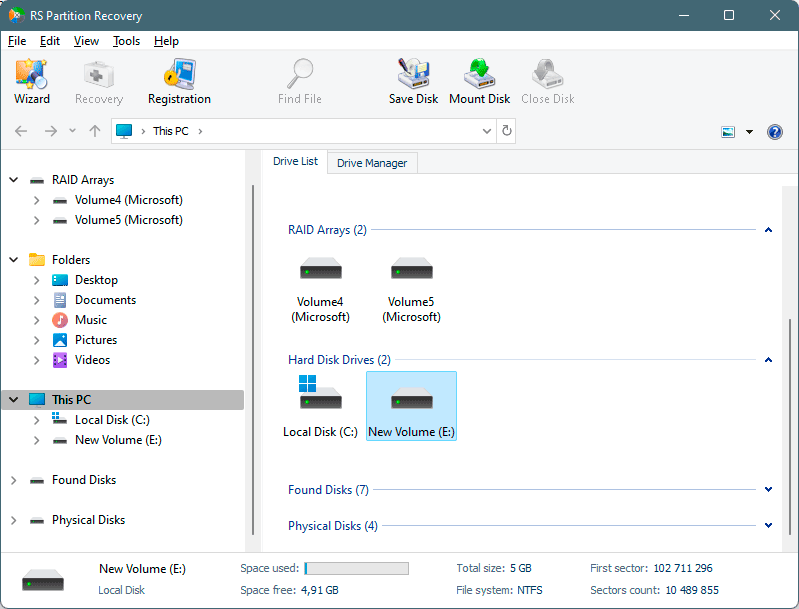
Step 2. Select the drive or partition from which you want to recover data.
Step 3. Choose the type of analysis.
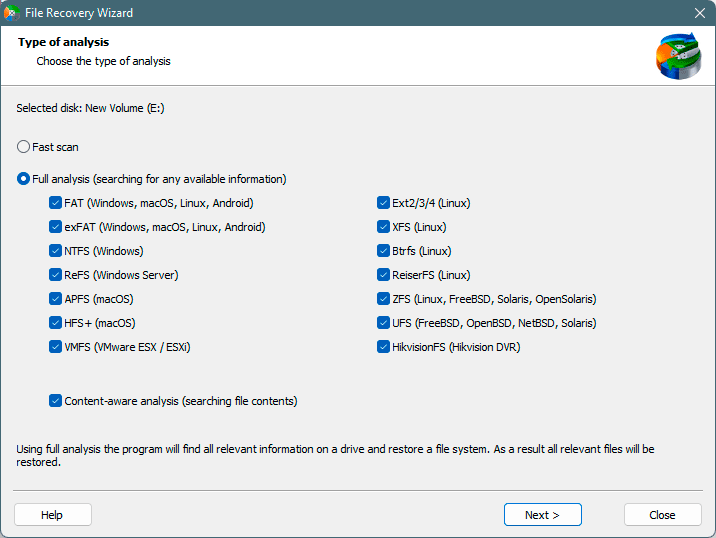
Fast scan you should use in case the file was lost recently. The program will scan the drive quickly and show the files available for recovery.
The Full analysis function allows you to find lost data, after formatting, disc resizing, or file structure corruption (RAW).
Step 4. Preview and select the files to recover it.
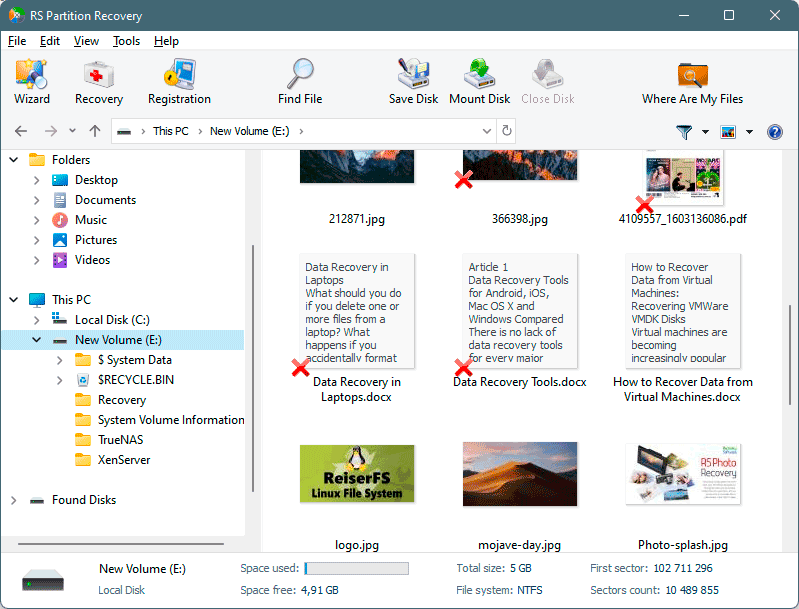
Step 5. Add the files you want to save to the "Restore list" or select the entire partition and click Recovery.
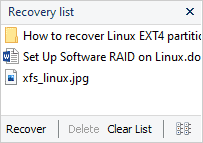
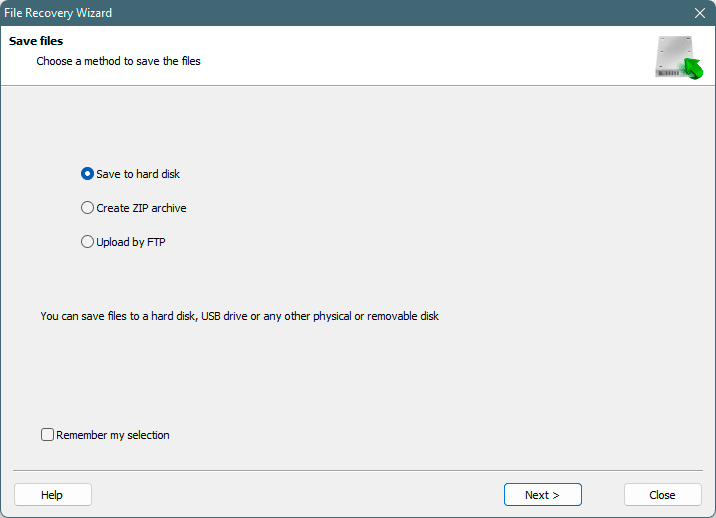
It should be noted that it is best to save the recovered file to an external hard drive or USB flash drive.
The key advantages of recovery software include its ability to find files that other methods miss, support for various storage devices including external drives and memory cards, and the capability to recover different file types from documents to photos and videos. Modern recovery tools also include repair functions for corrupted files, making them valuable even when files aren’t completely deleted but have become damaged.
Recovery rates vary based on the factors we discussed earlier: time since deletion, drive type, and usage patterns. However, good recovery software gives you the best chance of success when simpler methods fail.
Method 2: Check Windows File History
If you’re one of the organized users who enabled File History before disaster struck, you’re in luck. This built-in Windows feature automatically creates backup copies of your files at regular intervals.
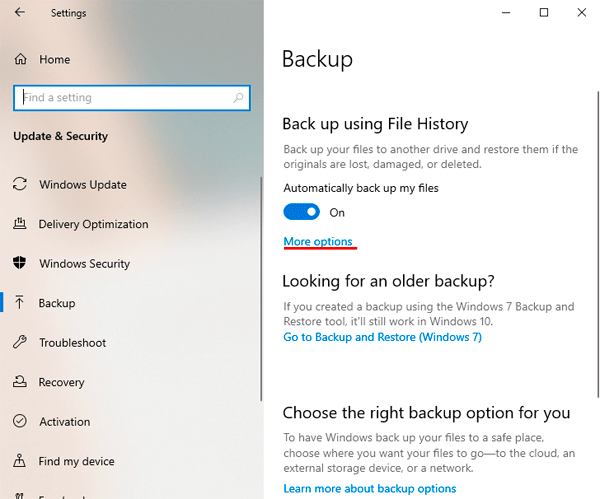
File History focuses on your personal folders: Documents, Pictures, Desktop, Music, and Videos. By default, it saves new versions of your files every hour, giving you multiple restore points to choose from.
However, there’s a catch: File History only helps if it was enabled before you deleted your files. If you see a message saying “No previous versions available,” it means this feature wasn’t active, and you’ll need to try alternative methods. If File History saves you this time, take a moment afterward to ensure it stays enabled for future protection.
Method 3: Try Windows Backup and Restore
Even though it’s labeled “Windows 7” in the settings, the Backup and Restore feature still works perfectly in Windows 10 and Windows 11. This tool creates complete backup copies of your files and even entire system images if configured properly.
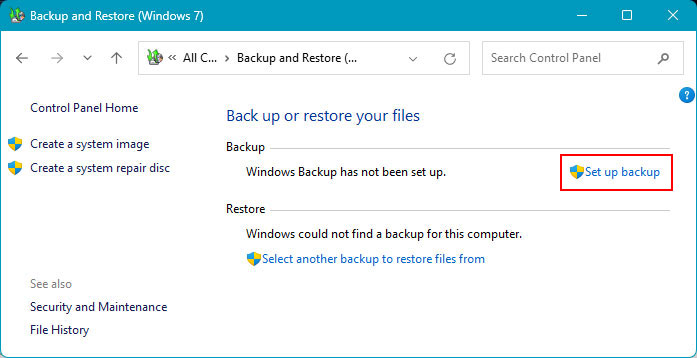
This method works wonderfully for users who had the foresight to configure regular system backups. The restored files will be exactly as they were when the backup was created, which means you won’t lose any work from that point backward.
The limitation, as with File History, is that backups must exist for this method to work. If you never set up Backup and Restore, or if your last backup was made before you created the files you need, this approach won’t help. Still, it’s worth checking, as some computers come with automatic backups preconfigured by manufacturers or IT departments.
Method 4: Look in Cloud Storage
In our connected world, many files automatically sync to cloud services without us even thinking about it. If you use OneDrive, Google Drive, Dropbox, or similar platforms, there’s a good chance your deleted files are sitting safely in the cloud’s recycle bin.
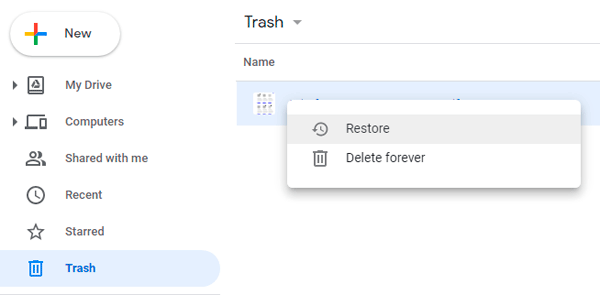
OneDrive, which comes integrated with modern Windows versions, automatically backs up your Desktop, Documents, and Pictures folders if you’ve enabled the sync feature. Even after you permanently delete a file from your computer, OneDrive keeps it in its recycle bin for 30 days.
To check OneDrive, visit the OneDrive website and sign in with your Microsoft account. Look for the Recycle Bin option in the left menu. If your files are there, simply select them and click Restore to bring them back to their original locations.
Other cloud services work similarly. Google Drive has a Trash folder that holds deleted items for 30 days. Dropbox maintains deleted files for 30 days on free accounts and up to 180 days on paid plans. Even if you weren’t consciously saving files to the cloud, automatic synchronization features might have created backups without you realizing it.
Method 5: Windows File Recovery Tool
Microsoft offers its own command-line recovery utility called Windows File Recovery, available free from the Microsoft Store. While it lacks a graphical interface and requires some technical comfort, it’s a legitimate option that doesn’t cost anything.
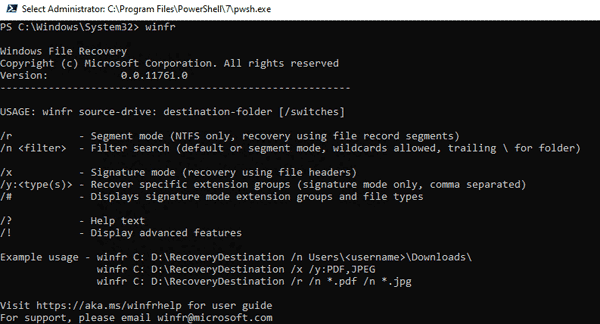
This tool works through Command Prompt, where you type specific commands to scan drives and recover files. The basic command structure looks like this: winfr C: D: /regular /n \Users\YourName\Documents\
The command-line nature makes this tool less approachable for casual users. You need to understand drive letters, file paths, and various command switches. However, for users comfortable with these concepts, it provides a free alternative to commercial recovery software.
The main drawback is the learning curve and the lack of file preview. You won’t see thumbnails of photos or read document contents before recovery. The tool simply finds matching files and restores them, leaving you to verify afterward whether you got what you needed
Maximizing Your Recovery Success
Regardless of which recovery method you choose, certain practices significantly improve your chances of getting your files back intact.
- Act immediately. The moment you realize you’ve deleted important files, stop what you’re doing and begin recovery efforts. Every minute counts, especially on frequently used systems. Even seemingly innocent actions like browsing the web or checking email can trigger background processes that write data to your drive.
- Avoid repeated recovery attempts. If one method doesn’t work, don’t keep trying it over and over. Each scan and recovery attempt could potentially write data, reducing future recovery chances. Try a different approach instead
- Save recovered files to a different location. Never recover files to the same drive they were deleted from. This risks overwriting other recoverable data. Use an external drive, USB stick, or different internal partition as your recovery destination.
- Consider the file types you need. Different types of files have different recovery prospects. Simple text documents often recover completely. Complex files like databases or video files might recover but with some corruption. Photos typically recover well unless they’ve been partially overwritten.
Prevention: Learning from the Experience
Successfully recovering your deleted files should serve as a wake-up call about backup practices. Here’s how to avoid finding yourself in this situation again.
- Traditional hard drives (HDDs) use spinning platters to store data magnetically. When you delete files, that magnetic data remains until specifically overwritten. This makes HDDs more forgiving for recovery purposes. Deep scans can find data that’s been deleted for weeks or months if the space hasn’t been reused.
- Solid state drives (SSDs) store data electronically in memory chips. They’re faster and more reliable than HDDs but more challenging for recovery. The TRIM command, which most modern SSDs use, actively clears deleted data blocks to maintain performance. Once TRIM runs, that data is truly gone.
You can check whether TRIM is active on your Windows SSD through Command Prompt. The status affects your recovery approach: with TRIM disabled, SSD recovery resembles HDD recovery. With TRIM enabled, speed becomes even more critical. - External drives and USB sticks can be either HDD or SSD based. Disconnecting them immediately after accidental deletion prevents any write operations, maximizing recovery chances. This ability to isolate external storage from system processes gives them an advantage over internal drives when it comes to recovery.
Recovering files after pressing Shift+Delete isn’t guaranteed, but it’s far from hopeless. Success depends on understanding what really happens during deletion, acting quickly, choosing the right recovery method for your situation, and having realistic expectations based on your storage device and usage patterns.
Built-in Windows features like File History and Backup and Restore offer the easiest recovery paths when they’re available. Cloud storage provides excellent protection if you’ve enabled synchronization. When these options aren’t available, recovery software provides powerful scanning capabilities to find and restore deleted data.








I’ve actually encountered both the classic Blue Screen of Death and the newer Black Screen version in Windows 11, and honestly the color change doesn’t make troubleshooting any less stressful. The QR codes and simplified messages are useful for casual users, but detailed error info is still what really helps diagnose the issue. In situations like these, I’ve found tools like RS Partition Recovery or Stellar Data Recovery professional valuable for recovering important files before attempting deeper system repairs.