recovery

  • |
  • |
  • 5 min. Reading |

In the first article called “How SSD Drives Permanently Erase Deleted Data” we described the reasons for SSD drives to erase your data permanently as soon as you erase a file, quick-format the disk or delete a partition. Sounds scary, doesn’t it? However, this is not always the case. More often than not, your files will still be there on the SSD drive, ready to be recovered. Let’s see when this happens.

  • |
  • |
  • 3 min. Reading |

In recent years, we’ve seen a large number of tools marketed as data recovery solutions. However, when testing some of these tools, we discovered that not all of them are fit to the job. The major differentiating factor is the type (or types) of data recovery algorithms used in these tools. But first let’s look at what happens when Windows deletes a file.
  • |
  • |
  • 3 min. Reading |

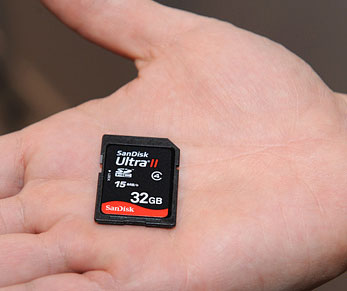
In Part I of this article, we discussed how microcontrollers are used in all SD cards to hide physical chip defects to create an illusion of contiguous, reliable storage. Today we’ll talk about how reliable (or unreliable) SD cards are when used for storing actual data, and what to do if you have a corrupted one.

  • |
  • |
  • 8 min. Reading |

Quick-formatting a disk does not physically erase information stored on the disk, allowing a data recovery tool to recover everything down to the last file. Wrong! The Quick Format command destroys enough information to make the recovery complicated, while making the result unguaranteed. In this technical article we’ll try to shed light on what happens when you format a disk using the Quick Format command; what can be recovered, and what can’t, and why.

  • |
  • |
  • 4 min. Reading |
File Recovery Limitations

File recovery tools have their limits. If you are recovering small, recently deleted files that are not fragmented, you may never need a file repair tool as such files will usually present no problems.

  • |
  • |
  • 3 min. Reading |

If you had to recover a bunch of files, chances are one or more of them won’t open correctly. Some files will always come out corrupted or incomplete, no matter how good a recovery tool you were using. In order to be able to view, edit, or otherwise use these files, you will need to repair the files first.

Dealing with missing information on a daily basis, we often have customers who are stuck with a non-bootable computer. This can easily happen if a system disk drive gets damaged, corrupted or simply wears out. This always comes as a shock to normal computer users, especially if the failed PC is their only computer. Every time we have a call like that, we try to help the customer calm down, explaining them the necessary steps to get their files back. In this article, we’ll tell exactly what to do if you encounter a non-bootable PC and want to fix it at home.

Online Chat with Recovery Software