When the NAS WD My Cloud EX2stops responding or your data becomes inaccessible, the consequences can be critical. Disk failures, RAID corruption, firmware errors, or accidental deletions often leave users searching for a reliable recovery solution. In this guide, we show how to restore lost files from the NAS WD My Cloud EX2quickly and safely, using proven techniques that protect your storage from further damage.
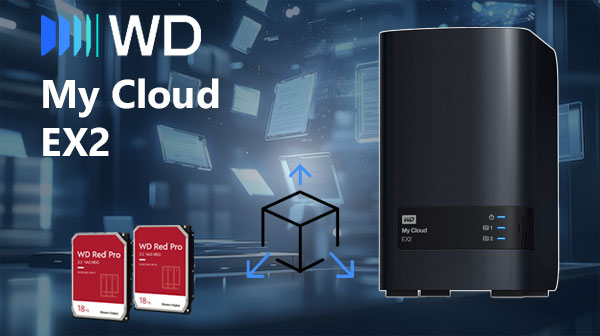
Detailed NAS Hardware Architecture and RAID-Level Technical Insights
The WD My Cloud EX2 NAS provides a robust hardware platform featuring 2 SATA bays, a dedicated RAID controller, and support for EXT4 and Btrfs with full metadata journaling. RAID 0/1 implementations rely on stripe-based block distribution with synchronized parity-free writes. The system stores critical RAID metadata (superblocks, partition layout, chunk size, member order) on each disk, allowing reconstruction after partial array degradation.
During professional data recovery, forensic analysis focuses on block offsets, stripe sequencing, mdadm signatures, and file-system–level structures to reassemble the logical volume with byte-level accuracy.
Technical Specifics of Data Recovery on WD My Cloud EX2
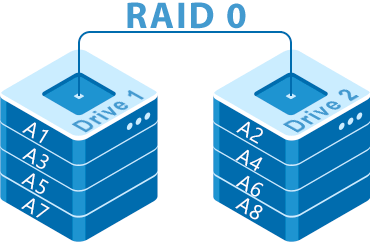
Data recovery on the WD My Cloud EX2 requires understanding of its dual-bay architecture and RAID metadata layout. RAID 0 stripes are distributed in fixed-size blocks, while RAID 1 mirrors maintain identical superblocks across disks. The device typically utilizes EXT4 or Btrfs, each with its own journal and tree-structure constraints. During recovery, drives must be imaged sector-by-sector to prevent metadata corruption, and RAID parameters (chunk size, order, layout) must be reconstructed manually or via specialized tools.
Main Features of the NAS WD My Cloud EX2
| Drive Bays | Supported Drives | Hot Swappable | RAID Levels | File Systems | Maximum volume |
| 2 | 2.5" or 3.5" HDD | ✗ | RAID 0, RAID 1, JBOD | EXT4 | 12 Tb |
The unit implements a mirrored storage layout consistent with RAID 1 semantics layered over an EXT4 filesystem; alternate presentation modes include RAID 0 and JBOD but the diagnostic focus here is on the mirrored pair operation. The device runs My Cloud OS 3 on a Marvell platform (Marvell Armada 370) with 512MB DDR3 of system memory and explicitly no SSD cache (SSD cache: No). Given those constraints, the single most probable model-specific failure point is the NAS management stack in My Cloud OS 3 interacting with limited RAM, producing corruption of on-disk metadata for the mirror or the EXT4 filesystem rather than a raw media failure.
When mirror or filesystem metadata is corrupted by the management layer the logical namespace cannot be mounted even though blocks may be intact; the symptom is an unmountable EXT4 volume rather than universally unreadable disks. Recovery outside the NAS therefore relies on treating the drives as constituents of a RAID 1 set and accessing their EXT4 metadata on an external host: attach the physical disks to a recovery system that understands mirror layouts, import or assemble the mirrored members without relying on the original OS, mount the filesystem read-only to extract data, and rebuild metadata or resynchronize mirrors after extraction.
Your NAS Failed? Recover Every File with This High-Success 7-Step Method
When your 2-disk NAS collapses — whether from RAID damage, unexpected power loss, disk failure or accidental deletion — it feels like the world stops. But don’t panic: with the right recovery workflow, your photos, business documents, videos, archives and memories can still be restored. Follow this premium, high-success recovery method trusted by thousands of technicians and home users.
-
Step 1 Power off the NAS and safely remove both drives.
Shut down the device completely and extract the disks with care. Mark them as “Disk 1” and “Disk 2”. This preserves the original RAID order — a crucial condition for an accurate reconstruction.
-
Step 2 Connect the drives directly to your PC.
Use SATA ports or high-quality adapters. Both disks must be available simultaneously so the software can analyze block structures and reassemble the RAID layout.
-
Step 3 Launch a professional NAS recovery tool.
Open RS RAID Retrieve. It automatically scans the metadata, detects the logical RAID pattern, reconstructs the original volume and prepares it for deep analysis.

Data recovery from damaged RAID arrays
Available for: Windows, macOS, Linux -
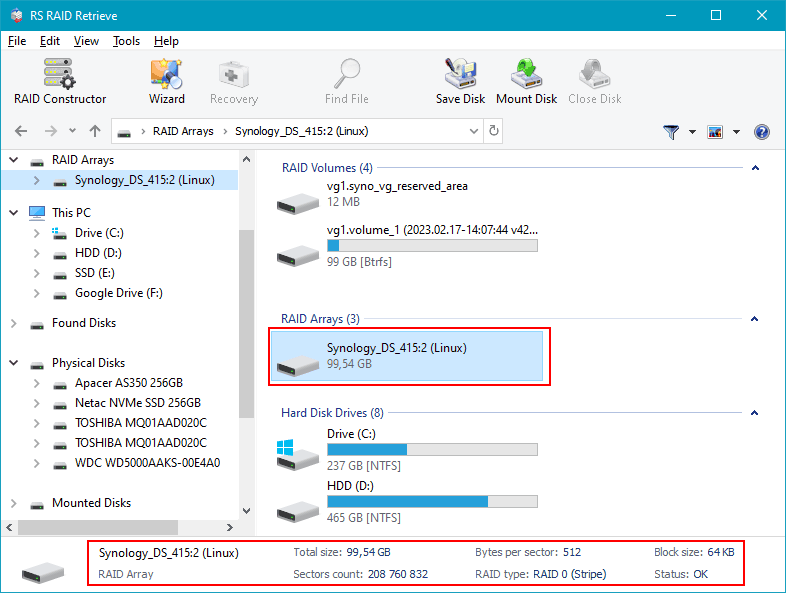
Step 4 Verify RAID configuration.
The program identifies RAID type, block size, disk order and parity rotation. You can adjust parameters manually if your NAS used a non-standard scheme.
-
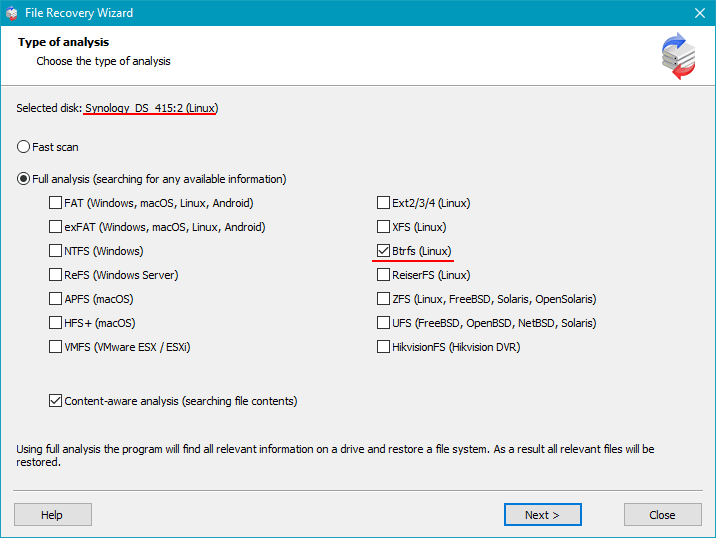
Step 5 Start deep scanning.
RS RAID Retrieve rebuilds directory structures, extracts deleted files, restores fragmented data and recovers documents, multimedia and archives even from damaged file systems.
-
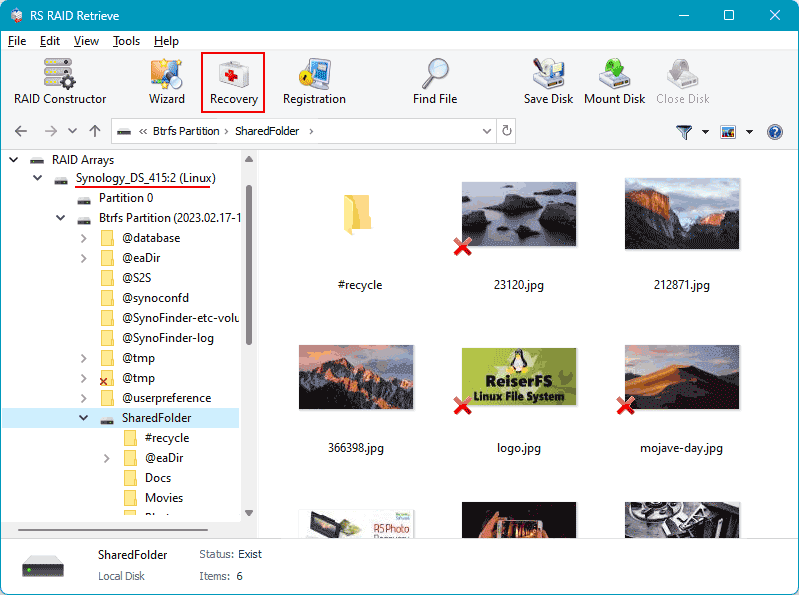
Step 6 Review recovered files.
Browse through folders, preview images and videos, check documents and confirm successful recovery before exporting them.
-
Step 7 Save everything to a safe location.
Choose an external drive or a separate partition. Avoid writing back to the original NAS disks to prevent overwriting.
Tip: The earlier you begin the recovery, the higher your data-restoration success rate.
Why RAID Fails in a 2-Disk NAS WD My Cloud EX2 — And How to Protect Your Data Before It’s Too Late
When a 2-disk NAS WD My Cloud EX2 experiences RAID failure, it rarely happens “all at once.” Instead, subtle warning signs appear long before the system collapses — and ignoring them often leads to total data loss. Understanding these signals can save not just files, but years of memories, business records, and irreplaceable digital assets.
Early warnings you shouldn’t ignore. Most RAID failures begin quietly: a disk slows down, the NAS takes longer to respond, or your usual fast file access suddenly becomes sluggish. These signs are emotional red flags — your NAS is trying to “tell you” something is wrong.
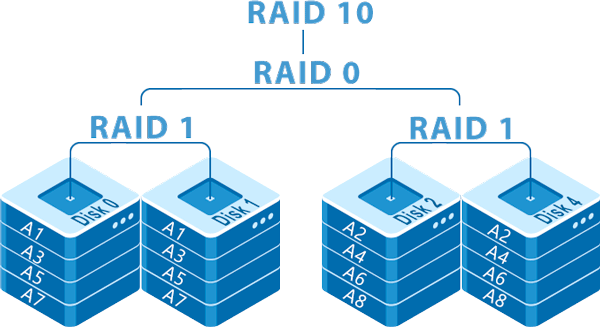
Why does RAID in a 2-disk NAS fail? Even reliable WD My Cloud EX2 units depend on perfectly synchronized drives. When one disk behaves even slightly out of rhythm — increased SMART errors, unstable sectors, overheating — the entire array becomes vulnerable. In RAID 0, a single failing disk destroys everything instantly. In RAID 1, users often discover the truth only after both disks degrade in sequence.
Typical triggers that lead to RAID collapse include:
- Silent disk degradation masked by automatic NAS error correction;
- Power interruptions that desynchronize RAID metadata;
- Wear-and-tear on consumer-grade drives used 24/7;
- Firmware glitches causing a RAID rebuild loop that never finishes.
And here’s the emotional reality: the moment files stop opening, or the NAS shows “Degraded / Crashed Volume,” panic kicks in. But this is exactly when calm, correct actions matter most. Every minute of blind troubleshooting risks overwriting the only remaining good data blocks.
Your best move? Power down the NAS, avoid rebuild attempts, and start professional data recovery immediately. For 2-disk NAS WD My Cloud EX2 systems, timely intervention is the difference between full recovery and permanent loss.