Hardware Overview of NAS WD My Cloud Expert EX2 Ultra
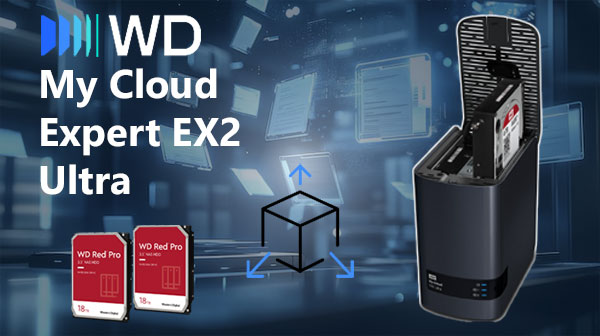
The WD My Cloud Expert EX2 Ultra NAS comes with 2 drive slots, making it a simple and reliable solution for everyday storage needs. Even if you’re new to NAS devices, the setup is straightforward: install your drives, choose RAID 0 for speed or RAID 1 for safety, and you're ready to go. The system uses either EXT4 or Btrfs file formats, both designed to keep your files organized and protected.
If something goes wrong—like a disk failure or accidental deletion—understanding these basic technical details helps you restore your data more effectively.
How Data Recovery Works on WD My Cloud Expert EX2 Ultra
Two-bay NAS models like WD My Cloud Expert EX2 Ultra store data either by splitting it between both disks (RAID 0) or by keeping a duplicate copy (RAID 1). Recovery becomes necessary when one or both drives stop working or when the file system is damaged. With RAID 0, even one failed disk makes the data unreadable, while RAID 1 usually preserves access unless both disks fail. To restore files, the drives must be removed from the NAS and scanned with dedicated recovery software.
Main Features of the NAS WD My Cloud Expert EX2 Ultra
| Drive Bays | Supported Drives | Hot Swappable | RAID Levels | File Systems | Maximum volume |
| 2 | 2.5" or 3.5" HDD, SSD | ✗ | RAID 0, RAID 1, JBOD | EXT4 | 36 Tb |
The device is configured to operate as RAID 1, presenting a mirrored block layout managed by My Cloud OS 5 on a Marvell Armada 385 platform with 1GB DDR3 and an EXT4 filesystem; SSD cache is explicitly absent. From those explicit elements, the single most probable model-specific failure point is EXT4 metadata or journal inconsistency arising during array activity (for example rebuild/resync or service interruption) where the constrained RAM and embedded SoC throughput increase the likelihood that on-disk metadata becomes unsynchronized between mirrors.
When EXT4 metadata or journal state is inconsistent the filesystem can fail to mount or expose a coherent namespace, producing logical inaccessibility even though raw blocks remain on the disks. Recovery outside the NAS therefore follows directly from the stack provided: present the constituent drives to an external host that can interpret a RAID 1 mirror and read EXT4, treat on-disk state as authoritative (SSD cache is not available to mask writes), then reassemble or image the disks and use EXT4-aware repair or copy procedures on those images to restore logical file access.
Step-by-step guide to recover data from NAS WD My Cloud Expert EX2 Ultra
Data recovery from a two-disk NAS (WD My Cloud Expert EX2 Ultra) is possible even in cases of RAID failure, file-system corruption or a complete hardware malfunction. Follow this clear and accessible guide, designed both for beginners and for users discovering NAS recovery procedures for the first time.
-
Step 1 Power off the NAS and remove the drives.
Shut the NAS down completely and carefully remove both disks. Note their original order (Disk 1 / Disk 2), which is essential for correct RAID reconstruction.
-
Step 2 Connect the drives to your computer.
Use internal SATA ports or USB–SATA adapters. Both drives must be connected simultaneously so the software can analyze the RAID metadata.
-
Step 3 Launch the NAS recovery software.
Open RS RAID Retrieve. The program will detect RAID signatures, analyze blocks and reconstruct the original NAS structure.

Data recovery from damaged RAID arrays
Available for: Windows, macOS, Linux -
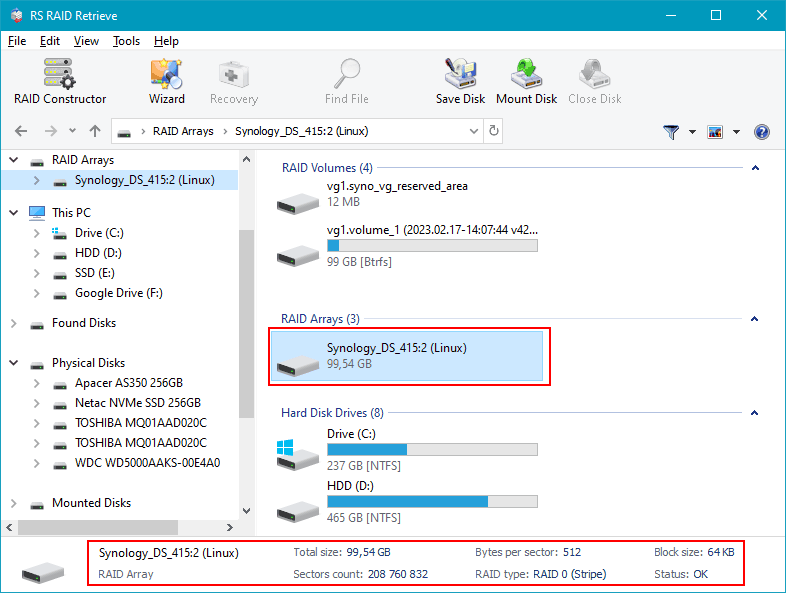
Step 4 Review or manually adjust RAID parameters.
Automatic detection works in most cases, but you can fine-tune the RAID level, block size or disk order if needed.
-
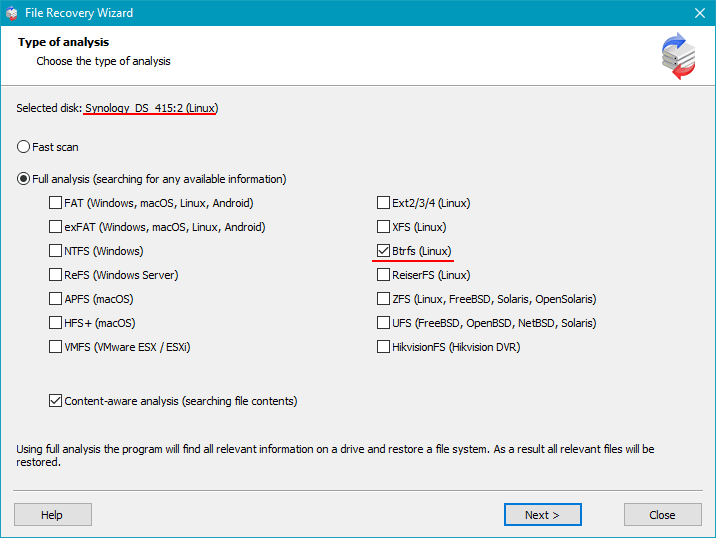
Step 5 Start a deep scan.
Run a full analysis to rebuild the folder tree and recover deleted files, even if fragmented.
-
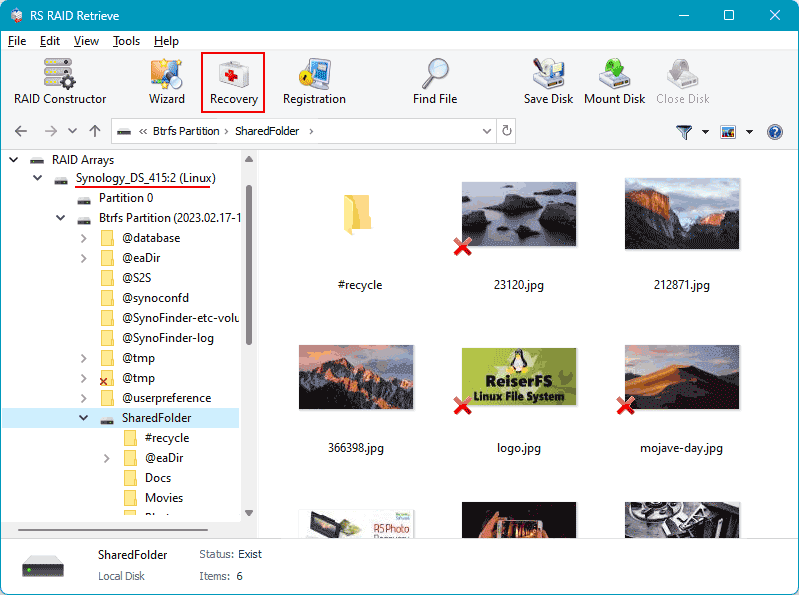
Step 6 Review the scan results.
When the analysis completes, the complete NAS structure appears. Check that your documents, photos, videos and archives are accessible.
-
Step 7 Save your recovered data.
Store the files on another disk or an external drive. Never write anything to the original NAS drives.
Tip: Keep the NAS disks in read-only mode to avoid permanent data loss.
Technical causes and diagnostic steps for 2-disk NAS RAID failures
The failure of a RAID array in a 2-disk NAS WD My Cloud Expert EX2 Ultra typically occurs due to several low-level processes breaking down simultaneously. RAID metadata corruption, disk desynchronization, sector-level degradation, and controller instability together contribute to the gradual or sudden loss of redundancy. Below is a structured technical breakdown of how RAID failure usually develops and why data recovery becomes necessary.
Step 1: Initial disk instability detected through SMART anomalies. Early RAID degradation is often reflected in rising reallocated sector counts, unstable read times, or intermittent I/O delays. Even if the NAS does not yet show an error, delays in block access can cause the RAID engine to fail parity or mirror synchronization.
Step 2: The NAS WD My Cloud Expert EX2 Ultra controller marks one drive as “Abnormal.” When the controller repeatedly encounters unreadable sectors or timeout events, it isolates the disk. At this stage the drive may still appear “online,” but internal mechanisms already prevent accurate parity calculations.
Step 3: The drive becomes undetectable or is automatically removed from the array. Firmware lock-ups, voltage fluctuations, or head-positioning errors often cause the drive to disconnect completely. Once this happens, the RAID enters a degraded state where redundancy no longer exists.
Step 4: RAID metadata becomes inconsistent. With missing writes, corrupted parity blocks, or incomplete mirror updates, the RAID superblock may lose alignment. As a result, the NAS may fail to mount the array or show the volume as “Crashed.”
Step 5: File access issues escalate. Users typically begin noticing corrupted files, disappearing folders, or long delays opening large directories. In RAID 0 configurations, even a single disk failure leads to immediate data loss across the entire array.
- SMART degradation and growing sector instability
- Array desynchronization due to timeout errors
- Controller-level RAID metadata corruption
- Low-level file system damage on degraded volumes
Common Causes of Data Loss in NAS Devices
Data loss in NAS systems often occurs due to RAID failures, accidental deletion, firmware corruption, disk degradation, and power outages. Misconfigured RAID arrays or simultaneous disk failures also frequently lead to inaccessible volumes or damaged file structures.