Recovering data from a NAS WD My Cloud Pro PR2100 becomes essential when the device stops responding, the RAID array degrades, or important files suddenly disappear. Disk failures, firmware issues, accidental deletion, or logical corruption can make the storage inaccessible. In this guide, we explain the main causes of data loss on the NAS WD My Cloud Pro PR2100 and outline safe methods to restore access without risking further damage.

Technical Specifications of NAS WD My Cloud Pro PR2100
The NAS WD My Cloud Pro PR2100 is equipped with 2 drive bays, allowing users to build a balanced storage environment tailored to home or small office needs. Depending on the installed drives, the model supports RAID 0 and RAID 1, providing either improved performance or mirrored protection. It also works with EXT4 or Btrfs, both of which influence how metadata and snapshots are handled—important factors during data recovery.
When restoring data from the WD My Cloud Pro PR2100, the RAID layout, block order and filesystem type should be considered, as they determine how files can be reconstructed after disk failure or accidental deletion.
Key Specifics of Data Recovery on WD My Cloud Pro PR2100
Recovering data from a WD My Cloud Pro PR2100 NAS requires understanding how two-bay systems manage storage. These devices typically support RAID 0 for performance and RAID 1 for redundancy. In RAID 0, losing a single disk causes the entire array to fail, making specialized software essential for reconstruction. In RAID 1, data mirroring increases protection, but corruption of both drives or damage to EXT4/Btrfs file systems still requires connecting disks directly to a computer for recovery.
Two-bay NAS units are frequently used for storing photos, videos, and work archives, so recovery often focuses on personal media and office documents.
Main Features of the NAS WD My Cloud Pro PR2100
| Drive Bays | Supported Drives | Hot Swappable | RAID Levels | File Systems | Maximum volume |
| 2 | 2.5" or 3.5" HDD, SSD | ✗ | RAID 0, RAID 1, JBOD | EXT4 | 40 Tb |
The device is configured to operate in a mirrored topology (RAID 1), where logical blocks are reflected across drives and the on-device filesystem is EXT4. The system stack explicitly includes My Cloud OS 5 running on an Intel Pentium N3710 with 4GB DDR3L, and there is No SSD cache layer to obscure block placement. Analytically, the single most probable model-specific failure point is the My Cloud OS 5 management of RAID metadata and EXT4 metadata: corruption, misconfiguration, or incomplete metadata updates at the OS layer will prevent correct mirror assembly even though mirrored blocks physically exist on the drives.
When metadata that maps mirrored extents or the EXT4 superblock is damaged by the OS layer the array cannot be assembled and the filesystem will not mount, producing logical inaccessibility despite intact raw copies. Recovery outside the NAS therefore follows a single principle: bypass the device firmware/OS and access the raw block devices directly, treating the layout as a mirror and locating a consistent EXT4 instance to mount or image. Because there is No SSD cache, there is no separate caching layer to reconcile; successful recovery is achieved by externally reading the raw blocks, reconstructing or ignoring faulty metadata, and mounting the underlying EXT4 filesystem to extract data.
Step-by-Step Guide to Recover Data from NAS WD My Cloud Pro PR2100
Recovering data from a two-bay NAS WD My Cloud Pro PR2100 is possible even after RAID corruption, disk failure, or file-system issues (EXT4/Btrfs). Follow this step-by-step procedure to safely restore your files:
-
Step 1 Power off the NAS and remove both drives.
Shut down the device completely and carefully extract the disks. Note their exact order — it is essential for RAID reconstruction.
-
Step 2 Connect the drives to your PC.
Use SATA ports or USB-to-SATA adapters. Both drives must be detected at the same time for correct RAID assembly.
-
Step 3 Launch the NAS recovery software.
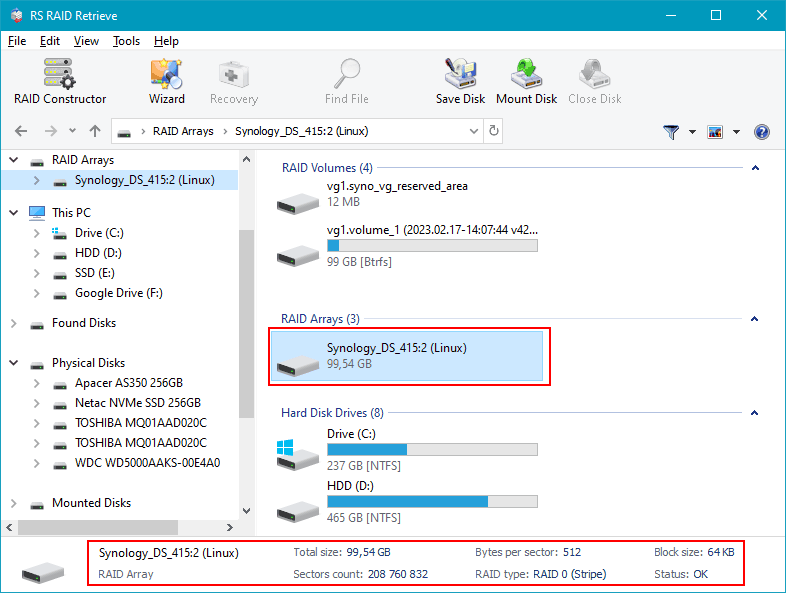
Open RS RAID Retrieve. The program will scan both disks and automatically detect the original RAID layout. Verify the parameters displayed at the bottom of the screen.

Data recovery from damaged RAID arrays
Available for: Windows, macOS, Linux -
Step 4 Confirm or adjust RAID configuration.
If automatic detection fails, manually set RAID 0 or RAID 1 parameters.
-
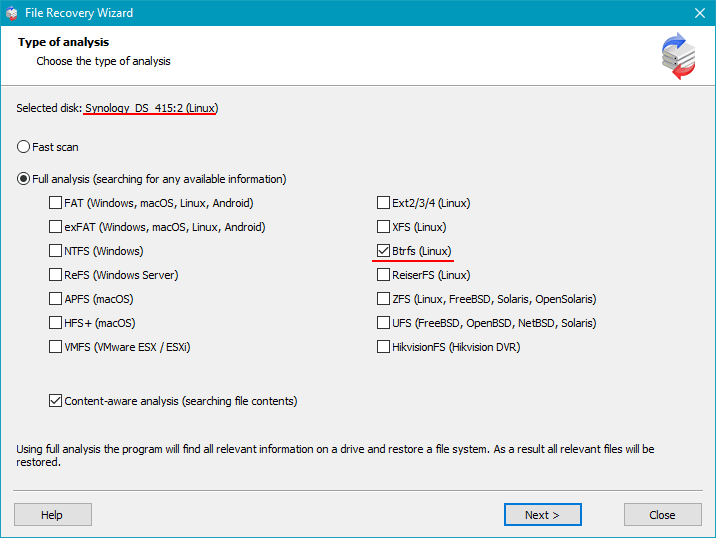
Step 5 Run a full scan.
The software rebuilds the file system structure and searches for deleted or corrupted files.
-
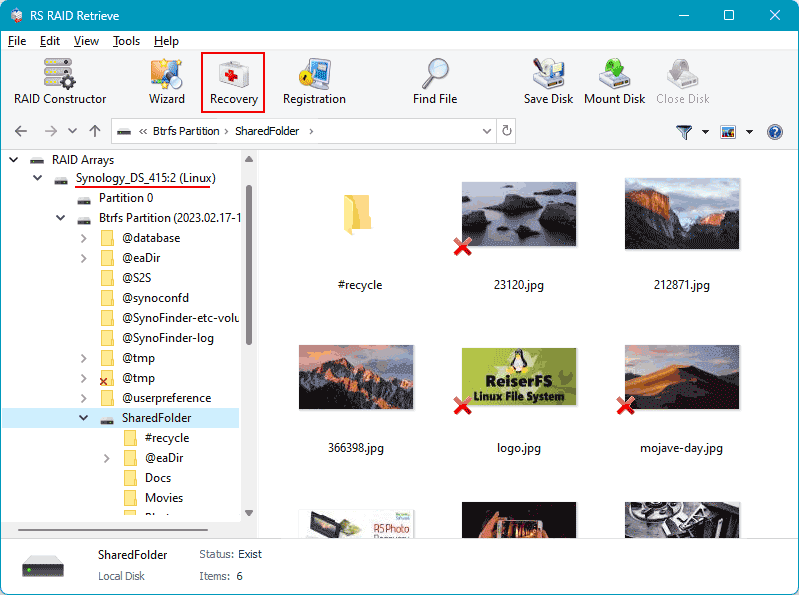
Step 6 Review the recovered folders.
Browse photos, videos, documents, and check integrity before exporting.
-
Step 7 Save your recovered data.
Select a different drive or partition to avoid overwriting original disks.
Tip: Never write new data to the original NAS drives during recovery.
Why RAID fails in 2-disk NAS WD My Cloud Pro PR2100
The failure of a RAID array in a 2-disk NAS WD My Cloud Pro PR2100 is typically caused by a combination of hardware wear, unstable system conditions, and file-system-level inconsistencies. Since a two-bay NAS relies heavily on synchronized disk operation, even minor deviations in performance or SMART parameters may lead to a rapid degradation of the array. Below are the most common technical reasons why a RAID configuration may fail, making data recovery necessary.
1. One disk becomes undetectable. In many NAS WD My Cloud Pro PR2100 recovery cases, the RAID failure starts when one of the drives suddenly disappears from the system dashboard. The NAS controller stops seeing the HDD/SSD because of firmware issues, electrical problems, or mechanical wear.
2. Noticeable performance slowdown. A failing RAID in a 2-disk setup often results in slow file access, reduced read/write speed, and delays when opening folders. These symptoms indicate that disk synchronization is breaking down and that the system is struggling to rebuild parity or mirror data.
3. “Degraded” or “Crashed Volume” status. When the NAS marks the array as Degraded, it signals that redundancy has been lost and RAID integrity is compromised. If not addressed, the array may transition to a Crashed Volume state, requiring immediate professional recovery.
4. Files become inaccessible. In RAID 0 or in certain simultaneous failure scenarios involving both disks, the system may no longer open files or may generate errors such as “File Corrupted” or “Directory Unavailable.”
- Undetected disk events
- Parity or mirror synchronization errors
- Low-level sector degradation and SMART failures
- Unplanned shutdowns leading to RAID metadata corruption
The main causes of data loss in NAS devices
Disk failure. Physical malfunction of HDD or SSD is a common reason for data loss, especially in 2-disk NAS systems affecting RAID0 and important for RAID1.
Human errors (deletion, formatting). Accidental deletion or incorrect formatting can result in inaccessible files, requiring prompt recovery actions.
Firmware or DSM update errors. Improper system updates may corrupt partition tables or file metadata, causing data loss.
Power problems and sudden shutdowns. Unexpected power interruptions during write operations can damage file systems and compromise RAID integrity.