When the RAID array on NAS Synology DS720+ becomes degraded or corrupted, access to your data may be lost instantly. RAID 1 mirror failure, disk desynchronization, or metadata corruption are among the most common issues. This guide explores typical RAID failures affecting the NAS Synology DS720+ and how to recover data without rebuilding the array incorrectly.
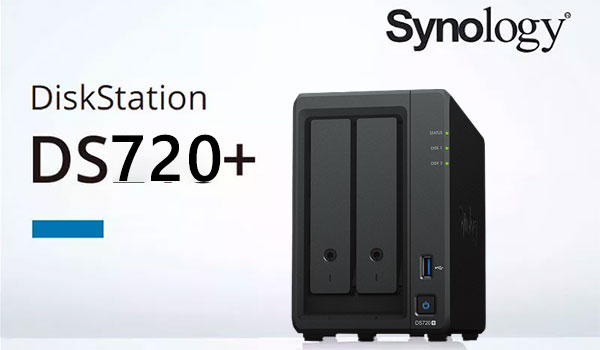
Technical Specifications of NAS Synology DS720+
The NAS Synology DS720+ is equipped with 2 drive bays, allowing users to build a balanced storage environment tailored to home or small office needs. Depending on the installed drives, the model supports RAID 0 and RAID 1, providing either improved performance or mirrored protection. It also works with EXT4 or Btrfs, both of which influence how metadata and snapshots are handled—important factors during data recovery.
When restoring data from the Synology DS720+, the RAID layout, block order and filesystem type should be considered, as they determine how files can be reconstructed after disk failure or accidental deletion.
How Data Recovery Works on Synology DS720+
Two-bay NAS models like Synology DS720+ store data either by splitting it between both disks (RAID 0) or by keeping a duplicate copy (RAID 1). Recovery becomes necessary when one or both drives stop working or when the file system is damaged. With RAID 0, even one failed disk makes the data unreadable, while RAID 1 usually preserves access unless both disks fail. To restore files, the drives must be removed from the NAS and scanned with dedicated recovery software.
Main Features of the Synology DS720+ NAS
| Drive Bays | Supported Drives | Hot Swappable | Supported RAID | File Systems | Maximum volume |
| 2 | 2.5" or 3.5" SATA | ✓ | RAID 0, RAID 1, JBOD, SHR | EXT4, BTRFS | 32 Tb |
On the DS720+ the physical to logical stack is: RAID arrays managed by Synology’s implementation of SHR (software RAID built on mdadm), an intermediate logical volume layer and the filesystem layer using EXT4 or Btrfs, all orchestrated by DSM 7.2. Model-specific failure points include mdadm metadata corruption when RAID resyncs are interrupted, Btrfs metadata tree damage under heavy IO, and complications from the optional SSD cache where dirty blocks may not have been flushed to disks. Limited RAM and DSM process crashes can leave volume metadata inconsistent; CPU interruptions during metadata writes increase the risk of superblock or Btrfs tree corruption.
Logical inaccessibility typically arises when the RAID layer cannot be correctly assembled (damaged superblocks or mismatched mdadm SHR layouts), the logical volume header is altered, or the filesystem journal/trees are inconsistent. Recovery principle: image all drives first, then assemble arrays externally on a Linux workstation using mdadm knowledge of SHR layouts, avoid mounting read-write, and apply filesystem-specific recovery tools for Btrfs or EXT4. Include SSD cache contents in the forensic image or recreate cache state before any write operations to prevent additional inconsistency.
Easy Guide: How to Recover Data From a Two-Disk NAS
If your two-disk NAS (Synology DS720+) suddenly stopped working, lost its RAID, or became inaccessible, don’t panic — recovering your files is usually possible. This beginner-friendly guide explains every step clearly, even if you’ve never worked with RAID before.
-
Step 1 Turn off the NAS and remove the drives.
Make sure the device is completely powered down, then gently remove both disks. Keep track of which disk was “Disk 1” and which was “Disk 2” — the order matters when rebuilding RAID.
-
Step 2 Connect the drives to your PC.
You can plug them directly into SATA ports or use USB adapters. The important part: both disks must be connected at the same time so the recovery software can detect the RAID structure.
-
Step 3 Start NAS recovery software.
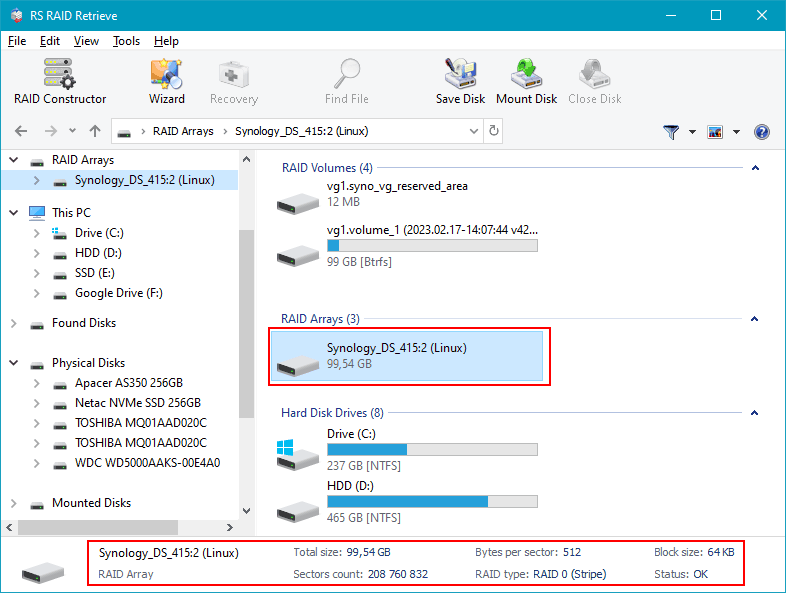
Open RS RAID Retrieve and let it scan the drives. The program will automatically search for RAID metadata and show the detected configuration at the bottom of the window.

Data recovery from damaged RAID arrays
Available for: Windows, macOS, Linux -
Step 4 Check the RAID configuration.
The software usually recognizes RAID 0 or RAID 1 automatically. If something doesn’t look correct, you can switch to manual mode and adjust block size, disk order and other parameters.
-
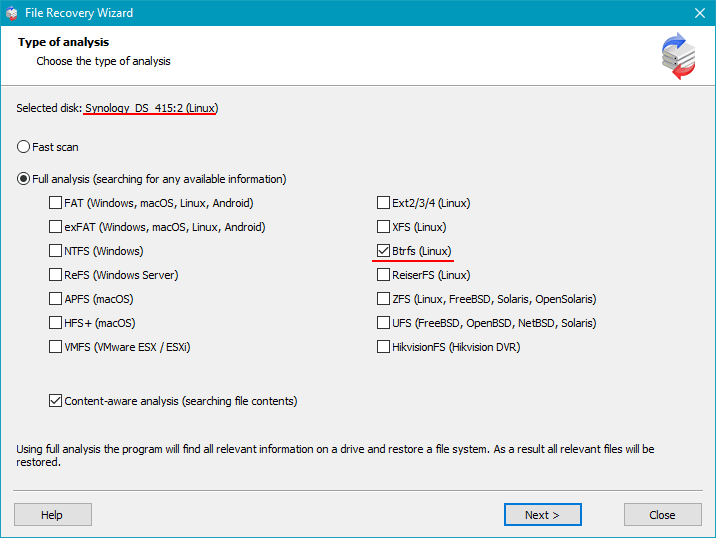
Step 5 Run a full scan.
The deep scan rebuilds folders, detects deleted files and searches for lost documents, images and videos across all sectors of the disks.
-
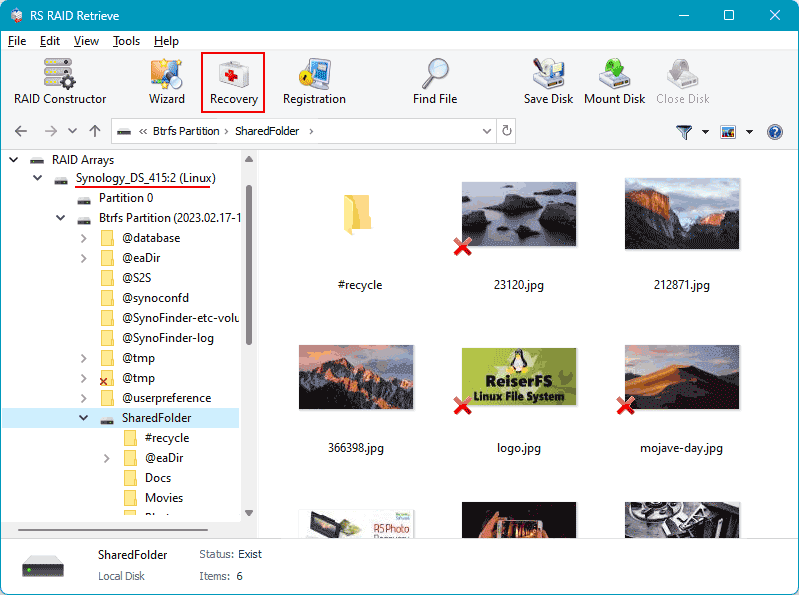
Step 6 Browse the scan results.
After the scan, you’ll see a tree of folders — similar to a regular file manager. Here you can check whether your photos, documents, videos and backups are available.
-
Step 7 Save the recovered files.
Choose a destination folder or an external disk. Don’t save the recovered data back to the original NAS drives to avoid overwriting.
Tip: If the NAS used EXT4 or Btrfs, deep scan significantly increases the chance of recovering damaged folders.
Step-by-Step Guide: Why RAID Fails in 2-Bay NAS Synology DS720+ and How to Identify the Causes
RAID failures in 2-bay NAS Synology DS720+ often start with subtle symptoms that users overlook. By following a structured diagnostic approach, you can quickly pinpoint the underlying cause and reduce the risk of data loss. This tutorial walks you through the most common triggers and shows how to detect them in time.
Step 1: Check Disk Visibility in the NAS Interface. Log into the NAS dashboard and verify whether both drives are recognized. If one disk disappears or reports abnormal behavior, the RAID may already be degrading.
Step 2: Review Performance Trends. Slow file openings, delayed folder browsing, or drastically reduced transfer speeds often indicate that one disk is struggling to maintain synchronization.
Step 3: Inspect RAID Status Messages. Alerts like “Degraded,” “Crashed Volume,” or “Rebuilding Failed” usually mean that the filesystem and array metadata are compromised and require immediate attention.
Step 4: Examine Power and Temperature Logs. Power fluctuations, overheating, or constant fan noise can accelerate disk wear and trigger failure sequences in two-disk RAID setups.
- SMART warnings frequently highlight mechanical wear and imminent read errors.
- Metadata inconsistencies arise after failed rebuild attempts or firmware bugs.
- Disk desynchronization appears after improper shutdowns or unstable power supply.
Following these steps helps identify RAID failure early and increases the success rate of data recovery on NAS Synology DS720+ devices.
The main causes of data loss in NAS devices
Disk failure. Physical malfunction of HDD or SSD is a common reason for data loss, especially in 2-disk NAS systems affecting RAID0 and important for RAID1.
Human errors (deletion, formatting). Accidental deletion or incorrect formatting can result in inaccessible files, requiring prompt recovery actions.
Firmware or DSM update errors. Improper system updates may corrupt partition tables or file metadata, causing data loss.
Power problems and sudden shutdowns. Unexpected power interruptions during write operations can damage file systems and compromise RAID integrity.