Losing access to your files on the NAS Synology DS224+ can be stressful — especially when important photos, documents, or project data suddenly disappear. Most failures happen unexpectedly, caused by RAID issues, disk errors, or a simple misconfiguration. In this article, we explain what typically goes wrong with the NAS Synology DS224+ and how to recover your data step-by-step.
Hardware and Performance Characteristics of NAS Synology DS224+
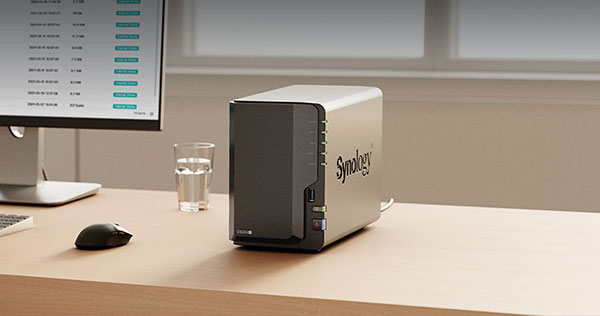
The NAS Synology DS224+ is engineered for stable, high-performance storage, offering 2 drive bays that support multiple RAID configurations and optimized data throughput. With its efficient processor and memory architecture, the device ensures consistent performance during file transfers, backup operations, and multi-user access. Supported file systems, including EXT4 and Btrfs, feature advanced metadata handling and snapshot capabilities, which influence both everyday operation and the complexity of data recovery procedures.
When restoring data from the Synology DS224+, attention must be paid to RAID parameters, chunk size, filesystem behavior, and potential inconsistencies caused by degraded volumes or abrupt shutdowns. This model’s hardware design directly affects how recovery tools reconstruct missing data blocks.
What Makes Data Recovery on Synology DS224+ Unique
Two-bay NAS systems like Synology DS224+ are compact yet powerful, and their RAID structure directly affects how the data is recovered. Whether your files were mirrored in RAID 1 or divided across disks in RAID 0, our tools reconstruct your storage step by step. Even if DSM stops responding or the NAS refuses to mount volumes, the content can still be restored by analyzing each disk independently. This approach ensures safe and effective recovery of photos, business documents, backups, and multimedia libraries.
Main Features of the Synology DS224+ NAS
| Drive Bays | Supported Drives | Hot Swappable | Supported RAID | File Systems | Maximum volume |
| 2 | 2.5" or 3.5" SATA | ✓ | RAID 0, RAID 1, JBOD, SHR | EXT4, BTRFS | 36 Tb |
In the DS224+ the on-disk layout is a stacked model: physical SATA/SSD devices form RAID arrays managed by Linux md (mdadm) and Synology’s Hybrid RAID (SHR), optionally exposed to a logical volume layer (LVM) before hosting EXT4 or BTRFS filesystems and an SSD cache layer holding metadata. Model-specific failure points for recovery are centered on mdadm/SHR metadata and Synology DSM 7.2 volume handling, corruption of SSD cache metadata, and filesystem metadata trees. At the platform level, DSM/kernel faults or memory pressure on the 2 GB system can trigger incomplete writes or interrupted RAID resyncs; CPU/kernel panics may leave array state inconsistent or superblocks damaged, and SSD cache mismatches can cause logical divergence between cached and on-disk data.
Logical inaccessibility typically manifests when RAID or LVM metadata is corrupt or when filesystem structures (EXT4 superblock, BTRFS tree) are inconsistent due to interrupted operations or DSM-driven repairs. The recovery principle is to stop the appliance, perform offline imaging of each device, and reconstruct the stack on a controlled Linux workstation: assemble mdadm/SHR arrays with correct metadata options, map LVM volumes read‑only (pvscan/vgscan) and then access EXT4/BTRFS with non-destructive diagnostic tools. Recovery focuses on metadata reconstruction and file-level extraction outside the NAS OS to avoid further DSM writes; SSD cache data must be treated as a separate metadata source and examined only from forensic images.
Easy Step-by-Step Guide: How to Recover Data from a 2-Disk NAS
If your 2-disk NAS has stopped working, don’t worry — most cases of data loss can be fixed even if the system won’t boot, the RAID has failed, or the NAS says the volume is “degraded.” This beginner-friendly walkthrough explains each step in clear language so you can recover your files safely and confidently.
-
Step 1 Turn off the NAS and carefully remove both drives.
Make sure the NAS is fully powered down before opening it. Gently slide out the disks and label them according to their original order. This helps the recovery software rebuild the RAID correctly.
-
Step 2 Connect the drives to your computer.
Use SATA ports if possible, or high-quality USB-to-SATA adapters. Both disks must be connected at the same time — this is essential for proper RAID reconstruction.
-
Step 3 Open RS RAID Retrieve — the recovery app for NAS drives.
The program automatically scans your disks and tries to detect how the RAID was originally configured. It works in safe read-only mode, so your data stays untouched.

Data recovery from damaged RAID arrays
Available for: Windows, macOS, Linux -
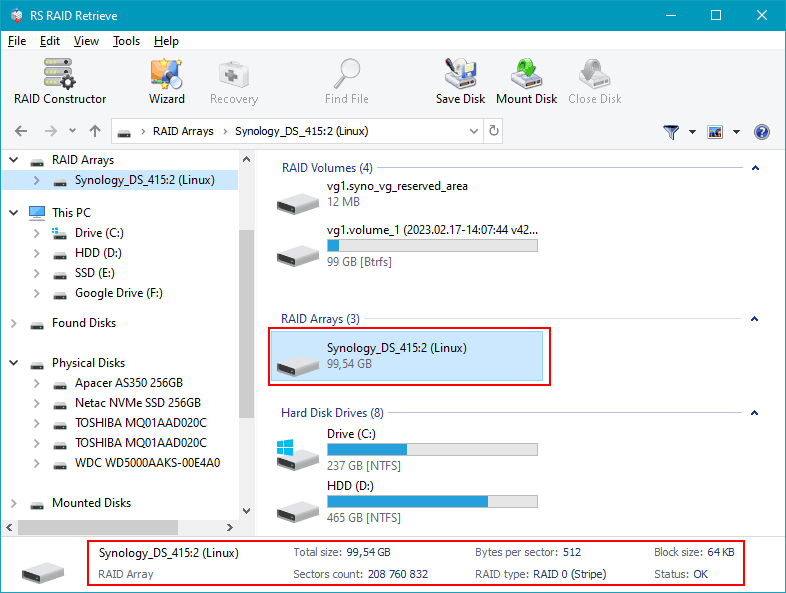
Step 4 Check the RAID configuration found by the software.
The tool usually determines everything on its own, but if something looks incorrect, you can adjust the parameters manually (RAID level, block size, disk order, etc.).
-
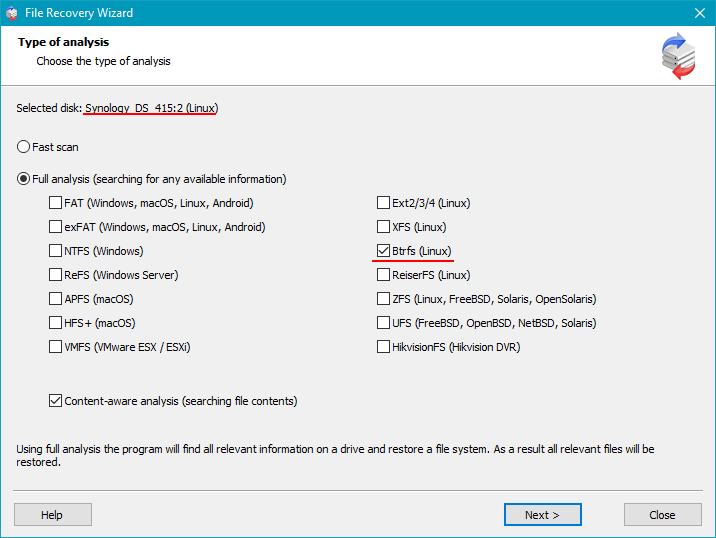
Step 5 Start scanning the reconstructed RAID.
The deep scan searches for lost folders, documents, photos, videos and other file types — even if the file system is damaged or the partition was lost.
-
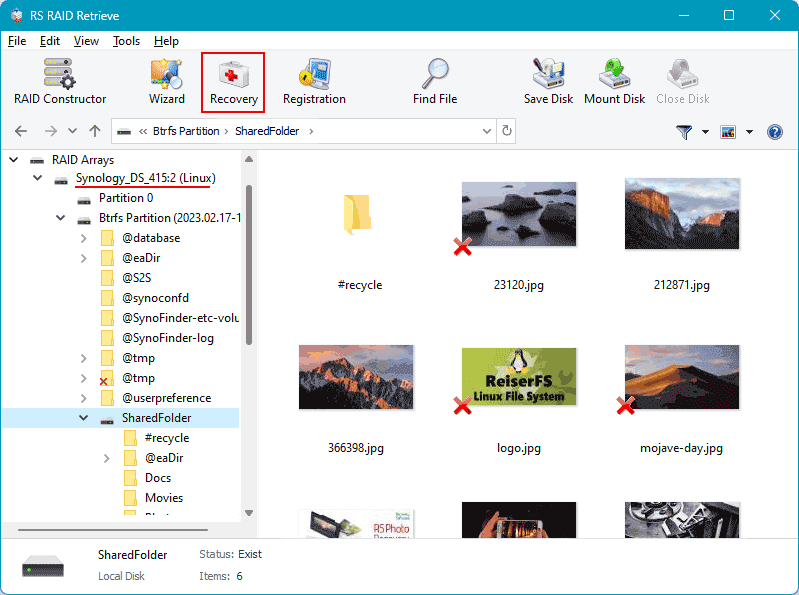
Step 6 Review the recovered folder tree.
Once the scan is complete, you’ll see all available files, including those that were previously inaccessible or accidentally deleted. Browse through the structure and verify that your important data is present.
-
Step 7 Save the recovered files to another disk.
Choose a safe location — for example, an external drive or a separate internal disk. Avoid writing anything to the original NAS drives.
Tip: Never save files back onto the original NAS disks. This prevents overwriting and keeps the recovery clean and safe.
The main causes of data loss in NAS devices
Disk failure. Physical malfunction of HDD or SSD is a common reason for data loss, especially in 2-disk NAS systems affecting RAID0 and important for RAID1.
Human errors (deletion, formatting). Accidental deletion or incorrect formatting can result in inaccessible files, requiring prompt recovery actions.
Firmware or DSM update errors. Improper system updates may corrupt partition tables or file metadata, causing data loss.
Power problems and sudden shutdowns. Unexpected power interruptions during write operations can damage file systems and compromise RAID integrity.
Expert Overview of RAID Failures in NAS Synology DS224+
In two-disk NAS platforms like the NAS Synology DS224+, RAID failures rarely occur without prior warning. Although these systems are designed for continuous workload, the underlying mechanisms are sensitive to gradual degradation, environmental instability, and metadata inconsistencies. From an expert perspective, RAID breakdown is usually a layered process, where several small factors accumulate over time before the array finally enters a degraded or failed state.
Progressive desynchronization between drives. Even identical disks age differently. Subtle discrepancies in response time, sector remapping, and I/O throughput gradually widen. Eventually, one disk can no longer keep up with the RAID controller’s synchronization cycle, leading to predictable, though often unnoticed, degradation.
Unrecoverable sectors emerging during parity verification or rebuild. When the array attempts to resync—often after a power fluctuation or unexpected shutdown—latent bad sectors become a critical flaw. A single URE may compromise the entire rebuild process, especially in a two-disk configuration lacking redundancy.
Thermal drift affecting mechanical and electronic stability. Compact NAS units naturally accumulate heat. If ventilation weakens, temperature rises slowly but steadily, triggering more write errors, increased latency, and premature failure of aging hardware.
Subtle inconsistencies in RAID metadata. RAID relies on precise mapping definitions. If the NAS controller encounters incomplete writes, outdated firmware behaviour, or minor file system corruption, the entire configuration becomes unstable.
- SMART indicators show early warning signs long before RAID fails;
- Filesystem inconsistencies accumulate after irregular shutdowns;
- Mismatch in disk wear levels accelerates RAID divergence.
Understanding these factors helps predict the failure pattern and significantly improves the success rate of data recovery procedures for NAS Synology DS224+ RAID arrays.