What to do if there is not enough free space on drives C, D, E, etc.? If our needs require a larger disk volume, we can increase the size of one disk by reducing the size of another. This task can be accomplished using the built-in tools of Windows 11 or with third-party disk management programs that offer more flexible operations. Let’s take a detailed look at how to extend a disk in Windows 11.
Contents
- How to Extend a Disk in Windows 11 Using System Tools
- How to Extend a Disk in Windows 11 Using MiniTool Partition Wizard Free
- How to Extend a Disk in Windows 11 Using Another Hard Drive
- How to Restore Files Lost While Extending a Partition in Windows 11
Important: Redistributing disk partition volumes is an operation with certain risks. Incorrect actions or software failures can lead to loss of important disks and data stored on them. In such emergency cases, learn how to recover disks and data in the article “How to Recover a Deleted Disk Partition”.
How to Extend a Disk in Windows 11 Using System Tools
Built-in Disk Management Tools in Windows 11
Simple operations for managing hard disk space can be performed using Windows 11’s built-in tools. Extending logical disks – partitions (volumes) of a hard disk – is one of these simple operations, but with some conditions:
- You can extend system partition C and partitions D, E, etc., but not technical partitions: boot EFI partition, Recovery partition, etc.;
- You can only extend a partition using adjacent free space located after the partition being extended, not before it;
- You can only extend a partition by adding free space, not by merging partitions while preserving data.
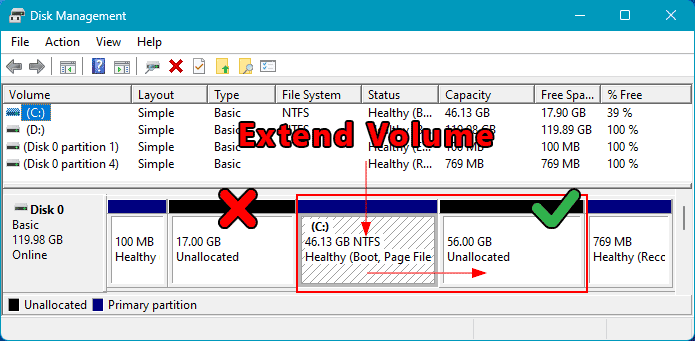
Within these conditions, built-in tools are the optimal solution to extend a disk in Windows 11. Unlike many third-party disk managers, they do not require a computer restart to perform such an operation.
According to the conditions, built-in tools are also the optimal solution to increase disk D and other non-system disks in Windows 11, as there is no need to resort to third-party programs.
Unlike previous versions, Windows 11 has two implementations of disk space management functionality. This refers to functionality with a graphical interface, apart from the command line.
One implementation is classic. Windows 11 inherited it from previous versions, and it is “Disk Management” – system disk management.
The other implementation is part of the “Settings” app. In Windows 11, a modern format of system disk management debuted, dressed in the WinUI interface. However, it is not a separate program like classic disk management but part of comprehensive settings in the “Settings” app.
Extending a Disk in Windows 11 Disk Management
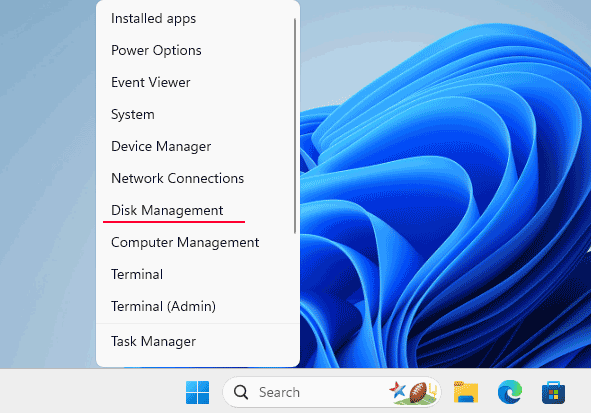
We can launch Windows 11 Disk Management using the system search. We can also use quick access to it in the Win+X menu.
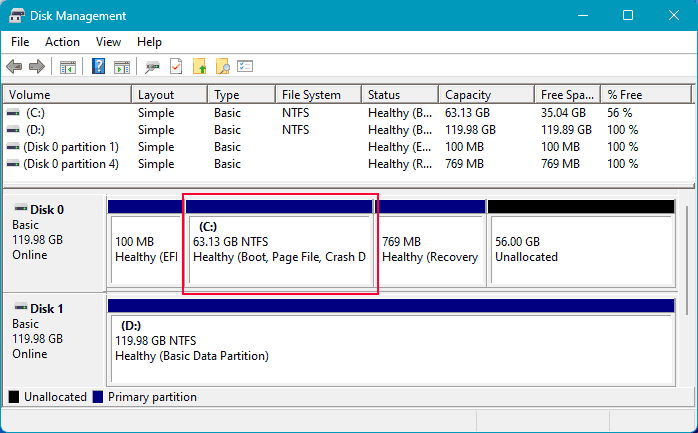
In the disk management window, we assess the current situation. If there is no free space after the partition to be extended, but another partition, it needs to be deleted. First, free it from important data. The partition is deleted using the “Delete Volume” option in the context menu.
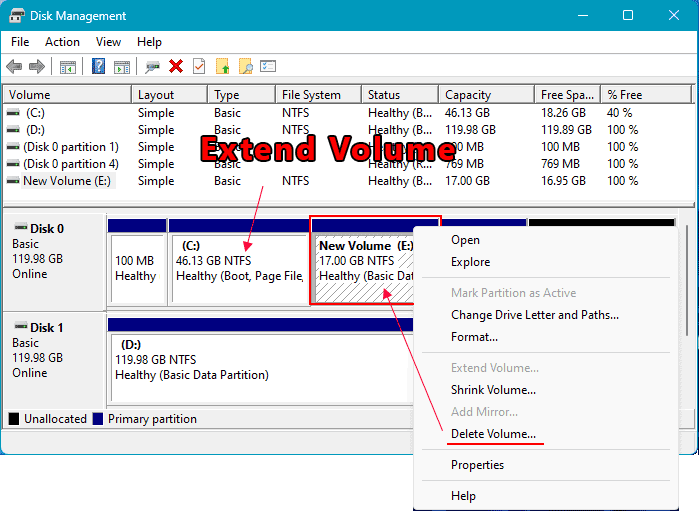
This way, we ensure adjacent free space. It will be marked as unallocated.
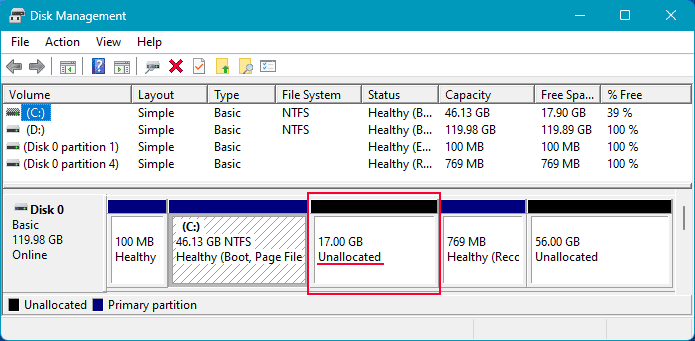
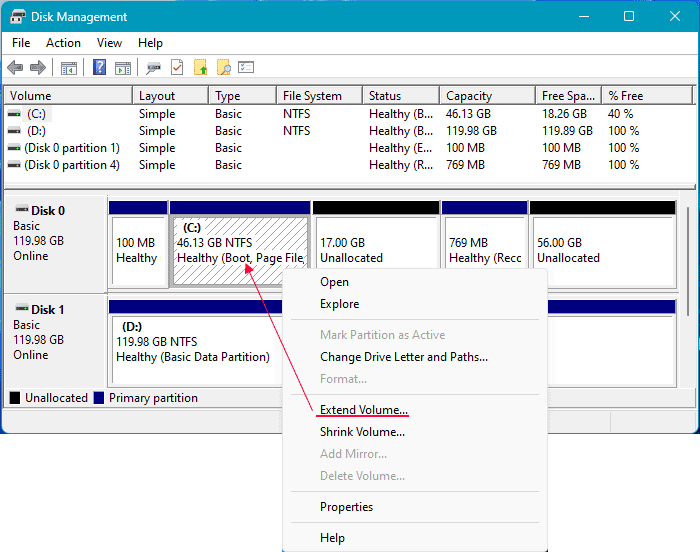
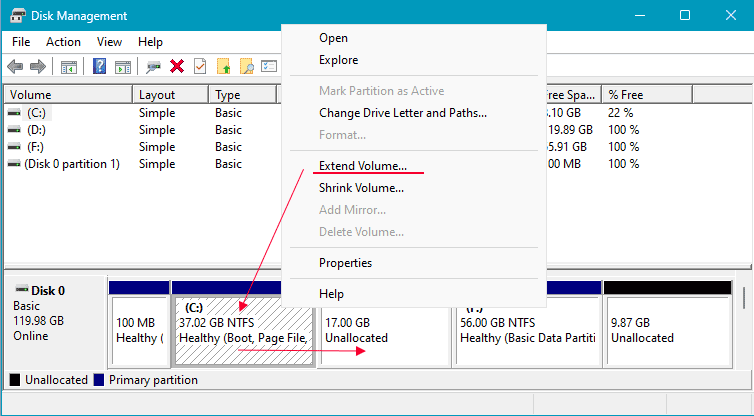
Next, we work with the partition to be extended. In its context menu, we select “Extend Volume”.
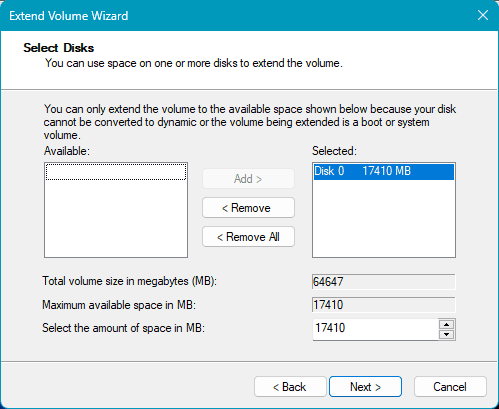
The wizard will start.
At the bottom, specify the amount by which we want to increase the partition. If we want to allocate all the free space, simply duplicate the number from the above field indicating the maximum available size.
Done.
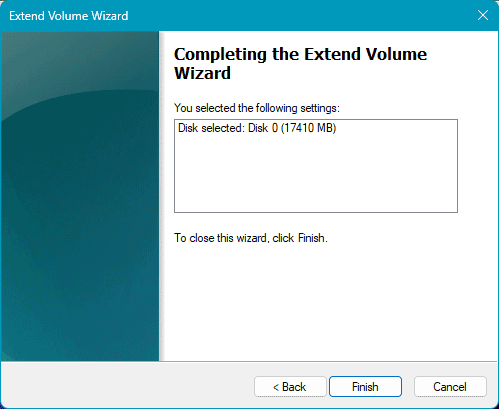
The partition is extended.
Extending a Disk Using WinUI Tools in Windows 11
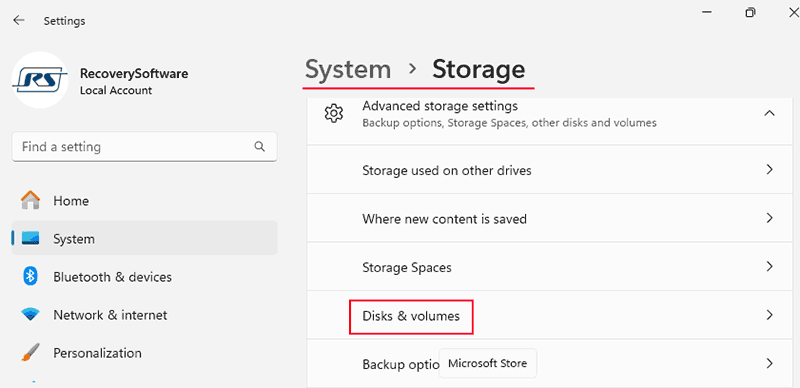
To manage disks in the WinUI format in the “Settings” app, go to System -> Storage. Expand the “Advanced storage settings” block. Open “Disks & volumes”.
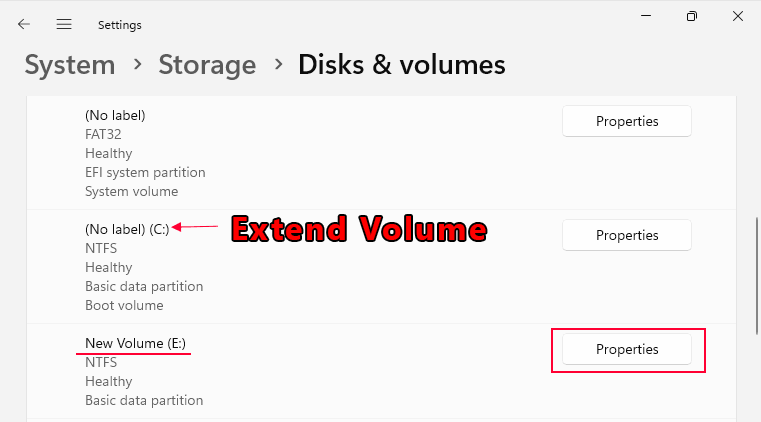
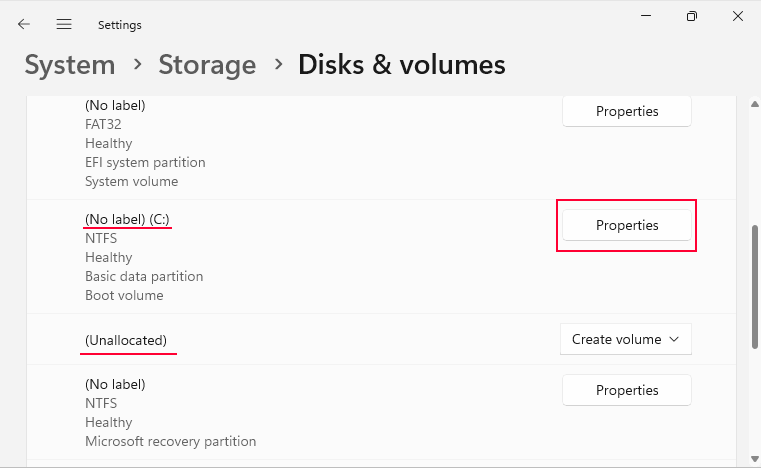
Again, if there is no free space after the partition to be extended, but another partition, transfer the data. And delete it. Click its “Properties” button.
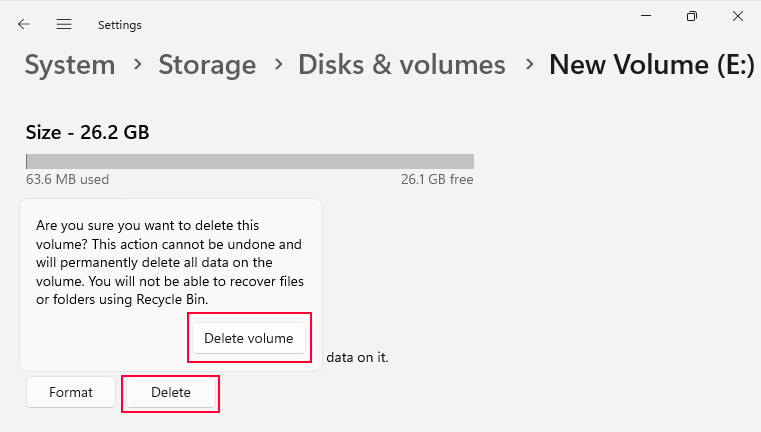
Select “Delete” and confirm.
Now, after the partition to be extended, we have unallocated space. Click the “Properties” button of the partition to be extended.
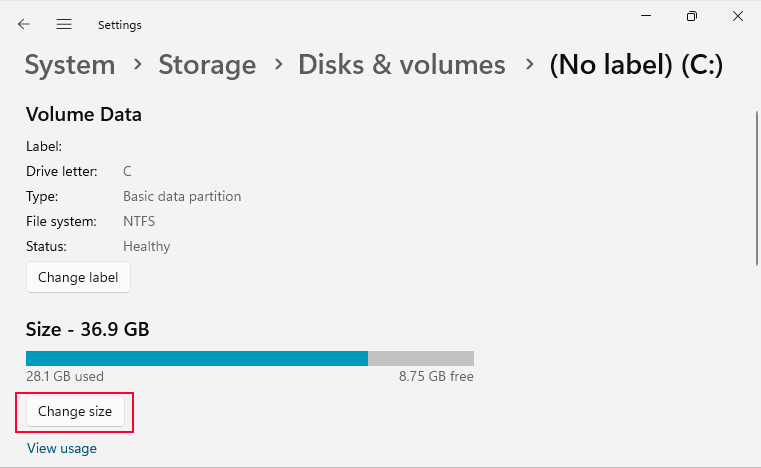
Select “Change size”.
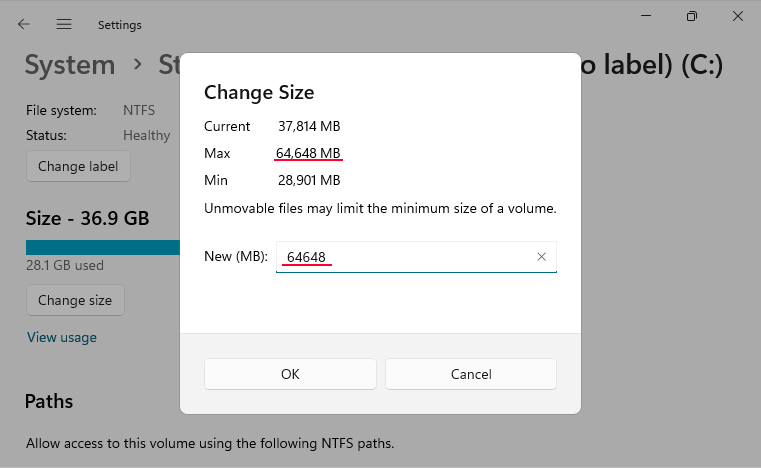
Unlike classic disk management, for the partition to be extended, you need to specify the final size that the partition will have after the extension. If you want to add all the free space to it, refer to the field indicating the maximum size. And enter this value in the “Create (MB)” field. Then confirm with “Ok”.
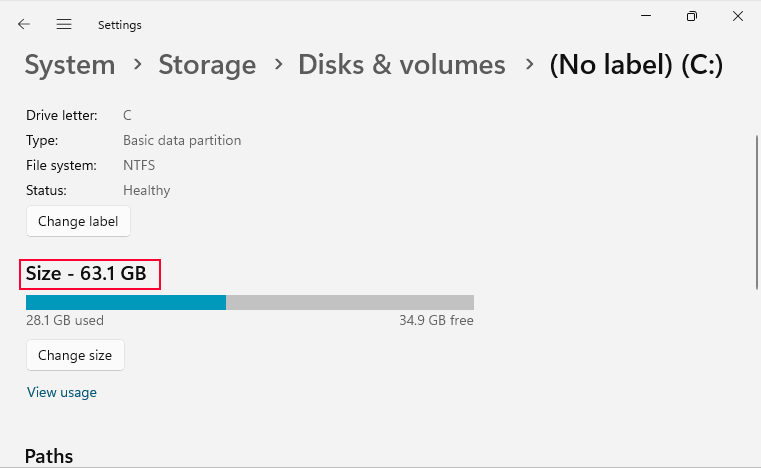
And that’s it – the partition is extended.
Extending a Disk Using Non-Adjacent Space
As mentioned, Windows 11’s built-in tools can only extend partitions using adjacent free space located after the partition being extended. They do not allow for data removal. If we do not have such adjacent space, we will encounter the situation where the “Extend Volume” option is not active in Windows 11.
However, we can extend a partition if the free space is located after it, but it is non-adjacent. For example, it is located through one partition.
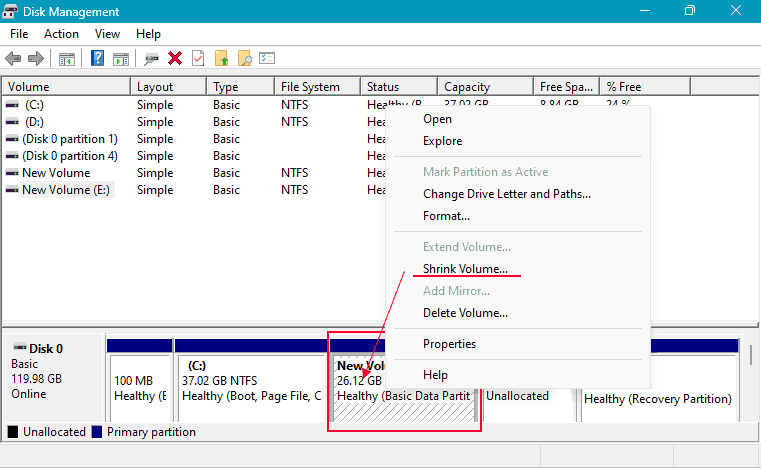
In this case, the last, i.e., adjacent partition needs to be shrunk to the volume needed to increase the partition being extended. If the partition cannot be shrunk to the required volume, transfer the heaviest data to another partition.
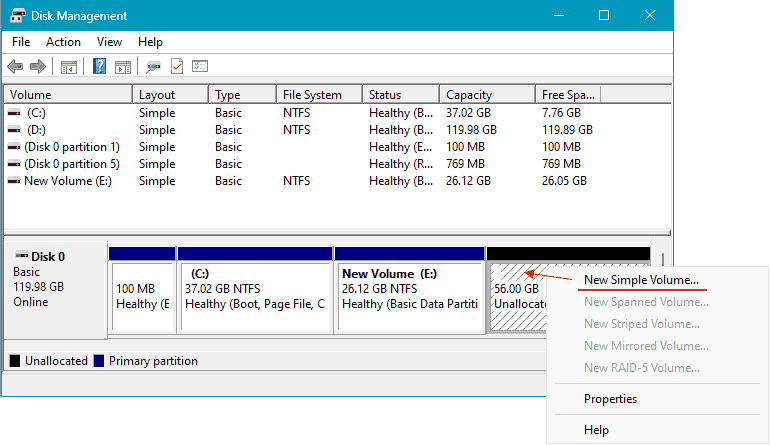
Using the shrunk and previously existing free space, create a new partition.
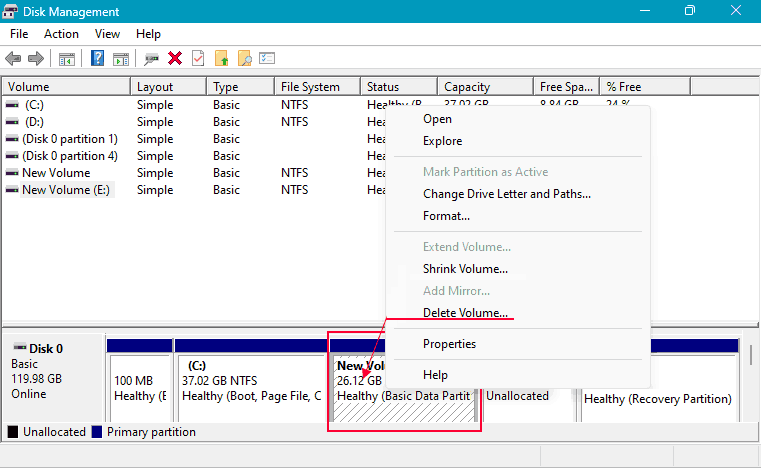
Transfer data from the adjacent partition to the new one. Then delete the adjacent partition.
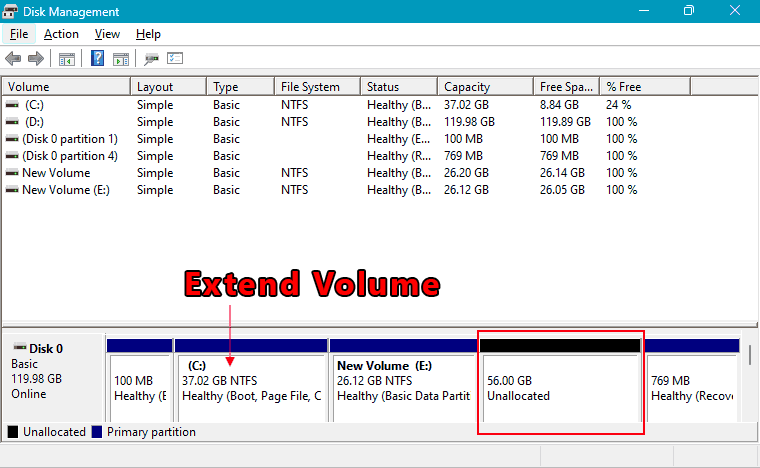
And extend the desired partition using its space.
How to Extend a Disk in Windows 11 Using MiniTool Partition Wizard Free
How to increase disk volume in Windows 11 in situations that do not meet the conditions of the operating system’s built-in tools? The solution here is third-party disk space management programs, disk managers. They are usually more functional than Windows 11’s built-in functionality, even in free versions.
Let’s see how to increase a disk using the free MiniTool Partition Wizard Free.
Note: During certain operations performed by this program, a computer restart will be required.
MiniTool Partition Wizard allows you to extend partitions using free space as well as space from existing disk partitions. Moreover, it does so without data loss. In such cases, the program will not allow you to take more space from a partition than is occupied by data. The data itself will be shifted along with the partition during the extension process.
The program does not care whether the space is located before or after the partition being extended. If it is before, the partition being extended will be shifted. Along with the data, without losing them.
Extending a Disk Using Adjacent Space After
To extend a partition using adjacent space after it, you can use the extend operation. This space can be free, marked as Unallocated. Or it can be a partition with an unoccupied volume needed to increase the partition being extended.
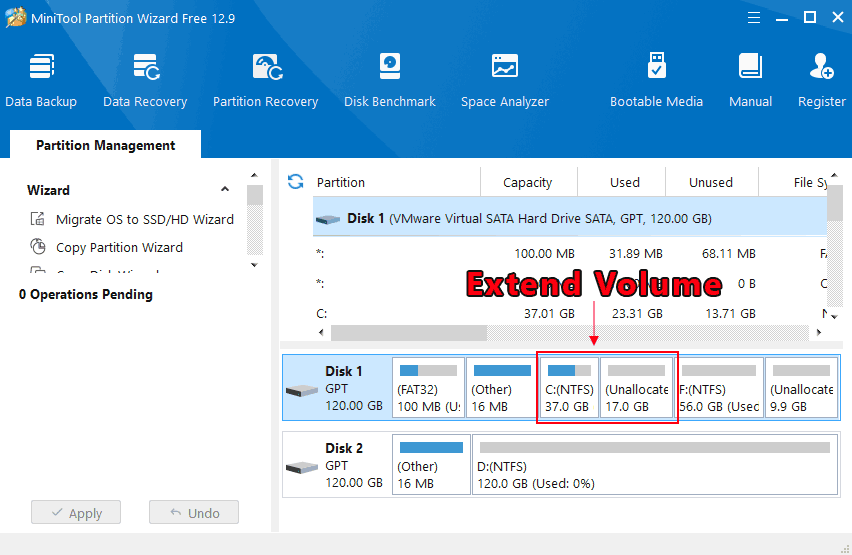
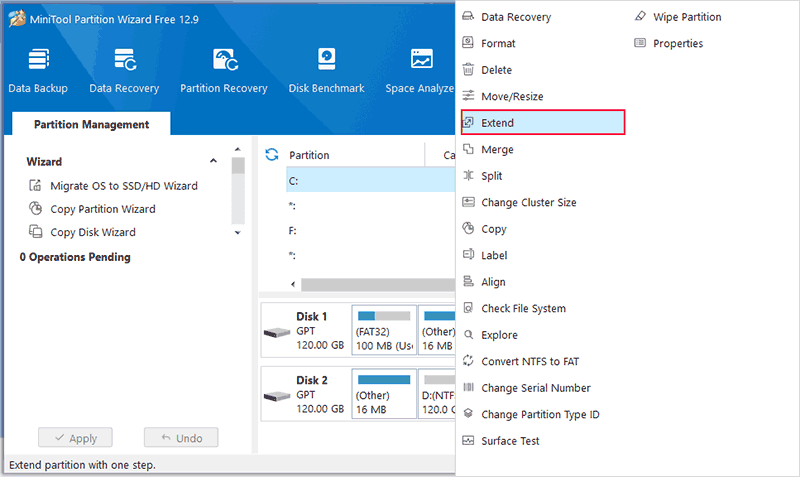
In the context menu on the partition being extended, select the extend operation – “Extend”.
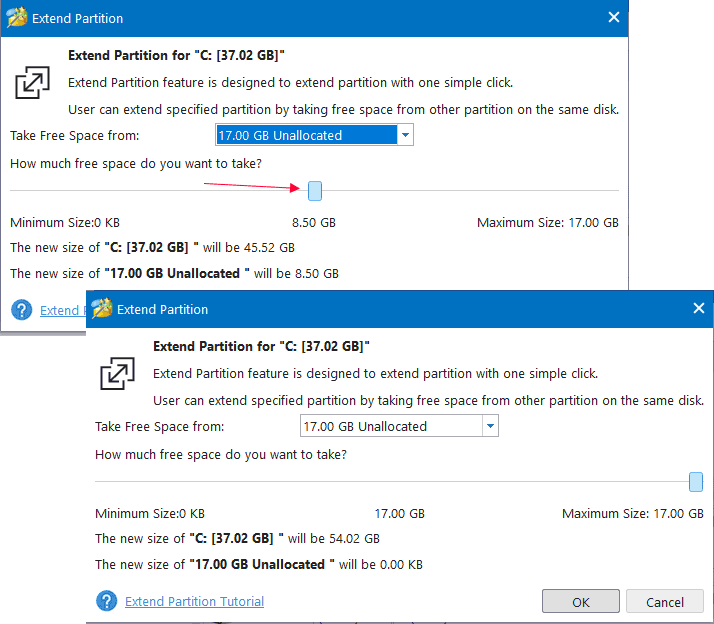
Use the slider on the volume scale to determine the volume by which the partition being extended will increase. To use all the free volume, move the slider to the limit. Click “Ok”.
On the disk map, see the result – the extended partition. But this result is not yet applied; it is only for assessing the situation. To apply, click the “Apply” button.
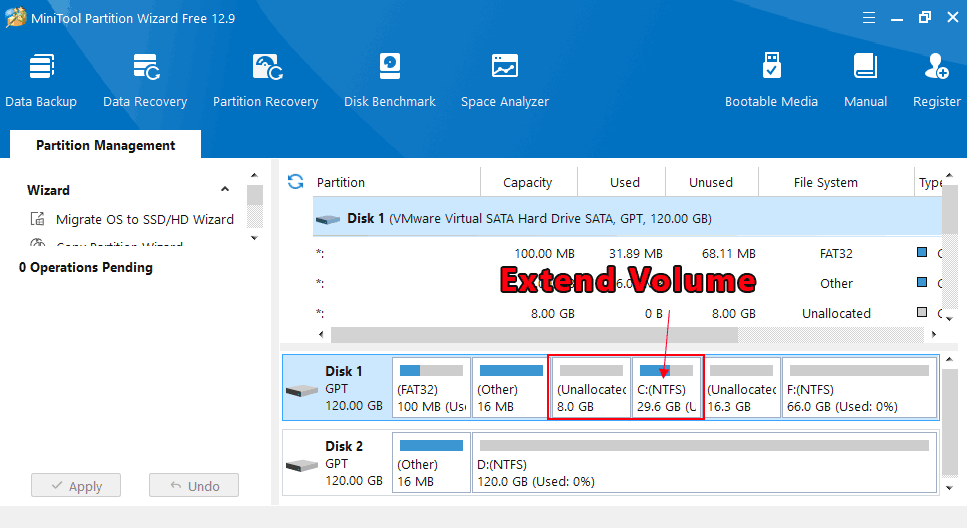
Extending a Disk Using Adjacent Space Before
To extend a partition using adjacent free space or space from an adjacent partition, if they are located before the partition being extended, you can use the move and resize operation.
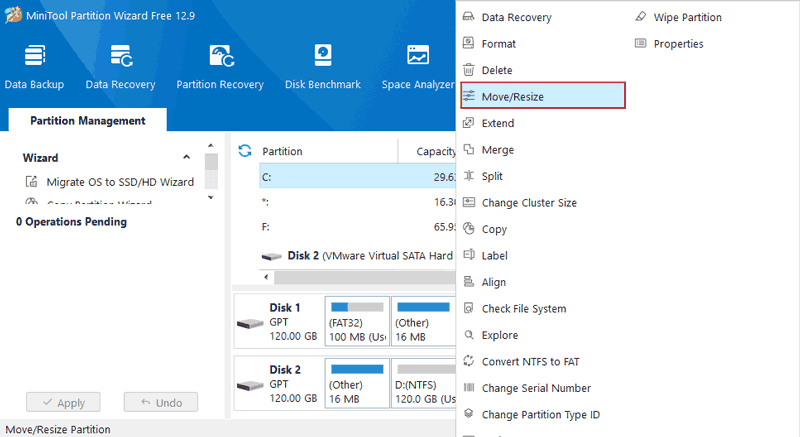
In the context menu on the partition being extended, select this operation – “Move/Resize”.
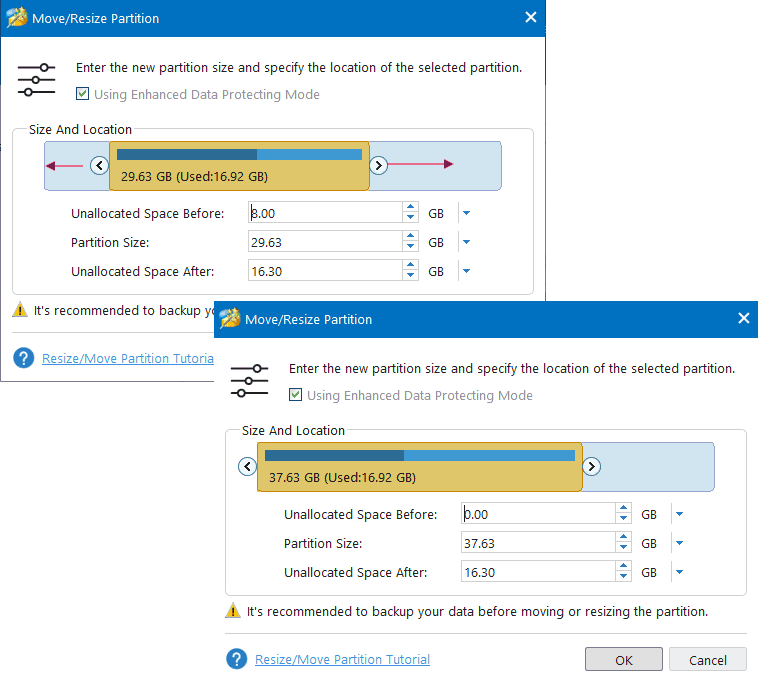
On the volume scale, move the partition being extended to the left. And extend it to the desired volume. Click “Ok”.
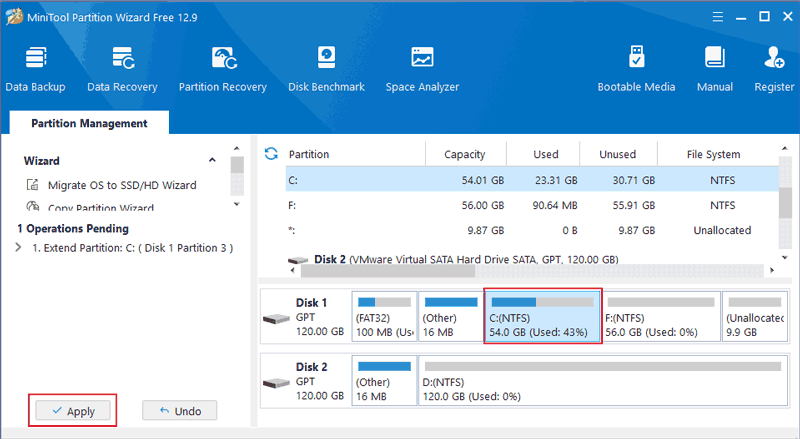
Assess the result. Click the “Apply” button.
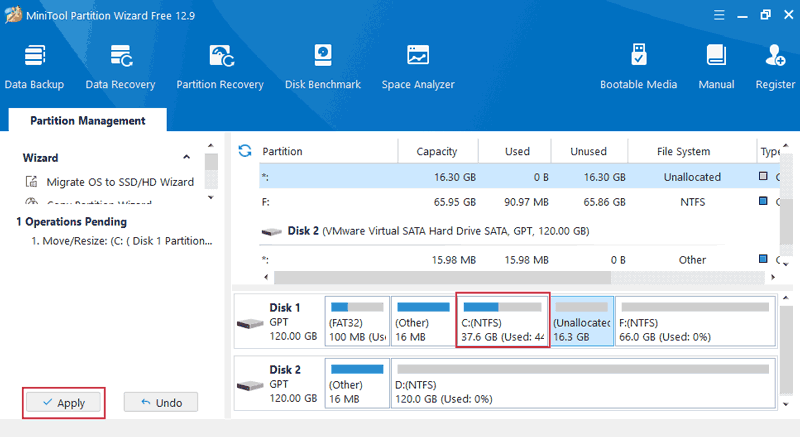
Merging Partitions
If you need to extend a partition using an adjacent partition, regardless of its location before or after, you can use the merge partitions operation. It is only for partitions, not for free space.
It does not allow you to add part of the adjacent partition to the partition being extended, like the extend operation. The entire space of the partition is added. But the merge operation is good for cases of extending using adjacent partitions with data. This operation automatically transfers data from the deleted partition to the partition being extended.
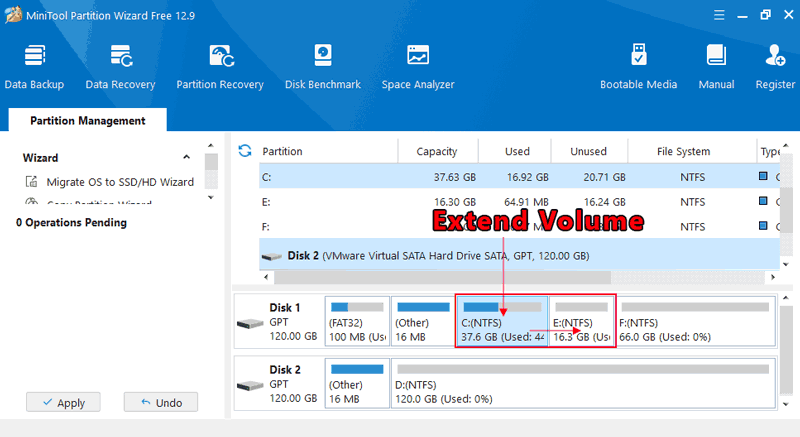
In the context menu on the partition being extended, select the merge operation – “Merge”.
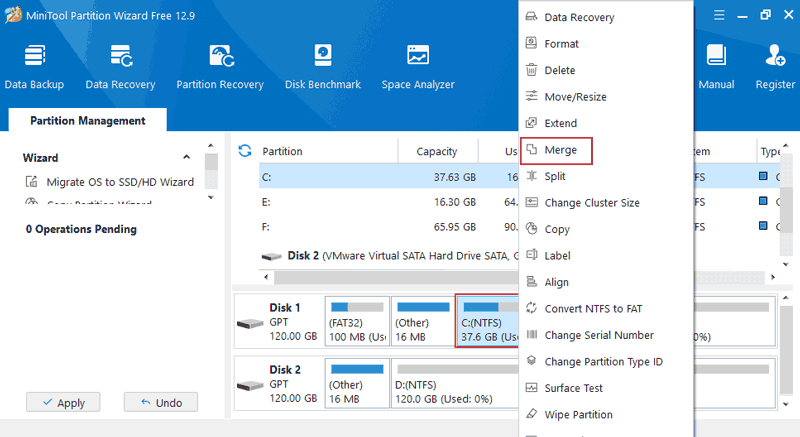
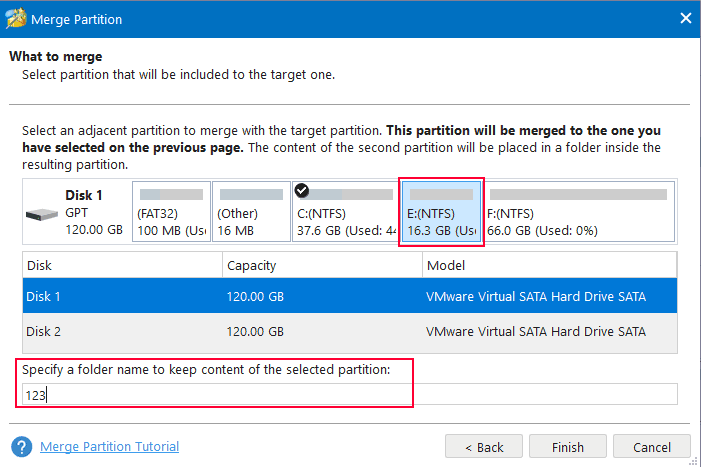
On the disk map, first specify the partition being extended.
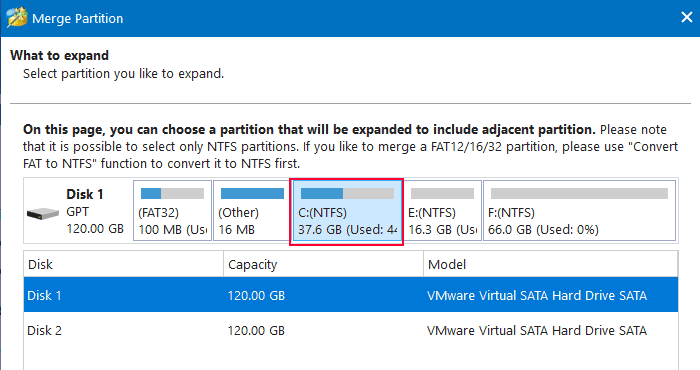
Then the partition that is being added to it. At the bottom, you can specify the name of the folder where the data from the added partition will be transferred. Click “Finish”.
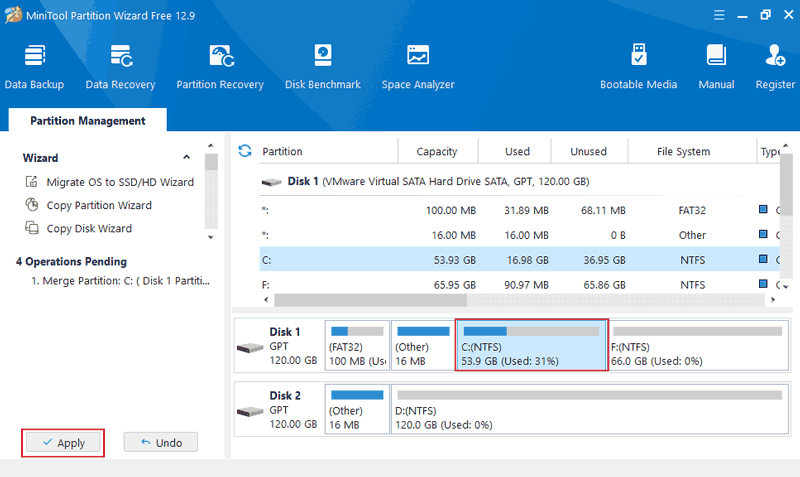
Assess the result. Click the “Apply” button.
Extending a Disk Using Non-Adjacent Space
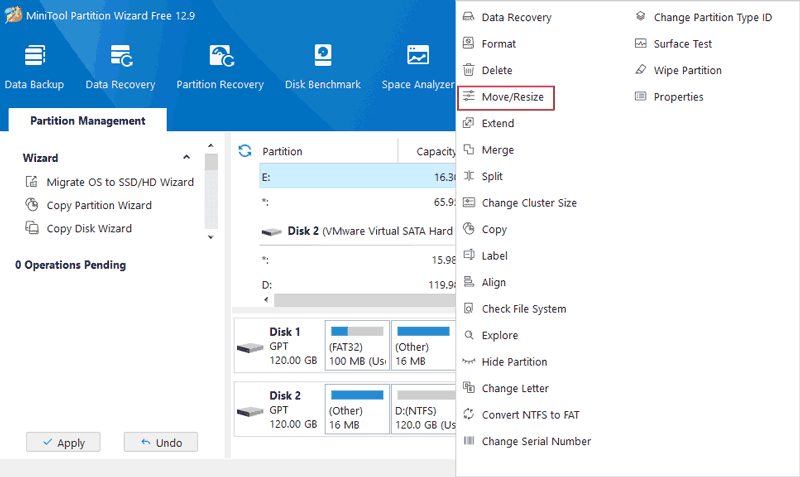
If you need to extend a partition using non-adjacent free space or a partition, regardless of its location before or after the partition being extended, you need to use the move and resize operation.
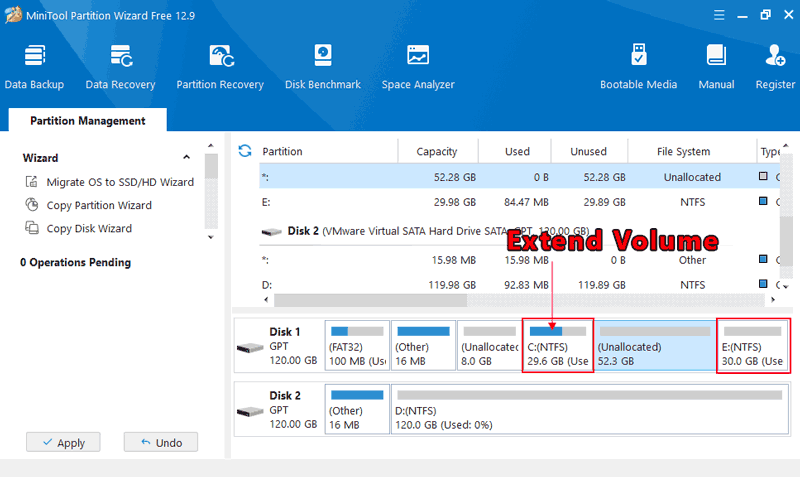
This operation needs to be applied to all intermediate partitions located between the partition being extended and the free space or partition being added.
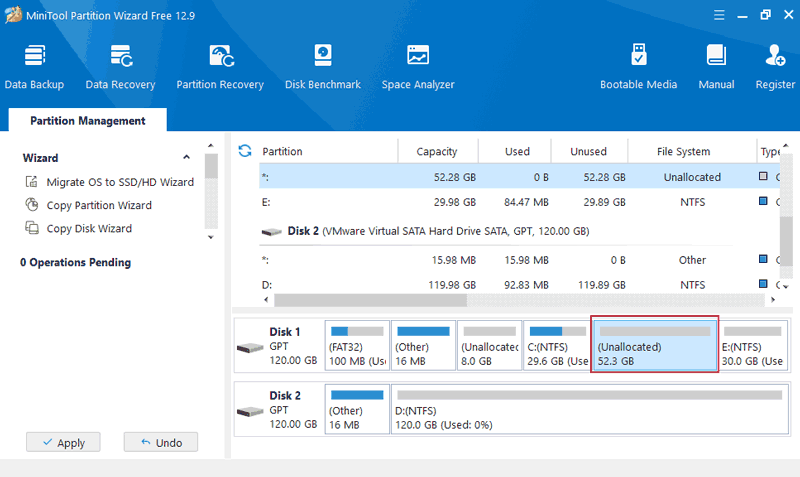
In the context menu on the intermediate partition, select the move and resize operation – “Move/Resize”.
On the volume scale, move the intermediate partition to the left or right, as needed. If necessary, adjust the volume. Click “Ok”.
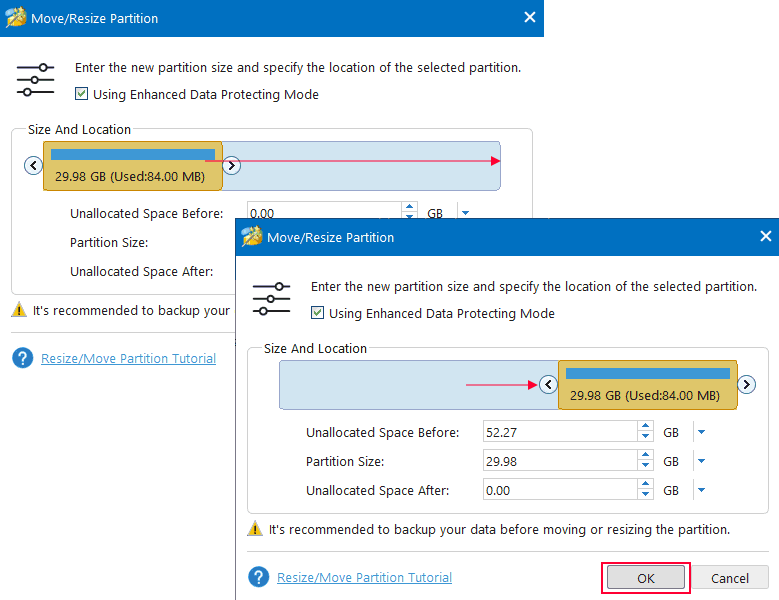
This way, we swap the intermediate partitions with the volume being added.
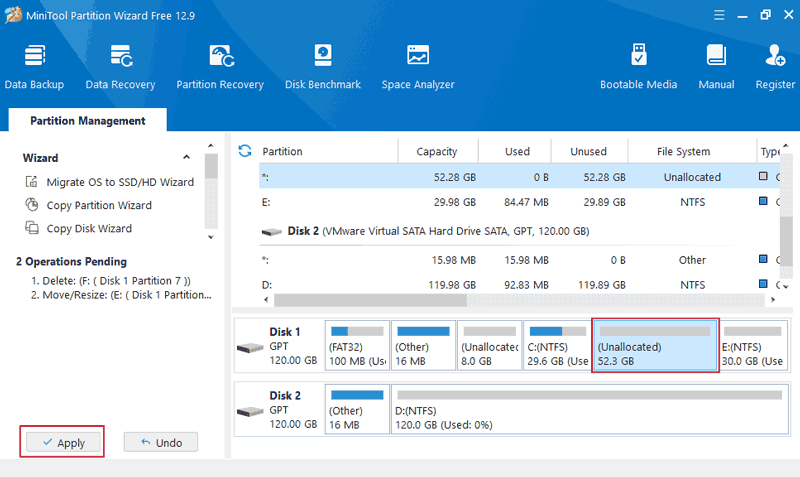
Next, use the operation either extend or merge, as described in the previous two subsections of the article. Assess the result. Click the “Apply” button.
How to Extend a Disk in Windows 11 Using Another Hard Drive
Above, we discussed extending partitions using space on one hard drive. How to extend a disk in Windows 11 using space on another hard drive? Or if you need to combine disk space, say, from two hard drives into a single partition?
In such cases, you can resort to the built-in functionality of Windows 11’s software RAID. Create either a spanned volume within the dynamic disks function or a simple storage space within the storage spaces function. This will be a RAID array configuration of JBOD.
How to Restore Files Lost While Extending a Partition in Windows 11
Although resizing a disk in Windows 11 usually goes smoothly, sometimes the process can lead to data loss — for example, due to partition errors or accidental deletion. If your files disappear after such an operation, it is crucial to stop writing new data to the disk and move on to recovery. In these cases, specialized data recovery software can help restore lost files and minimize the damage.
Step 1. Install and launch the RS Partition Recovery.

All-in-one data recovery software
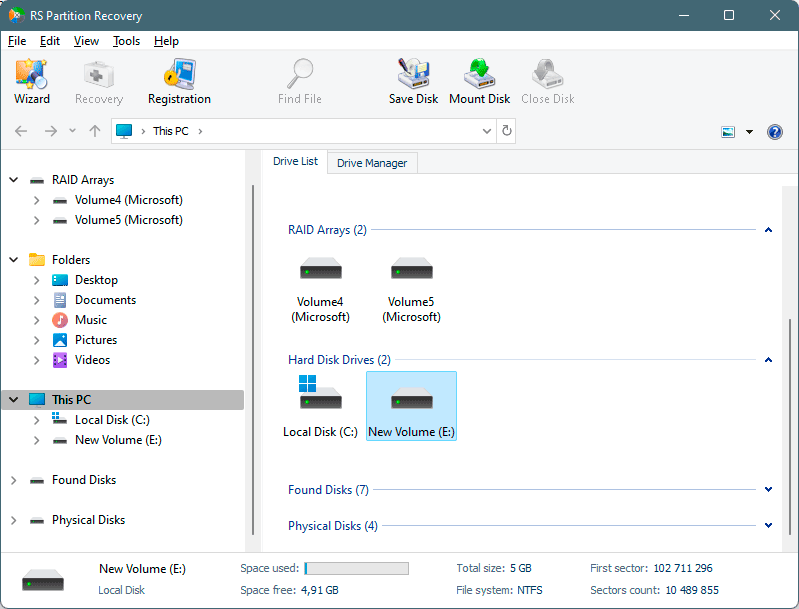
Step 2. Select the drive or partition from which you want to recover data.
Step 3. Choose the type of analysis.
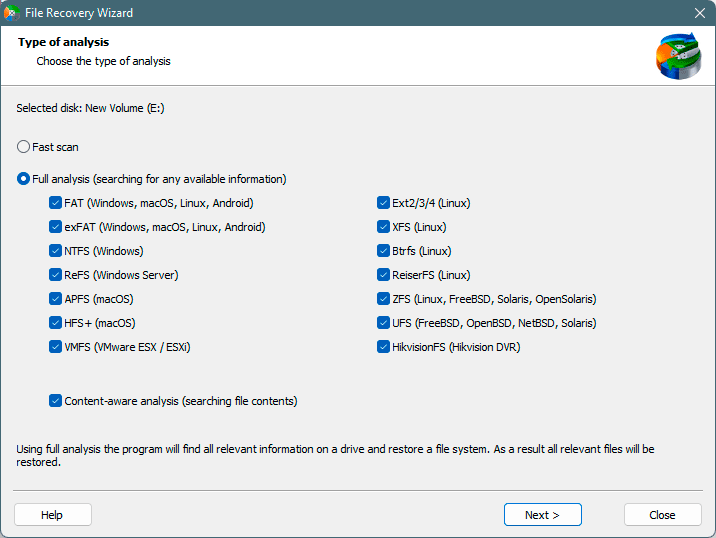
Fast scan you should use in case the file was lost recently. The program will scan the drive quickly and show the files available for recovery.
The Full analysis function allows you to find lost data, after formatting, disc resizing, or file structure corruption (RAW).
Step 4. Preview and select the files to recover it.
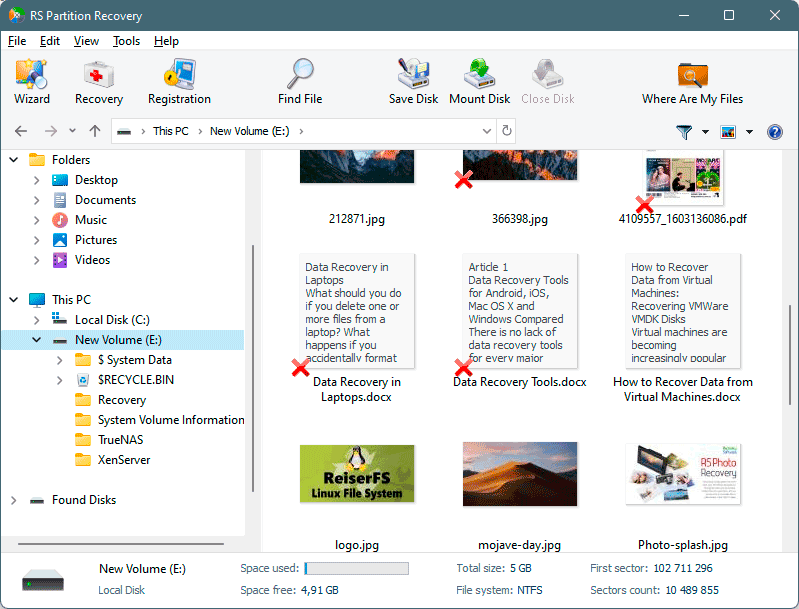
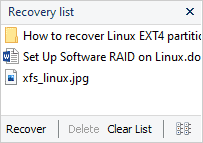
Step 5. Add the files you want to save to the "Restore list" or select the entire partition and click Recovery.
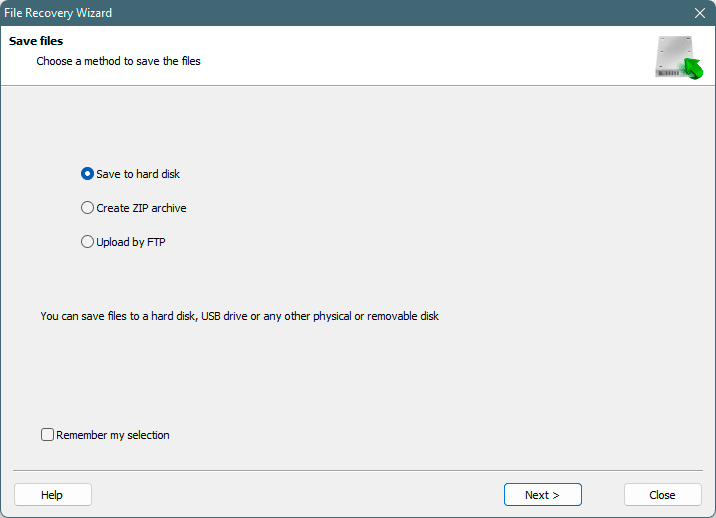
It should be noted that it is best to save the recovered file to an external hard drive or USB flash drive.