When the NAS Synology DS223+ stops responding or your data becomes inaccessible, the consequences can be critical. Disk failures, RAID corruption, firmware errors, or accidental deletions often leave users searching for a reliable recovery solution. In this guide, we show how to restore lost files from the NAS Synology DS223+ quickly and safely, using proven techniques that protect your storage from further damage.
Understanding NAS Hardware and RAID Capabilities
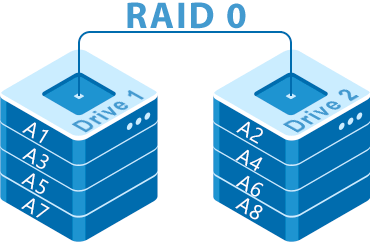
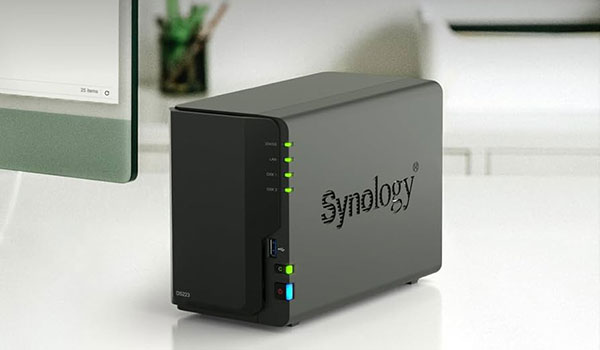
The Synology DS223+ NAS is equipped with 2 drive bays that can be configured using RAID 0 or RAID 1. RAID 0 spreads data across both disks for higher speed, while RAID 1 mirrors every file to ensure protection against a single-disk failure. Supported file systems — EXT4 and Btrfs — add stability and integrity through journaling and advanced metadata handling.
Understanding these fundamentals helps during data recovery, as each RAID level stores information differently and affects how files can be reconstructed after an incident.
Key Specifics of Data Recovery on Synology DS223+
Recovering data from a Synology DS223+ NAS requires understanding how two-bay systems manage storage. These devices typically support RAID 0 for performance and RAID 1 for redundancy. In RAID 0, losing a single disk causes the entire array to fail, making specialized software essential for reconstruction. In RAID 1, data mirroring increases protection, but corruption of both drives or damage to EXT4/Btrfs file systems still requires connecting disks directly to a computer for recovery.
Two-bay NAS units are frequently used for storing photos, videos, and work archives, so recovery often focuses on personal media and office documents.
Main Features of the Synology DS223+ NAS
| Drive Bays | Supported Drives | Hot Swappable | Supported RAID | File Systems | Maximum volume |
| 2 | 2.5" or 3.5" SATA | ✓ | RAID 0, RAID 1, JBOD, SHR | EXT4 | 36 Tb |
On the Synology DS223+ the storage stack is a layered construct: mdadm/SHR implements the array level (the unit presented by Synology as SHR or traditional RAID‑0/1/JBOD), optionally overlaid by Synology’s volume management (logical volumes/LVM) and formatted with EXT4 under DSM 7.2. Model-specific failure points observable in the lab include corrupted or mismatched md superblocks after interrupted resyncs, damaged LVM metadata that hides logical volumes, and EXT4 journal/superblock corruption that prevents mounts. Hardware/firmware interactions are relevant: DSM upgrades or the RTD1619B firmware crash can interrupt metadata writes, and the platform’s 1 GB memory constraint can precipitate OOM conditions during rebuilds. SSD cache layers introduce additional metadata states and coherent‑write windows that, when incomplete, leave inconsistent data on the array.
Logical inaccessibility commonly arises when array metadata, LVM maps or the filesystem journal are out of sync rather than from raw sector loss. In practical recovery we avoid the NAS GUI and reassemble arrays externally: image drives, use mdadm to restore/assemble the array using detected superblocks (manually specifying metadata versions if needed), activate LVM to expose logical volumes, and run controlled EXT4 recovery tools (read‑only mounts, debugfs, e2fsck with journal replay) on copies. If SSD cache caused divergence, recovery requires ignoring cache metadata and rebuilding from data shards on the member disks. This approach separates DSM/SoC failures from on‑disk structures and preserves forensic integrity while rebuilding a consistent logical view outside the NAS.
Step-by-step guide to recover data from NAS Synology DS223+
Data recovery from a two-disk NAS (Synology DS223+) is possible even in cases of RAID failure, file-system corruption or a complete hardware malfunction. Follow this clear and accessible guide, designed both for beginners and for users discovering NAS recovery procedures for the first time.
-
Step 1 Power off the NAS and remove the drives.
Shut the NAS down completely and carefully remove both disks. Note their original order (Disk 1 / Disk 2), which is essential for correct RAID reconstruction.
-
Step 2 Connect the drives to your computer.
Use internal SATA ports or USB–SATA adapters. Both drives must be connected simultaneously so the software can analyze the RAID metadata.
-
Step 3 Launch the NAS recovery software.
Open RS RAID Retrieve. The program will detect RAID signatures, analyze blocks and reconstruct the original NAS structure.

Data recovery from damaged RAID arrays
Available for: Windows, macOS, Linux -
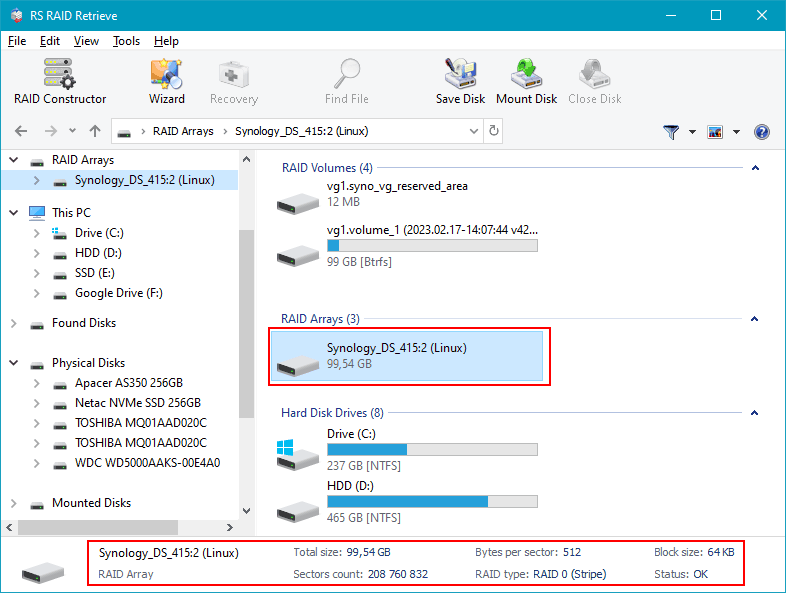
Step 4 Review or manually adjust RAID parameters.
Automatic detection works in most cases, but you can fine-tune the RAID level, block size or disk order if needed.
-
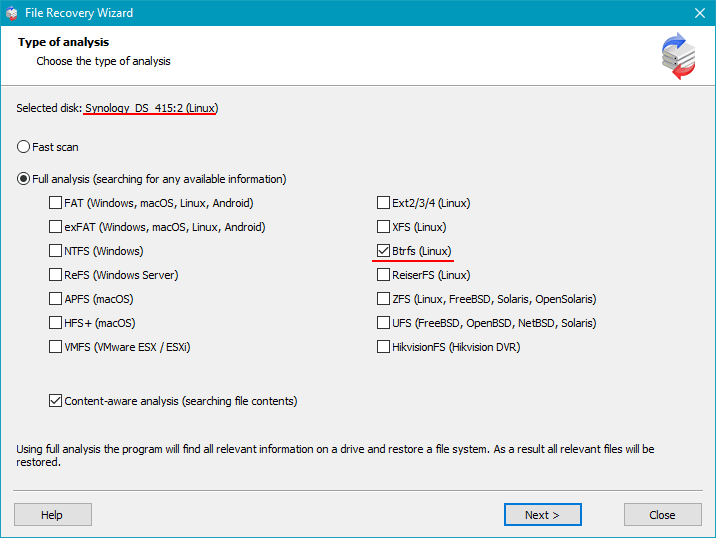
Step 5 Start a deep scan.
Run a full analysis to rebuild the folder tree and recover deleted files, even if fragmented.
-
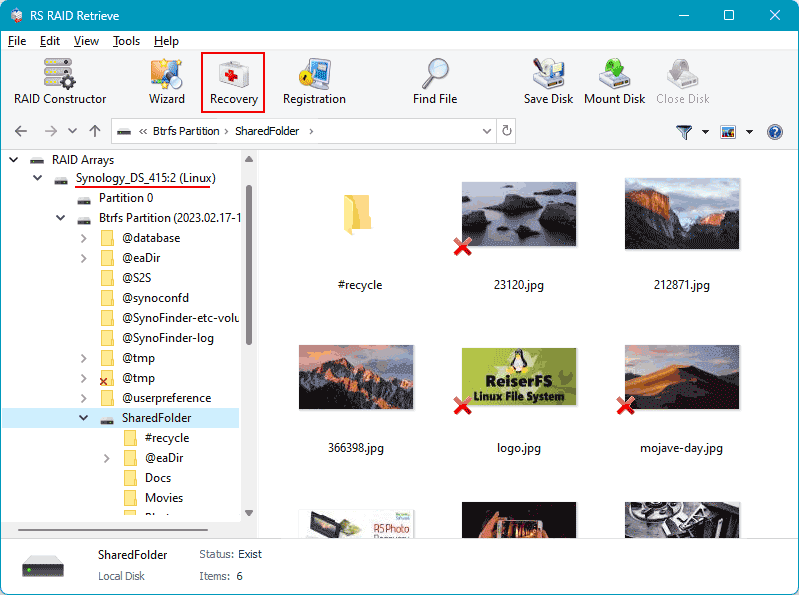
Step 6 Review the scan results.
When the analysis completes, the complete NAS structure appears. Check that your documents, photos, videos and archives are accessible.
-
Step 7 Save your recovered data.
Store the files on another disk or an external drive. Never write anything to the original NAS drives.
Tip: Keep the NAS disks in read-only mode to avoid permanent data loss.
Why RAID Fails in 2-Bay NAS Synology DS223+: Key Causes You Shouldn’t Ignore
When a 2-bay NAS Synology DS223+ begins acting unpredictably, many users discover too late that their RAID array is already compromised. Understanding the real reasons behind RAID failure helps you react before your data becomes inaccessible — or permanently lost. Modern NAS systems are reliable, but even the best devices can fail due to physical wear, configuration issues, or overlooked warning signs.
One of the most common triggers is uneven disk aging. In 2-disk NAS setups, both drives often run continuously for years, accumulating bad sectors or slow read/write areas that gradually push the array into a degraded state. Another critical factor is firmware-based RAID management: a small glitch, unpatched bug, or failed background sync may silently corrupt metadata, eventually leading to RAID collapse.
Environmental stress also plays a surprisingly large role. Overheating, unstable power, or vibration can shorten drive lifespan and create hidden read errors that later manifest as array failure. As soon as users notice unusual noises, unexpected slowdowns, or file access errors, the degradation is usually already in progress. This is why timely diagnostics and proper data recovery procedures are essential.
- Disk desynchronization and reconstruction errors often appear after power outages or forced shutdowns.
- SMART-related warnings signal growing risks of head crashes or platter wear.
- RAID misconfiguration after expansions, resets, or accidental rebuilds frequently results in metadata conflicts.
Recognizing these issues early can protect your NAS Synology DS223+ from full RAID failure and significantly increase the chances of successful data recovery.
Common Causes of Data Loss in NAS Devices
Data loss in NAS systems often occurs due to RAID failures, accidental deletion, firmware corruption, disk degradation, and power outages. Misconfigured RAID arrays or simultaneous disk failures also frequently lead to inaccessible volumes or damaged file structures.