When the NAS Synology DS218+ stops responding or your data becomes inaccessible, the consequences can be critical. Disk failures, RAID corruption, firmware errors, or accidental deletions often leave users searching for a reliable recovery solution. In this guide, we show how to restore lost files from the NAS Synology DS218+ quickly and safely, using proven techniques that protect your storage from further damage.
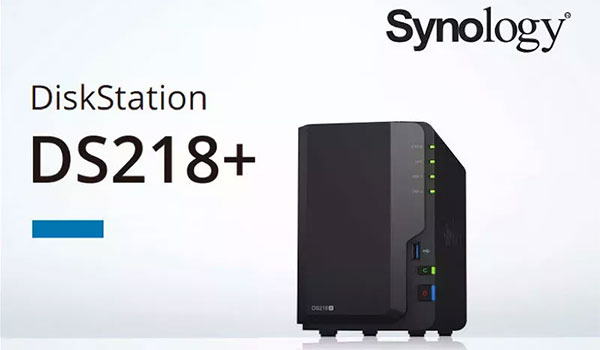
Hardware Overview of NAS Synology DS218+
The Synology DS218+ NAS comes with 2 drive slots, making it a simple and reliable solution for everyday storage needs. Even if you’re new to NAS devices, the setup is straightforward: install your drives, choose RAID 0 for speed or RAID 1 for safety, and you're ready to go. The system uses either EXT4 or Btrfs file formats, both designed to keep your files organized and protected.
If something goes wrong—like a disk failure or accidental deletion—understanding these basic technical details helps you restore your data more effectively.
Technical Aspects of Data Recovery on Synology DS218+
The Synology DS218+ architecture relies on two-disk RAID layouts, typically RAID 0 (striping) or RAID 1 (mirroring). Data recovery requires rebuilding metadata structures from EXT4 or Btrfs volumes, interpreting RAID parameters, and restoring logical block mapping. RAID 0 presents the highest risk due to the absence of redundancy, while RAID 1 allows partial reconstruction even when one drive is degraded. Advanced cases involve partition table corruption, DSM filesystem issues, and scenarios where both disks enter “crashed” state.
Main Features of the Synology DS218+ NAS
| Drive Bays | Supported Drives | Hot Swappable | Supported RAID | File Systems | Maximum volume |
| 2 | 2.5" or 3.5" SATA | ✓ | RAID 0, RAID 1, JBOD, SHR | EXT4, BTRFS | 24 Tb |
On the Synology DS218+ the on-disk layout is a stack of layers: physical disks aggregated by mdadm/SHR into RAID sets (RAID 0, RAID 1, JBOD or Synology Hybrid RAID), optional SSD cache sitting logically in front of or alongside the pool, an LVM-like volume layer that manages block devices, and the filesystem layer which is either EXT4 or BTRFS. Model-specific failure points centre on RAID metadata and OS integration: corrupted or mismatched mdadm superblocks and SHR metadata after abrupt power loss or DSM 7.2 updates, BTRFS metadata tree corruption, SSD cache state inconsistencies that leave the array with uncommitted blocks, and DSM kernel/module failures or crashes that prevent proper device discovery. CPU or memory faults manifest diagnostically as interrupted writes or kernel panics that can produce inconsistent RAID/LVM metadata and fragmented journals.
Logical inaccessibility typically follows two mechanisms: the RAID set will not assemble or exposes differing component roles, or the logical volume/filesystem metadata is damaged so the kernel refuses to mount. Recovery outside the NAS follows strict isolation and reconstruction steps: extract raw disk images or work on drive clones, then assemble the mdadm array (reconstruct SHR layout if needed) without forcing writes, activate the LVM volume group manually, and run filesystem-specific repair tools on images — BTRFS rescue paths or safe e2fsck on EXT4. Crucial principles: work read-only on copies, disable/ignore SSD cache state while reconstructing, avoid mounting read‑write until metadata is validated, and use DSM-derived mdadm/metadata parameters so the array is rebuilt with the original layout rather than guessed defaults.
Advanced NAS Recovery Workflow for 2-Disk Systems
When a 2-disk NAS fails — whether due to RAID degradation, accidental deletion, corrupted partitions or an unexpected power loss — you can still recover your files using a structured, technician-level workflow. Follow this detailed procedure to safely rebuild the RAID and extract your data.
-
Step 1 Power down the NAS and remove both drives.
Shut the unit down completely, disconnect all cables and carefully slide out the disks. Label them “Disk 1” and “Disk 2” to preserve the original RAID ordering, which is crucial for accurate reconstruction.
-
Step 2 Attach the disks directly to a PC.
Use SATA ports whenever possible for stable I/O throughput. Both disks must be connected simultaneously — NAS RAID cannot be rebuilt using single-drive access.
-
Step 3 Launch RS Raid Retrieve and load the drives.
The software will read RAID metadata, internal partition tables and filesystem signatures (EXT4, XFS, Btrfs). It reconstructs the original RAID configuration automatically but allows manual correction for expert users.

Data recovery from damaged RAID arrays
Available for: Windows, macOS, Linux -
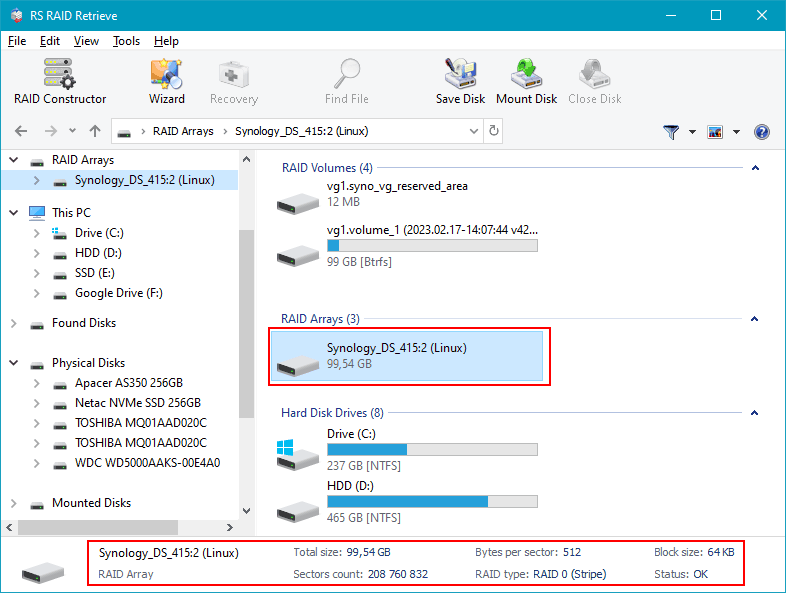
Step 4 Verify RAID parameters detected by the software.
Check strip size, disk order, parity rotation and block alignment. Incorrect parameters cause incomplete folder structures or unreadable files, so validate them carefully.
-
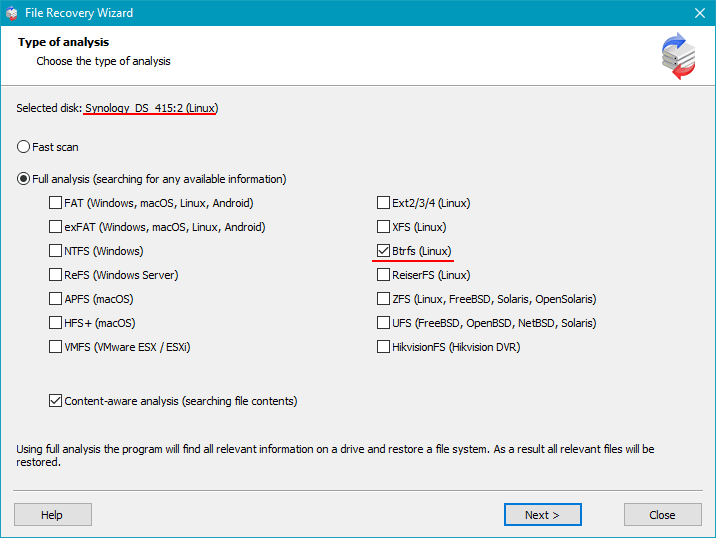
Step 5 Begin a full deep scan.
The program analyzes both disks sector-by-sector, reconstructs directory trees and identifies fragmented or deleted items. Deep analysis is recommended for damaged NAS volumes.
-
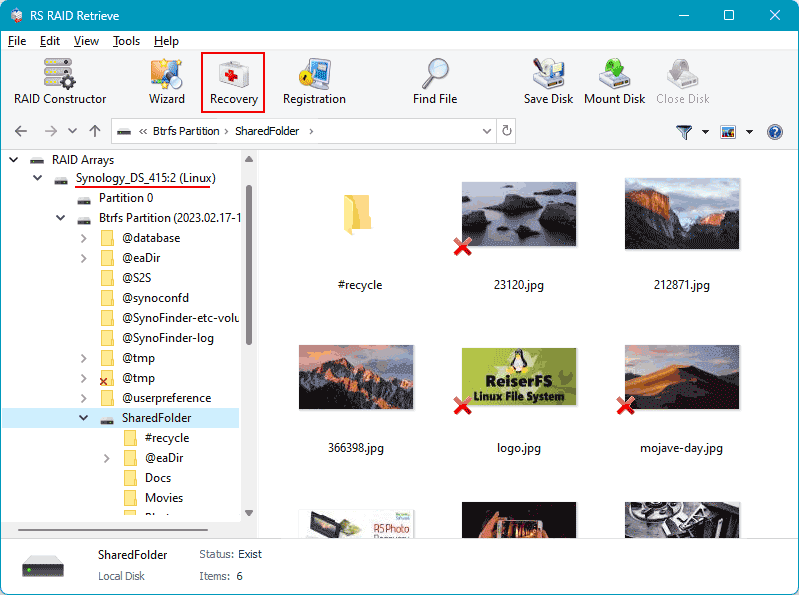
Step 6 Review detected files and validate recovered structures.
Open folders, preview thumbnails, and ensure key documents, virtual machine images, photos and multimedia content are present.
-
Step 7 Export your recovered data.
Always save files to a different drive — never to the original NAS disks — to prevent overwriting data remnants.
Tip: Avoid rebuilding the RAID inside the NAS until you’ve created a full backup of the recovered data.
Common Causes of Data Loss in NAS Devices
Data loss in NAS systems often occurs due to RAID failures, accidental deletion, firmware corruption, disk degradation, and power outages. Misconfigured RAID arrays or simultaneous disk failures also frequently lead to inaccessible volumes or damaged file structures.
Technician-Level Causes of RAID Failure in NAS Synology DS218+
In two-disk NAS systems such as NAS Synology DS218+, RAID degradation is typically the result of predictable mechanical, logical, or operational faults. From a technician’s perspective, each failure scenario presents a set of identifiable indicators, allowing structured diagnostics and controlled data-recovery workflow.
Drive desynchronization under continuous workload. Long-term operation causes sector reallocation, uneven read delays, and latency spikes. When one disk falls behind the RAID controller’s timing thresholds, the array marks it as out-of-sync, initiating a degraded state.
Unrecoverable Read Errors (URE) during resync. Two-bay systems using RAID 1 or RAID 0 are highly sensitive to URE. If a disk develops unreadable blocks during reconstruction, the process halts, resulting in a failed volume.
Thermal instability inside compact NAS chassis. Poor airflow, clogged vents, or aging cooling systems elevate temperature. Drives operating outside optimal thermal parameters demonstrate increased write errors and mechanical instability.
Controller-level inconsistencies. Firmware aging, interrupted writes, or voltage fluctuations lead to metadata corruption, causing RAID misalignment. Once the controller cannot match parity or mirror mapping, the array enters failure mode.
- Sector-level delays and SMART warnings accumulate unnoticed over weeks;
- Filesystem metadata desynchronizes after abrupt power loss or improper shutdown;
- Disks with different wear levels diverge in I/O throughput, accelerating RAID degradation.
This set of failure patterns is standard for NAS Synology DS218+ devices, and each requires targeted recovery actions, sector-by-sector imaging, and controlled RAID reconstruction.