A failing RAID array on NAS Synology DS119j can instantly make the entire storage pool inaccessible. RAID 1 mirror inconsistencies, metadata corruption, failed resync operations, or unexpected disk dropouts are common triggers for data loss. In this article, we outline the most frequent RAID-related issues affecting the NAS Synology DS119j and explain how to recover data safely without risking overwriting or additional damage.
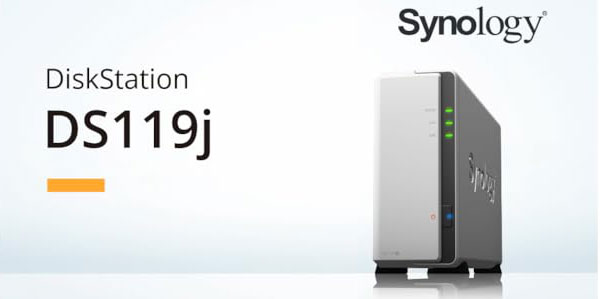
Core Technical Specifications of the NAS System
The Synology DS119j NAS includes 2 drive bays with RAID 0/1 support, allowing either performance boosting or mirrored data protection. It operates on EXT4 or Btrfs, offering stable file-system architecture with improved data consistency. Network connectivity is optimized for multi-device access and fast file operations.
Essential Tips for Successful Data Recovery on Synology DS119j
Recovering data from the Synology DS119j becomes much easier when you understand how its two-bay structure and RAID configuration affect the recovery process. Since the device stores information in either RAID 0 (striping) or RAID 1 (mirroring), the restoration workflow depends on how the data was distributed across the drives.
The filesystem used — typically EXT4 or Btrfs — also influences what can be restored. For example, Btrfs snapshots help preserve structure, while EXT4 journaling may overwrite deleted entries.
Recommended steps:
- Create sector-by-sector images of both drives to avoid additional data loss.
- Identify RAID parameters (chunk size, order, layout).
- Use NAS-oriented recovery software capable of automatic RAID detection and reconstruction.
- Export recovered files to a separate external storage to avoid overwriting original media.
These simple principles significantly increase the success rate of data restoration on Synology DS119j.
Main Features of the Synology DS119j NAS
| Drive Bays | Supported Drives | Hot Swappable | Supported RAID | File Systems | Maximum volume |
| 2 | 2.5" or 3.5" SATA | ✗ | RAID 0, RAID 1, JBOD | EXT4 | 16 Tb |
In the Synology DS119j the storage stack is organized as a kernel RAID layer implemented with mdadm, a logical volume layer (Synology volume-manager / LVM-style metadata) and the EXT4 filesystem managed by DSM 7.2. The platform runs on the Marvell Armada silicon and has 256 MB of RAM; there is no SSD cache. Model-specific failure points I diagnose most often are: corrupted mdadm metadata after interrupted operations or DSM upgrades, insufficient memory leading to kernel OOM and incomplete journal commits, and OS/firmware corruption that leaves arrays present but volumes unmountable or with inconsistent volume metadata.
Logical inaccessibility usually manifests as damaged RAID superblocks, lost logical-volume metadata or corrupted EXT4 superblocks/journal, causing DSM to refuse mounts or expose read-only filesystems. Recovery principle is to cease NAS activity, image drives and work offline on a forensic workstation. The practical steps are: create sector-level images, attempt safe mdadm assembly or recreate RAID metadata without writing to originals, import the volume metadata read-only, and mount EXT4 to extract data. This offline reconstruction prevents further OS-induced metadata changes and preserves recoverability.
Step-by-Step Guide to Recover Data from NAS Synology DS119j
Recovering data from a two-bay NAS Synology DS119j is possible even after RAID corruption, disk failure, or file-system issues (EXT4/Btrfs). Follow this step-by-step procedure to safely restore your files:
-
Step 1 Power off the NAS and remove both drives.
Shut down the device completely and carefully extract the disks. Note their exact order — it is essential for RAID reconstruction.
-
Step 2 Connect the drives to your PC.
Use SATA ports or USB-to-SATA adapters. Both drives must be detected at the same time for correct RAID assembly.
-
Step 3 Launch the NAS recovery software.
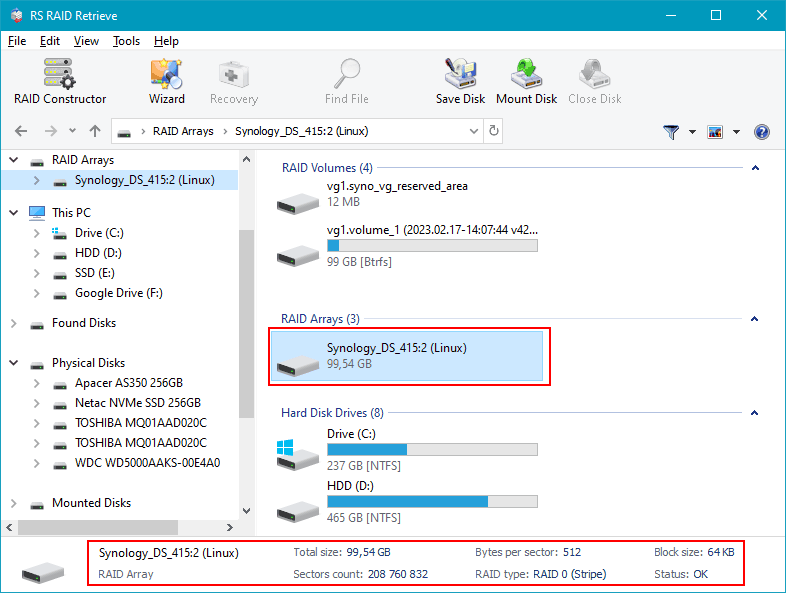
Open RS RAID Retrieve. The program will scan both disks and automatically detect the original RAID layout. Verify the parameters displayed at the bottom of the screen.

Data recovery from damaged RAID arrays
Available for: Windows, macOS, Linux -
Step 4 Confirm or adjust RAID configuration.
If automatic detection fails, manually set RAID 0 or RAID 1 parameters.
-
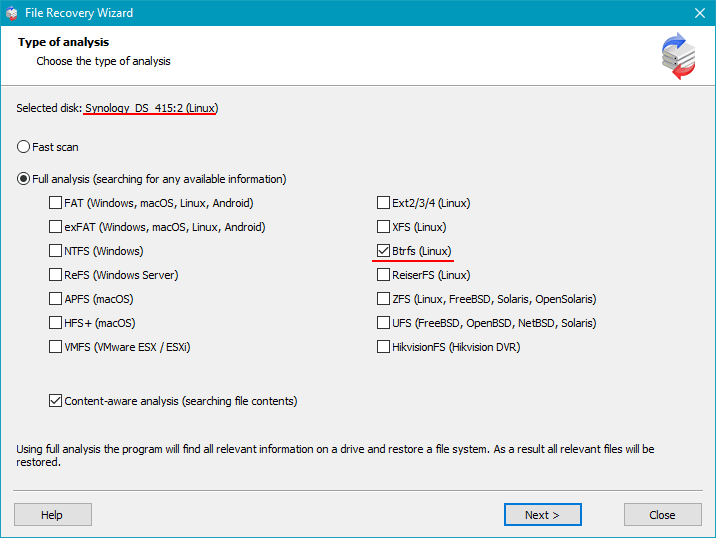
Step 5 Run a full scan.
The software rebuilds the file system structure and searches for deleted or corrupted files.
-
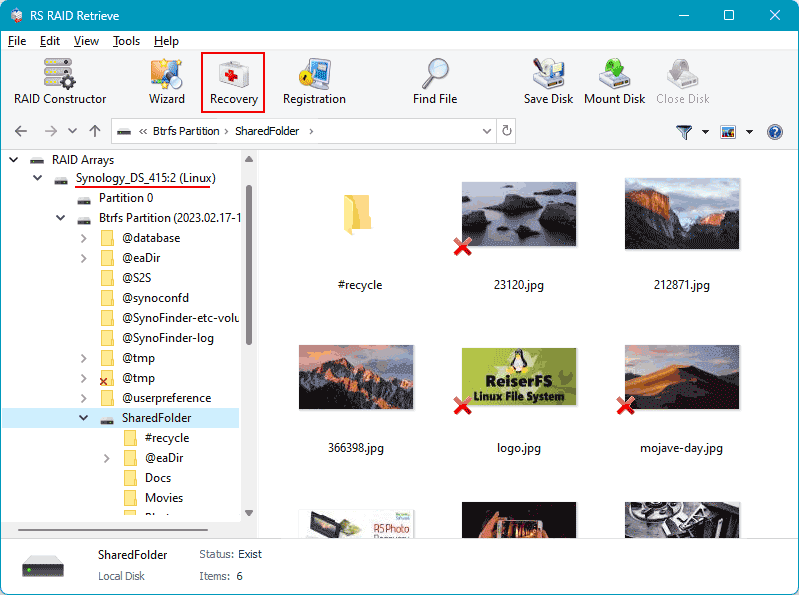
Step 6 Review the recovered folders.
Browse photos, videos, documents, and check integrity before exporting.
-
Step 7 Save your recovered data.
Select a different drive or partition to avoid overwriting original disks.
Tip: Never write new data to the original NAS drives during recovery.
Technical causes and diagnostic steps for 2-disk NAS RAID failures
The failure of a RAID array in a 2-disk NAS Synology DS119j typically occurs due to several low-level processes breaking down simultaneously. RAID metadata corruption, disk desynchronization, sector-level degradation, and controller instability together contribute to the gradual or sudden loss of redundancy. Below is a structured technical breakdown of how RAID failure usually develops and why data recovery becomes necessary.
Step 1: Initial disk instability detected through SMART anomalies. Early RAID degradation is often reflected in rising reallocated sector counts, unstable read times, or intermittent I/O delays. Even if the NAS does not yet show an error, delays in block access can cause the RAID engine to fail parity or mirror synchronization.
Step 2: The NAS Synology DS119j controller marks one drive as “Abnormal.” When the controller repeatedly encounters unreadable sectors or timeout events, it isolates the disk. At this stage the drive may still appear “online,” but internal mechanisms already prevent accurate parity calculations.
Step 3: The drive becomes undetectable or is automatically removed from the array. Firmware lock-ups, voltage fluctuations, or head-positioning errors often cause the drive to disconnect completely. Once this happens, the RAID enters a degraded state where redundancy no longer exists.
Step 4: RAID metadata becomes inconsistent. With missing writes, corrupted parity blocks, or incomplete mirror updates, the RAID superblock may lose alignment. As a result, the NAS may fail to mount the array or show the volume as “Crashed.”
Step 5: File access issues escalate. Users typically begin noticing corrupted files, disappearing folders, or long delays opening large directories. In RAID 0 configurations, even a single disk failure leads to immediate data loss across the entire array.
- SMART degradation and growing sector instability
- Array desynchronization due to timeout errors
- Controller-level RAID metadata corruption
- Low-level file system damage on degraded volumes
The main causes of data loss in NAS devices
Disk failure. Physical malfunction of HDD or SSD is a common reason for data loss, especially in 2-disk NAS systems affecting RAID0 and important for RAID1.
Human errors (deletion, formatting). Accidental deletion or incorrect formatting can result in inaccessible files, requiring prompt recovery actions.
Firmware or DSM update errors. Improper system updates may corrupt partition tables or file metadata, causing data loss.
Power problems and sudden shutdowns. Unexpected power interruptions during write operations can damage file systems and compromise RAID integrity.