Data loss on the NAS QNAP TS-231P3 usually occurs due to disk errors, failed RAID rebuilds, or corrupted system partitions. Even a small issue can make the entire storage volume unreachable. In this article, we describe the main failure scenarios for the NAS QNAP TS-231P3 and provide clear steps for safe data recovery.

Key NAS Specifications That Ensure Reliability and Data Protection
The QNAP TS-231P3 NAS combines performance, security, and convenience in a compact solution designed for home offices and professionals. With 2 drive bays, it supports RAID 0/1 configurations, allowing you to choose between faster performance or improved data protection. Its modern EXT4 and Btrfs file systems offer advanced stability, while seamless network integration ensures quick access to your files from any device.
If the unexpected happens — disk failure, corruption, or accidental deletion — the system’s well-structured RAID architecture makes data recovery fast and highly effective using specialized tools.
Technical Specifics of Data Recovery on QNAP TS-231P3
Data recovery on the QNAP TS-231P3 requires understanding of its dual-bay architecture and RAID metadata layout. RAID 0 stripes are distributed in fixed-size blocks, while RAID 1 mirrors maintain identical superblocks across disks. The device typically utilizes EXT4 or Btrfs, each with its own journal and tree-structure constraints. During recovery, drives must be imaged sector-by-sector to prevent metadata corruption, and RAID parameters (chunk size, order, layout) must be reconstructed manually or via specialized tools.
Main Features of the QNAP TS-231P3 NAS
| Drive Bays | Supported Drives | Hot Swappable | Supported RAID | File Systems | Maximum volume |
| 2 | 2.5" or 3.5" SATA | ✓ | RAID 0, RAID 1, JBOD | EXT4, BTRFS | 44 Tb |
The TS-231P3 uses QTS 5 to present a layered storage stack: physical disks grouped into QTS-managed software arrays in RAID 0, RAID 1 or JBOD, and filesystems formatted as EXT4 or BTRFS. For recovery purposes treat the layers as array layer → filesystem layer. Model-specific failure points include corruption of on-disk RAID metadata when the array is misassembled after an unclean shutdown, BTRFS metadata tree corruption or snapshot/extent map inconsistencies, and QTS 5 kernel/driver or boot-stage failures that prevent array assembly. The device’s limited 2 GB memory can exacerbate metadata corruption during heavy I/O or interrupted writes, and the Annapurna Labs Alpine AL314 platform and its firmware can fail to initialize storage stacks reliably after software errors or interrupted upgrades.
Logical inaccessibility typically arises when the NAS cannot assemble the software array or the filesystem superblock/metadata is damaged: the OS fails to map block addresses into files because RAID headers or BTRFS/EXT4 metadata are inconsistent. Recovery principle is to image and work outside the NAS: create bit‑for‑bit images of all member disks, do not write to originals, reconstruct the array parameters from on‑disk metadata using forensic tools, and then mount filesystems read‑only to extract data. Only after verified extraction should any controlled repair or write be attempted; this preserves evidence and minimizes further metadata damage.
Step-by-Step NAS QNAP TS-231P3 Data Recovery Guide
When your 2-disk NAS QNAP TS-231P3 stops responding — whether after a RAID failure, file-system corruption, accidental deletion or power loss — the situation feels urgent. This guide is built to reduce cognitive load and help you move through recovery with clarity. Every step is actionable, simplified, and aligned with best practices used by data-recovery professionals.
-
Step 1 Power down your NAS TS-231P3 and remove the drives.
Shut the device down completely. Slide out both disks carefully and label them “Disk 1” / “Disk 2” to preserve array order — a critical UX-safe detail for accurate RAID reconstruction.
-
Step 2 Connect both drives to your computer.
Use SATA ports or adapters. Ensure both disks are mounted simultaneously; the software needs full access to rebuild the RAID architecture correctly.
-
Step 3 Launch RS RAID Retrieve.
The interface guides you through detection, RAID auto-assembly, and scan options. The preview panel displays configuration details so you can validate the restored RAID layout before scanning.

Data recovery from damaged RAID arrays
Available for: Windows, macOS, Linux -
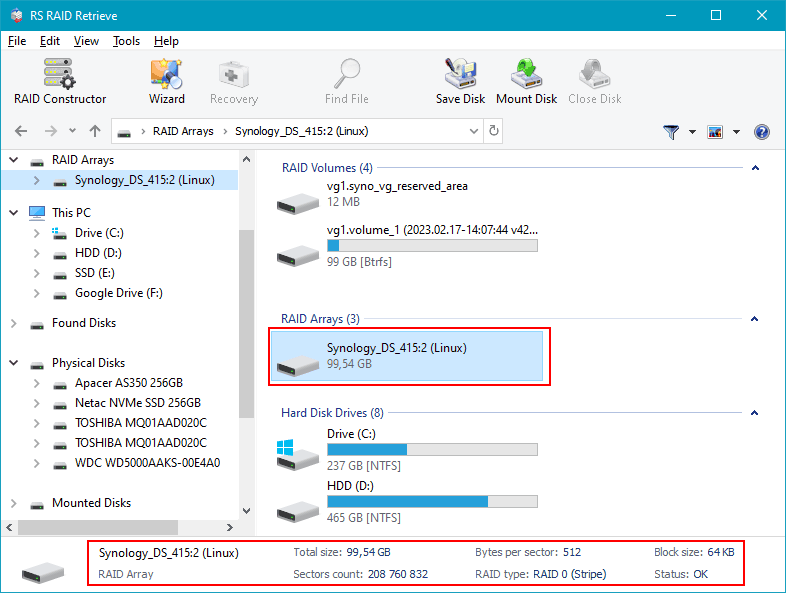
Step 4 Verify RAID parameters.
The tool usually identifies stripe order, block size, and RAID type automatically. If not, you can adjust settings manually with real-time feedback in the UI.
-
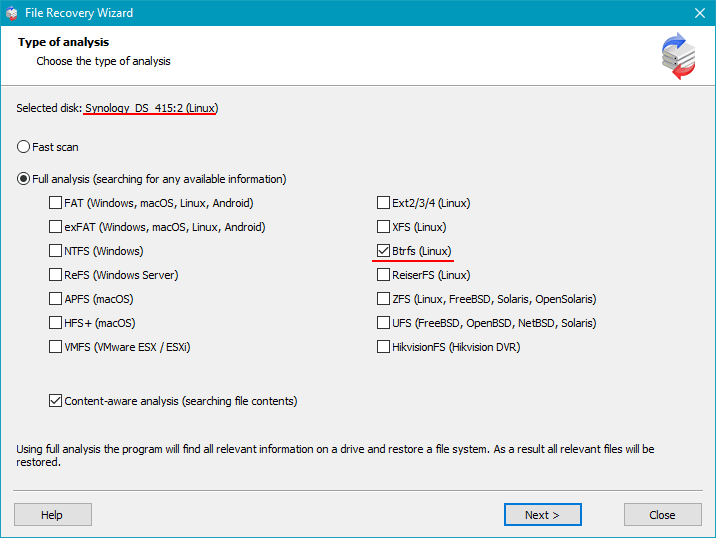
Step 5 Run a deep scan.
The algorithm reconstructs folders, recovers deleted items, and restores media metadata for photos, videos, documents, and more.
-
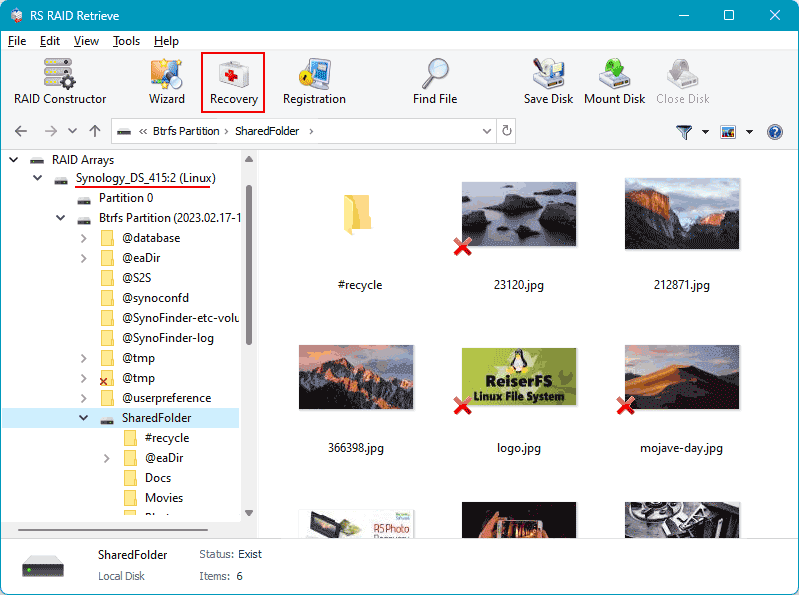
Step 6 Review the tree structure.
Explore the recovered directory: thumbnails, file types, timestamps — everything is organized for intuitive navigation.
-
Step 7 Export your files.
Select any safe storage location — external HDD, SSD, or a separate partition. Avoid writing anything back to the original drives.
Tip: Keep the recovered data on a new device to prevent overwriting and ensure maximum recovery success.
Common Causes of Data Loss in NAS Devices
Data loss in NAS systems often occurs due to RAID failures, accidental deletion, firmware corruption, disk degradation, and power outages. Misconfigured RAID arrays or simultaneous disk failures also frequently lead to inaccessible volumes or damaged file structures.
Why RAID Fails in NAS QNAP TS-231P3
When a NAS QNAP TS-231P3 with two drives starts acting strangely, it usually hints at deeper RAID issues. UX-focused diagnostics show that users often notice early signals long before an actual failure — and recognizing these patterns helps protect data before it’s too late.
Drive desynchronization over time. Even if both disks seem healthy, subtle delays in read/write tasks gradually break RAID harmony. These small inconsistencies accumulate and eventually cause degraded status.
Hidden disk wear. A 2-bay NAS relies on perfect cooperation between drives. But sectors fail silently: the NAS keeps running, performance drops, and users start experiencing delays while opening or copying files.
Thermal imbalance. Many RAID failures originate from simple overheating. If the enclosure can’t maintain airflow, one disk ages faster, leading to mismatched performance that threatens the whole RAID.
Firmware conflicts. Different firmware versions between drives or outdated NAS OS can cause synchronization failures, unexpected rebuild loops, or forced RAID degradation.
- early disk dropouts
- slower file access or freezing directories
- repeated “Degraded” notifications from the NAS interface
File access disruption. When RAID 0 fails — or when both drives show errors at once — files become unreadable or completely inaccessible, triggering urgent data recovery.