Recovering data from a NAS D-Link DNS-325 becomes essential when the device stops responding, the RAID array degrades, or important files suddenly disappear. Disk failures, firmware issues, accidental deletion, or logical corruption can make the storage inaccessible. In this guide, we explain the main causes of data loss on the NAS D-Link DNS-325 and outline safe methods to restore access without risking further damage.
What’s Inside This NAS? Key Specs Explained Simply
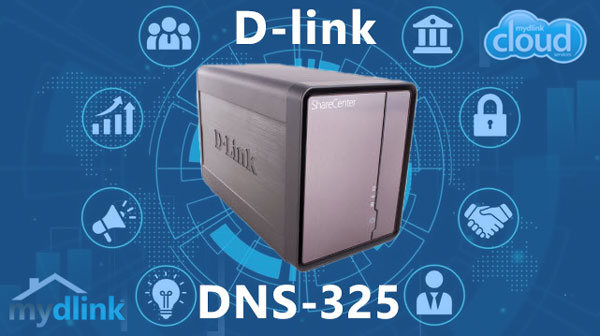
The D-Link DNS-325 is built with everyday users in mind. With its 2 drive bays, you get enough storage flexibility for photos, documents, media files, and backups. It supports RAID 0/1, giving you a choice between more speed or safer data mirroring. The NAS works with EXT4 or Btrfs, both proven file systems known for reliability and clean data structure.
Even if you’ve never used a NAS before, this model is easy to set up and maintain — and if something goes wrong, its clear RAID layout helps simplify the data recovery process.
Professional Data Recovery Workflow on D-Link DNS-325
For business environments, data recovery on the D-Link DNS-325 must follow a structured workflow: preliminary diagnostics, disk imaging, RAID reconstruction, filesystem analysis, and controlled extraction of recovered data. This approach minimizes downtime and ensures integrity of business-critical archives.
Main Features of the D-Link DNS-325 NAS
| Drive Bays | Supported Drives | Hot Swappable | Supported RAID | File Systems | Maximum volume |
| 2 | 2.5" or 3.5" SATA | ✗ | RAID 0, RAID 1, JBOD | EXT3 | 4 Tb |
The present specifications describe a mirrored storage architecture profile: RAID 1 with an EXT3 file system on one unit, running Linux (D-Link Custom) v1.x on a Marvell 88F6281 with 256 MB of RAM. From an analytical perspective, this means that every logical file should exist in identical metadata structures on mirror members. The single-best, model-specific failure point therefore does not arise from carrier types, but from the implementation of the file system and its journal in the device-specific firmware: EXT3 journal/metadata handling in D-Link Custom Linux v1.x is the most likely cause of a model-specific failure, as the hierarchy and consistency of the metadata are managed directly by the firmware stack.
Logical inaccessibility occurs when the firmware does not correctly present the EXT3 metadata or does not cleanly restore the journal; consequently, the NAS operating system cannot mount the volume as consistent, even though the block copy exists on the mirror members. The basic procedure for recovery outside the NAS follows directly from this: connect a mirror member externally to a system with Linux and EXT3 support, mount the file system in safe mode or initially make it read-only, and use the native EXT3 repair mechanisms to restore the metadata/journal integrity in order to then extract the data in an orderly manner.
Step-by-Step NAS D-Link DNS-325 Recovery Tutorial for Beginners
Recovering data from a 2-disk NAS D-Link DNS-325 may seem complicated, but with the right guidance, anyone can do it safely. This educational walkthrough explains each step in a clear, structured format, helping you understand not only what to do, but why it matters. You’ll learn the basics of RAID reconstruction, safe handling of disks, and deep file system scanning.
Step 1 Power off the NAS and remove the disks.
Turning the NAS fully off prevents additional damage. Carefully slide out both drives and note their order — RAID relies on precise disk sequencing.
Step 2 Connect the NAS disks to your PC.
Attach both drives simultaneously via SATA or USB-to-SATA adapters. This is required for RAID assembly and correct metadata interpretation.
Step 3 Launch RS RAID Retrieve.
The software analyzes your disks in read-only mode, automatically detecting RAID level, block size, parity rotation and other technical parameters.

Data recovery from damaged RAID arrays
Available for: Windows, macOS, LinuxStep 4 Review the detected RAID configuration.
RAID settings may vary between NAS models. Verify that the parameters match your D-Link DNS-325 system. Adjust manually only if needed.
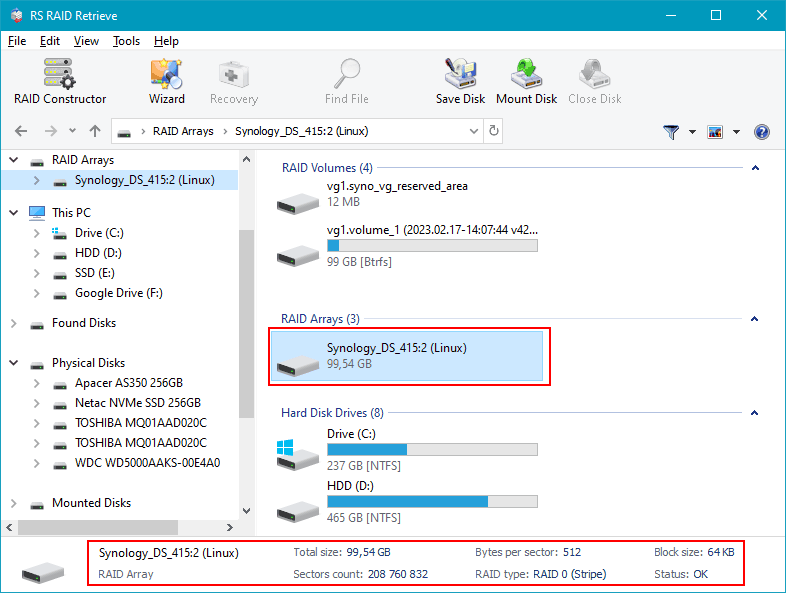
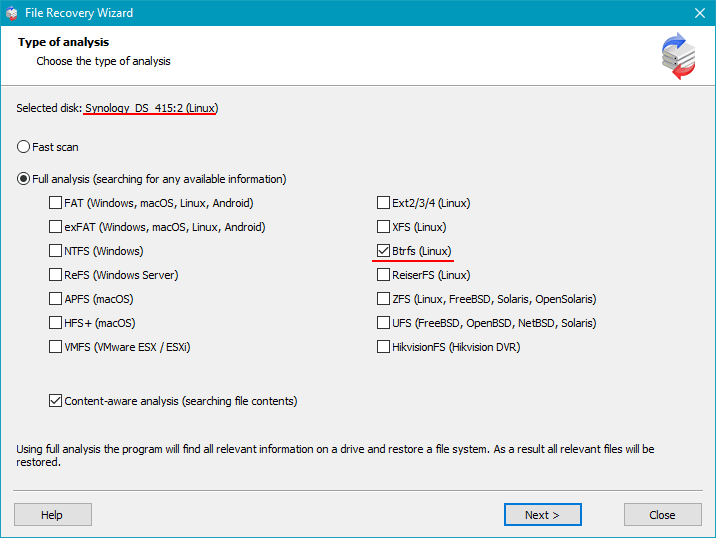
Step 5 Start a deep scan of the reconstructed RAID.
The tool rebuilds the file structure and searches for documents, photos, videos and other data — even if the partitions are damaged.
Step 6 Inspect the recovered folders.
Browse through the directory tree to confirm that your files are accessible. The preview helps you evaluate the recovery quality.
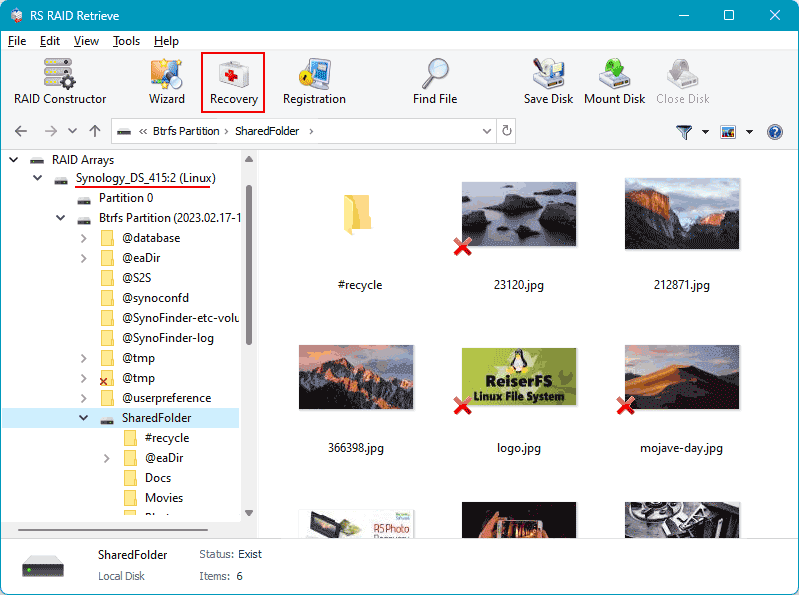
Step 7 Export the restored data to a safe location.
Save your files to another drive to avoid overwriting valuable data on the original NAS disks.
Tip: Never write to the original NAS disks during recovery.
Why RAID fails in 2-disk NAS D-Link DNS-325
The failure of a RAID array in a 2-disk NAS D-Link DNS-325 is typically caused by a combination of hardware wear, unstable system conditions, and file-system-level inconsistencies. Since a two-bay NAS relies heavily on synchronized disk operation, even minor deviations in performance or SMART parameters may lead to a rapid degradation of the array. Below are the most common technical reasons why a RAID configuration may fail, making data recovery necessary.
1. One disk becomes undetectable. In many NAS D-Link DNS-325 recovery cases, the RAID failure starts when one of the drives suddenly disappears from the system dashboard. The NAS controller stops seeing the HDD/SSD because of firmware issues, electrical problems, or mechanical wear.
2. Noticeable performance slowdown. A failing RAID in a 2-disk setup often results in slow file access, reduced read/write speed, and delays when opening folders. These symptoms indicate that disk synchronization is breaking down and that the system is struggling to rebuild parity or mirror data.
3. “Degraded” or “Crashed Volume” status. When the NAS marks the array as Degraded, it signals that redundancy has been lost and RAID integrity is compromised. If not addressed, the array may transition to a Crashed Volume state, requiring immediate professional recovery.
4. Files become inaccessible. In RAID 0 or in certain simultaneous failure scenarios involving both disks, the system may no longer open files or may generate errors such as “File Corrupted” or “Directory Unavailable.”
- Undetected disk events
- Parity or mirror synchronization errors
- Low-level sector degradation and SMART failures
- Unplanned shutdowns leading to RAID metadata corruption
Common Causes of Data Loss in NAS Devices
Data loss in NAS systems often occurs due to RAID failures, accidental deletion, firmware corruption, disk degradation, and power outages. Misconfigured RAID arrays or simultaneous disk failures also frequently lead to inaccessible volumes or damaged file structures.