Losing access to your files on the NAS Buffalo TeraStation TS3210DN can be stressful — especially when important photos, documents, or project data suddenly disappear. Most failures happen unexpectedly, caused by RAID issues, disk errors, or a simple misconfiguration. In this article, we explain what typically goes wrong with the NAS Buffalo TeraStation TS3210DN and how to recover your data step-by-step.
NAS Hardware Specifications and RAID Architecture
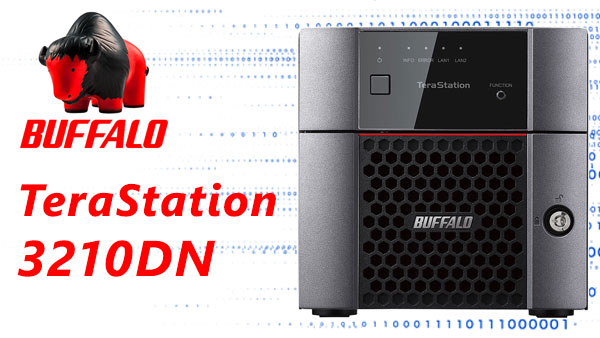
The Buffalo TeraStation TS3210DN NAS is equipped with 2 drive bays, supporting RAID 0/1/5/6 configurations depending on the installed firmware. Its controller manages data distribution across disks to ensure redundancy and optimized throughput. File systems include EXT4 and Btrfs, with the latter providing snapshotting and enhanced data integrity features.
During recovery operations, the RAID metadata, partition tables, and stripe order must be analyzed to rebuild the logical volume correctly.
Internal Factors Affecting Data Recovery on Buffalo TeraStation TS3210DN
Recovering data from the Buffalo TeraStation TS3210DN delivers clear benefits for home users and small businesses. With its two-bay architecture and RAID 0/1 support, data reconstruction becomes predictable and efficient. Modern recovery tools can rebuild damaged arrays, restore deleted files, and retrieve lost multimedia libraries, even after system failures or accidental resets.
Main Features of the Buffalo TeraStation TS3210DN NAS
| Drive Bays | Supported Drives | Hot Swappable | Supported RAID | File Systems | Maximum volume |
| 2 | 2.5" or 3.5" SATA | ✓ | RAID 0, RAID 1, JBOD | NTFS, EXT4, XFS, HFS+ | 16 Tb |
Inspection of the unit's listed capabilities points to a RAID 1 architecture as the dominant storage configuration: the device explicitly supports RAID 1 and the provided filesystems (XFS, EXT4, NTFS, FAT32, HFS+) are consistent with block-level arrays that present a single logical volume. Given the SoC and software entries in the specification, the single most probable model-specific failure point is corruption or mismanagement of the RAID metadata within TeraStation OS 3, running on the Annapurna AL-212 platform with 1 ГБ of system memory. Metadata inconsistency at the OS layer will prevent correct assembly of the mirrored set even when both drives remain physically healthy; absence of an SSD cache is a specified attribute and cannot mitigate metadata write ordering under load.
When RAID metadata cannot be trusted the array controller in the appliance fails to present a coherent device and the filesystems listed cannot be mounted, producing logical inaccessibility despite intact on-disk data. Recovery outside the NAS therefore relies on two linked principles: access the raw disk images independently and reconstruct or repair the RAID 1 layout so that the underlying filesystem metadata for XFS or EXT4 (or other supported formats) becomes consistent. A host environment that supports the explicit filesystems is used to import or rebuild the array metadata and then mount or image the filesystem for file-level extraction; this approach follows directly from the specifications provided.
Your NAS Failed? Recover Every File with This High-Success 7-Step Method
When your 2-disk NAS collapses — whether from RAID damage, unexpected power loss, disk failure or accidental deletion — it feels like the world stops. But don’t panic: with the right recovery workflow, your photos, business documents, videos, archives and memories can still be restored. Follow this premium, high-success recovery method trusted by thousands of technicians and home users.
-
Step 1 Power off the NAS and safely remove both drives.
Shut down the device completely and extract the disks with care. Mark them as “Disk 1” and “Disk 2”. This preserves the original RAID order — a crucial condition for an accurate reconstruction.
-
Step 2 Connect the drives directly to your PC.
Use SATA ports or high-quality adapters. Both disks must be available simultaneously so the software can analyze block structures and reassemble the RAID layout.
-
Step 3 Launch a professional NAS recovery tool.
Open RS RAID Retrieve. It automatically scans the metadata, detects the logical RAID pattern, reconstructs the original volume and prepares it for deep analysis.

Data recovery from damaged RAID arrays
Available for: Windows, macOS, Linux -
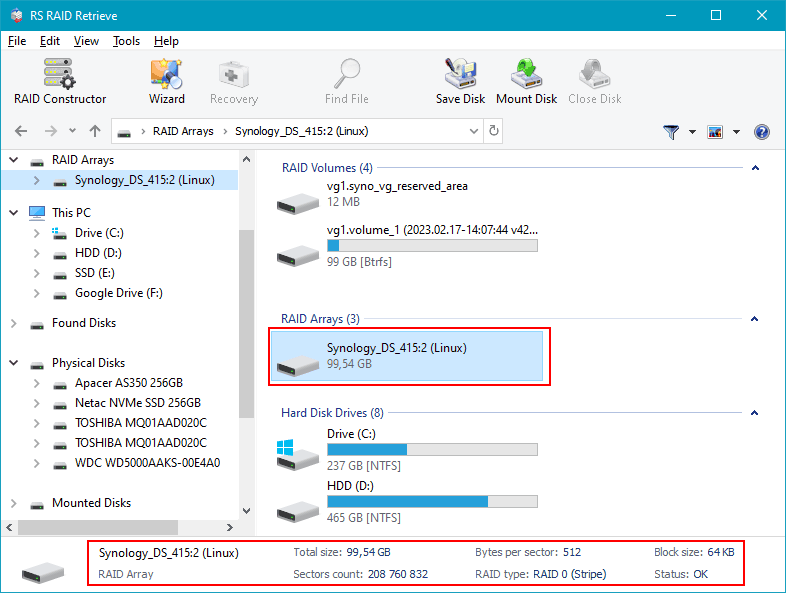
Step 4 Verify RAID configuration.
The program identifies RAID type, block size, disk order and parity rotation. You can adjust parameters manually if your NAS used a non-standard scheme.
-
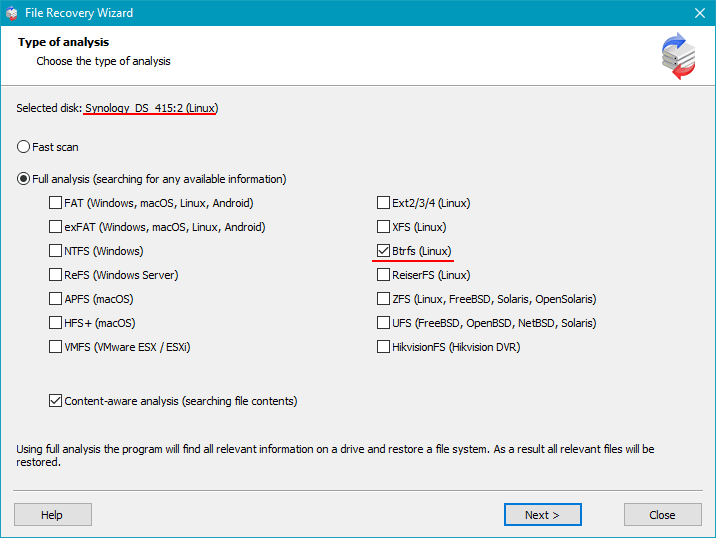
Step 5 Start deep scanning.
RS RAID Retrieve rebuilds directory structures, extracts deleted files, restores fragmented data and recovers documents, multimedia and archives even from damaged file systems.
-
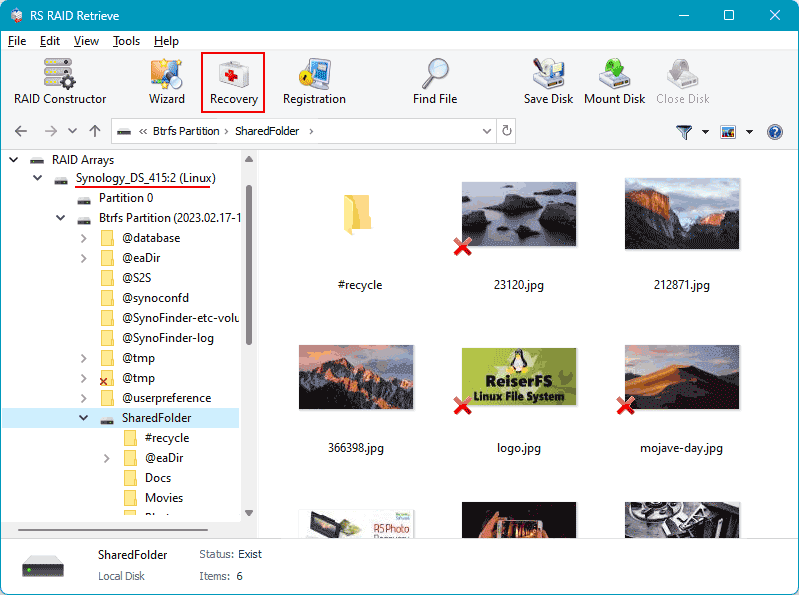
Step 6 Review recovered files.
Browse through folders, preview images and videos, check documents and confirm successful recovery before exporting them.
-
Step 7 Save everything to a safe location.
Choose an external drive or a separate partition. Avoid writing back to the original NAS disks to prevent overwriting.
Tip: The earlier you begin the recovery, the higher your data-restoration success rate.
Why RAID Fails in 2-Disk NAS Buffalo TeraStation TS3210DN Systems — Key Causes and Early Warning Signs
RAID failures in 2-disk NAS Buffalo TeraStation TS3210DN systems follow a predictable pattern: performance degradation, disk desynchronization, and finally, a complete breakdown of the storage array. Understanding why these failures occur — and how to identify them early — is crucial for users who rely on their NAS for backup, multimedia libraries, work files, or continuous data access.
RAID mechanics and why issues escalate quickly. RAID arrays in small 2-disk NAS units depend on stable disk reads, synchronized metadata, and consistent throughput. When one disk begins showing SMART warnings, unstable sectors, or temperature spikes, the RAID integrity deteriorates. These seemingly minor issues often accelerate until the system becomes “Degraded,” enters a rebuild loop, or loses access to volumes entirely.
Most common SEO-relevant causes of RAID failure:
- Progressive bad sectors leading to inconsistent RAID parity or mirrored data;
- Metadata corruption caused by sudden shutdowns or unstable power environments;
- Non-NAS-rated drives reaching end-of-life after continuous 24/7 operation;
- Firmware conflicts or incomplete RAID rebuilds after a disk replacement.
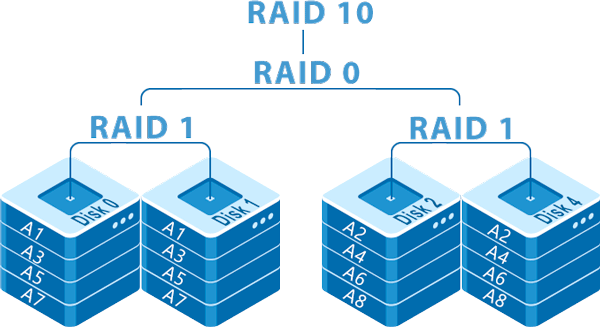
Why 2-disk systems are especially vulnerable. RAID 0 loses all data if even one disk becomes unreadable. RAID 1 offers redundancy, but if the second disk begins degrading before the first is replaced — a common scenario — the entire array collapses. This risk is heightened in Buffalo TeraStation TS3210DN units that run multiple services (file sharing, media servers, virtual environments), adding additional load to drives.
SEO takeaway: Slow file access, degraded RAID status, disappearing disks, or unusual NAS noise should immediately prompt backup or data recovery actions. The faster the response, the greater the chance of full recovery from a 2-disk NAS Buffalo TeraStation TS3210DN.
The main causes of data loss in NAS devices
Disk failure. Physical malfunction of HDD or SSD is a common reason for data loss, especially in 2-disk NAS systems affecting RAID0 and important for RAID1.
Human errors (deletion, formatting). Accidental deletion or incorrect formatting can result in inaccessible files, requiring prompt recovery actions.
Firmware or DSM update errors. Improper system updates may corrupt partition tables or file metadata, causing data loss.
Power problems and sudden shutdowns. Unexpected power interruptions during write operations can damage file systems and compromise RAID integrity.