How to recover data from a Hikvision DVR? This is not straightforward even if the hard drive is intact and the files have not been deleted. The DVR uses a proprietary Hikvision file system that is not supported by any desktop operating system.
The task can be solved using another Hikvision DVR. Alternatively, use a computer and data recovery software that supports the Hikvision file system.

Contents
- Another Hikvision surveillance device
- How to export video from a Hikvision DVR to a computer
- Software for recovering video from a Hikvision DVR
- Recovering video when the hard drive has failed
Another Hikvision surveillance device
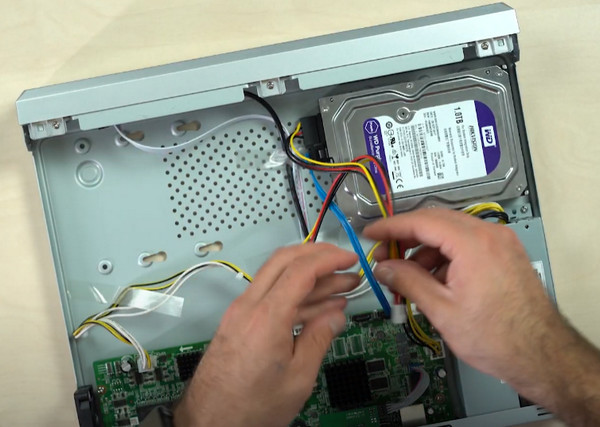
If the Hikvision DVR is faulty but its hard drive is intact and the data has not been deleted, video can be recovered using another Hikvision DVR or any Hikvision surveillance device. Connect the hard drive from the non‑working DVR to the other device.
Then export the video from that disk.
How to export video from a Hikvision DVR to a computer
Option 1: plug a USB flash drive into the Hikvision DVR and use the DVR’s tools to create backups of the video files to the flash drive. Then copy them to the computer.
Option 2 (for modern Hikvision DVRs and other surveillance devices): download video files using the iVMS-4200 client or via the web interface when connected over IP.
If there is no other Hikvision surveillance device, or it does not detect the disk from the faulty DVR, a computer is required. But how do you access a Hikvision DVR hard drive on a computer?
As noted, these devices use the proprietary Hikvision FS file system, which desktop operating systems do not support. The solution is the same as for data loss scenarios: use data recovery software for Hikvision DVRs.
Software for recovering video from a Hikvision DVR
Consider common data loss scenarios on a Hikvision DVR. Videos may be deleted by a user—accidentally or without realizing their importance. The DVR storage may be formatted unintentionally. Video may disappear due to a DVR malfunction.
In such cases, disconnect the hard drive from the DVR and connect it to a computer. Use a data recovery tool with support for the Hikvision FS file system.
Do not perform operations such as initialization or formatting on the disk.
One of the few tools that support this is RS Partition Recovery. This software can recover video from a Hikvision DVR hard drive that is:
- inaccessible via the DVR itself;
- deleted by a user;
- lost due to disk formatting or logical corruption;
- lost due to DVR malfunctions.
The software is licensed, but a license is not required immediately. You can download, install, and run a free analysis to assess recoverability. If the scan finds the required videos, they can be recovered.
How to recover video from a Hikvision DVR using RS Partition Recovery?

All-in-one data recovery software
Download the software. On startup, the recovery wizard opens—cancel it. In the main window, locate the connected Hikvision DVR hard drive. It will be shown with the Hikvision FS file system. Click it.
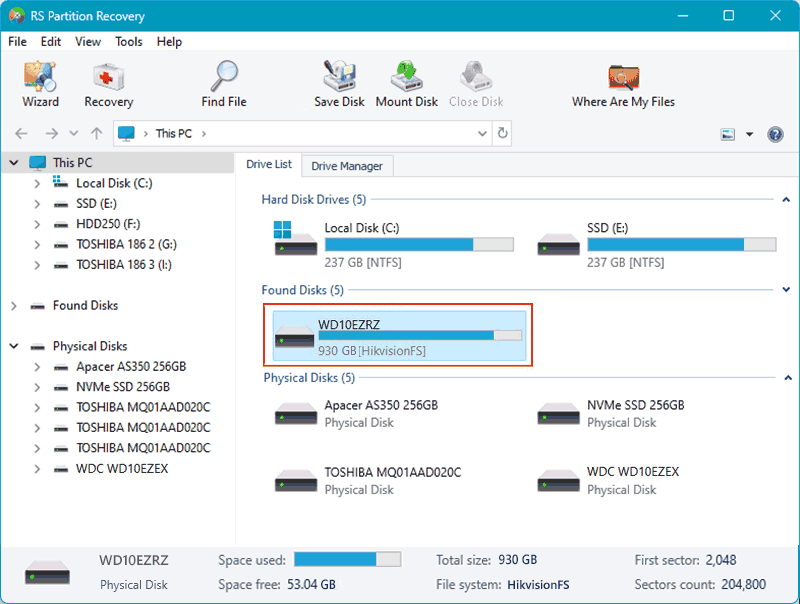
Select the scan type. By default, Quick scan is a fast analysis mode. It is typically effective for accessible data or recently deleted files. It can be used as a first step in any case.
If Quick scan does not find the required files, run the analysis again and select Full scan. This is a time‑consuming deep scan intended for complex recovery cases.
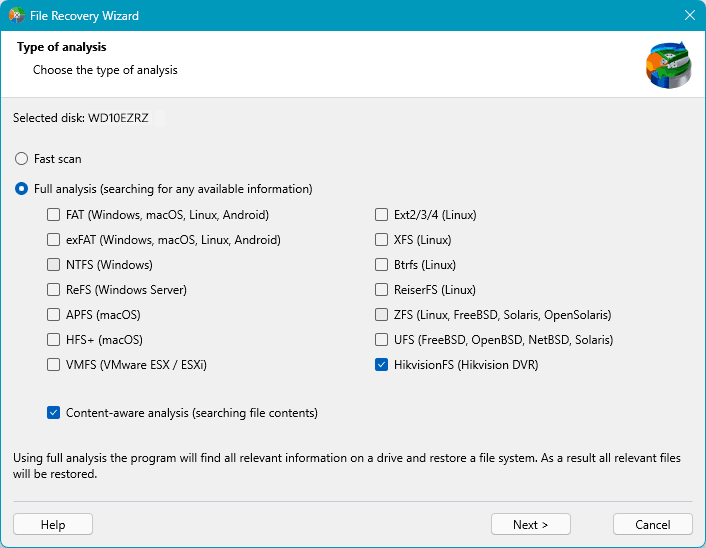
In the scan results, select the required videos and click “Recover”.

Specify how to save the recovered data and the destination path. Click “Recover”.
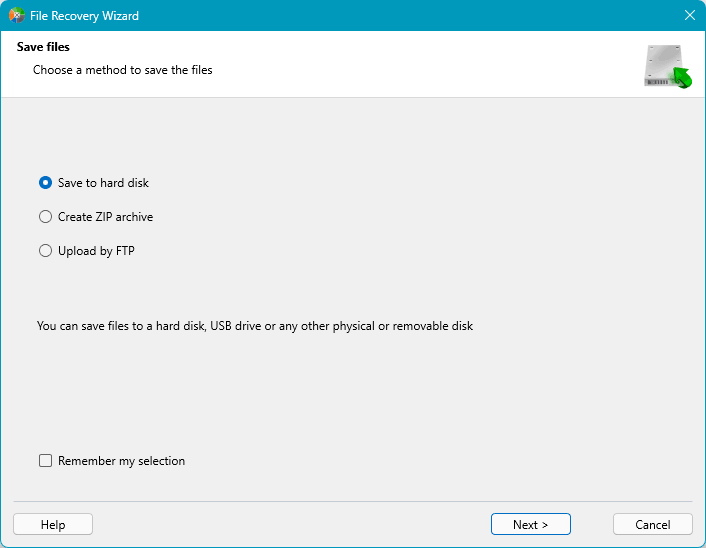
That’s it: after recovery completes, the videos will be available at the specified path.
Note: advanced Hikvision DVR models may support video storage on a RAID array. In this case, disconnect all array drives from the DVR and connect them to the computer. Then use RS RAID Retrieve.
Recovering video when the hard drive has failed
Video recovery software for Hikvision DVRs, including RS Partition Recovery, can help only if the hard drive is detected by the computer. If the disk is not detected despite a correct connection and BIOS settings, the drive has likely failed.
In this case, contact a data recovery service. If the drive is repairable, professional specialists may be able to recover the video.