A failed Dell PERC H755 Adapter controller does not always mean a lost RAID. Quite often, the data remains where it was — on the disks — while the controller simply stops presenting the array as a coherent volume. That distinction is central to modern RAID data recovery.
Built around PowerPC/ARM and the PERC 11 Stack stack, this controller stores its array logic in DDF (Dell Cust.). If a firmware glitch, power event, controller swap, or interrupted rebuild breaks access to those parameters, the operating system may only see separate disks. At that point, the task is not to “recover deleted files,” but to reconstruct the RAID itself and then recover data from the restored logical structure.
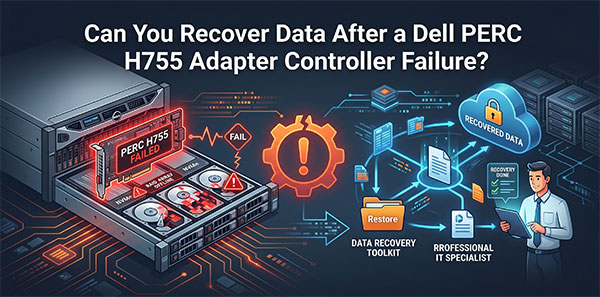
Important: when a RAID disappears after controller trouble, it may be the structure that vanished, not the data.
Why the RAID Array Becomes Inaccessible
Inside the Dell PERC H755 Adapter, access depends on a surprisingly precise set of rules. Metadata, offsets, stripe logic, and parity layout all have to line up. If they do not, the array may look gone even though the disks are still there.
Metadata Layout
DDF (Dell Cust.)
Stores how the controller understands the array.
Data Offset
0 / 2048
Marks where usable array data begins.
Stripe Size
64K - 1M
Defines how data spans disks.
Parity Layout
Left-Asynch
Controls missing-data reconstruction.
This is why many hardware RAID recovery cases begin with reconstructing the array itself.
Utilities tied to Win/Lin (perccli) can complicate things further.
How Cache Problems Can Affect the Array
With External Battery, cache protection can be a hidden factor in failed rebuilds and inconsistent writes.
Cache warnings should be treated as a recovery risk signal.
Common Causes of RAID Controller Failure and Data Loss
RAID arrays rarely “disappear for no reason.” In many hardware RAID recovery cases involving Dell PERC H755 Adapter, the trigger is a specific event, and the pattern repeats more often than people expect:
Power loss during writes — a classic source of metadata trouble.
Failed rebuild — often where damage escalates.
Controller swap — can make the array appear foreign.
Metadata corruption — the controller may simply lose the map.
Load instability — sometimes subtle, sometimes destructive.
Manual initialization — often the mistake that turns recoverable into difficult.
Technical Specifications of the Dell PERC H755 Adapter
| Drive Bays | 8 |
|---|---|
| RAID Levels | RAID 0, RAID 1, RAID 5, RAID 6, RAID 10, RAID 50, RAID 60 |
| Architecture (ROC) | PowerPC/ARM |
| Generation / Stack | PERC 11 Stack |
| Metadata Format | DDF (Dell Cust.) |
| Typical Data Offset | 0 / 2048 |
| Stripe Size Range | 64K - 1M |
| Parity Rotation | Left-Asynch |
| Cache Protection | ✓ |
| HBA / RAID Modes | UEFI HII |
| Processor (ROC) | SAS3916 |
| Management OS / GUI | Win/Lin (perccli) |
The Dell PERC H755: When "Foreign Configuration" Locks Your Data
Server administrators running modern PowerEdge systems often face a specific headache: the "Foreign Configuration" error on the Dell PERC H755. You reboot a system after routine maintenance or a sudden power blip, and your virtual disks vanish. The drives stay healthy and the lights stay green, but the controller refuses to mount the array.
This happens because the Dell PERC 11 stack is sensitive to timing. If there is a slight delay in drive spin-up or a firmware mismatch, the metadata on the disks desyncs from the controller NVRAM. The iDRAC interface then flags the disks as "Foreign." Any incorrect interaction with the configuration utility at this stage leads to permanent loss of the array structure.
The H755 uses the Dell PERC ePower supercapacitor system for cache protection. This hardware moves cache data to flash memory if the power cuts out. If this offload process fails—or if the supercap degrades—the controller disables Write-Back caching. A failure during this window creates a "Write Hole," leading to file system damage even if the physical hardware reports an "Optimal" status.
Treat a "Foreign" status as a handshake issue, not a hardware death sentence. Importing the configuration via the BIOS utility usually recovers the volume in seconds. Avoid "Clearing" the configuration, as this wipes the RAID headers.
Reconstructing RAID 5 or RAID 6 After Controller Failure
A dead controller does not mean your data is gone. The bits stay on the disks, parked in the same sectors where the OS left them. The real struggle starts when you try to rebuild the logic that holds those blocks together. Without the original hardware to act as a map, you are left looking at a massive jigsaw puzzle of raw hex code.
Working with the Dell PERC H755 requires precision. Success hinges on specific variables: the 0 / 2048 offset, stripe geometry, and the Left-Asynch parity rotation. If you miss the start sector by even one block, the file system stays invisible. If you misidentify the rotation pattern, the array looks assembled, but your files return as scrambled noise. Images look broken, and databases fail to mount.
When you move to RAID 6, the math changes. This second layer of protection, the Q-syndrome, uses Reed-Solomon error correction. Dell’s Broadcom-based chips use specific patterns for these calculations. To handle this, use RS RAID Retrieve, as it supports the specific Q-syndrome math and parity rotation used by the PERC 11 stack. Automatic tools often guess these parameters wrong, leading to "ghost" volumes where the folder structure exists but the content is corrupt.
Recovery of a RAID 6 array without the original H755 hardware is a two-step process. First, validate the P-parity. If that passes but data is still missing, recalculate the Q-syndrome. Always verify your stripe order with a hex editor before saving. Look for the boot sector at the 2048 offset; if it is not there, your geometry is wrong.
Do Not Initialize the Virtual Disk
If the utility suggests "Initializing" the RAID volume to fix access, select no. This overwrites DDF (Disk Data Format) metadata. Instead, clone the drives and work on images to keep the original evidence safe while you test different rotation patterns.
Step-by-Step Guide to Recover Data
In many hardware RAID recovery cases, the process is less about rushing to extract files and more about avoiding mistakes.
Step 1 Shut the server down.
Keep the drives in original order.
Step 2 Connect all drives to Windows.
The array is easier to interpret when all members are present.
Step 3 Open RS RAID Retrieve.
Let it attempt reconstruction.

Data recovery from damaged RAID arrays
Available for: Windows, macOS, LinuxStep 4 Check the parameters.
Wrong values can quietly damage results.
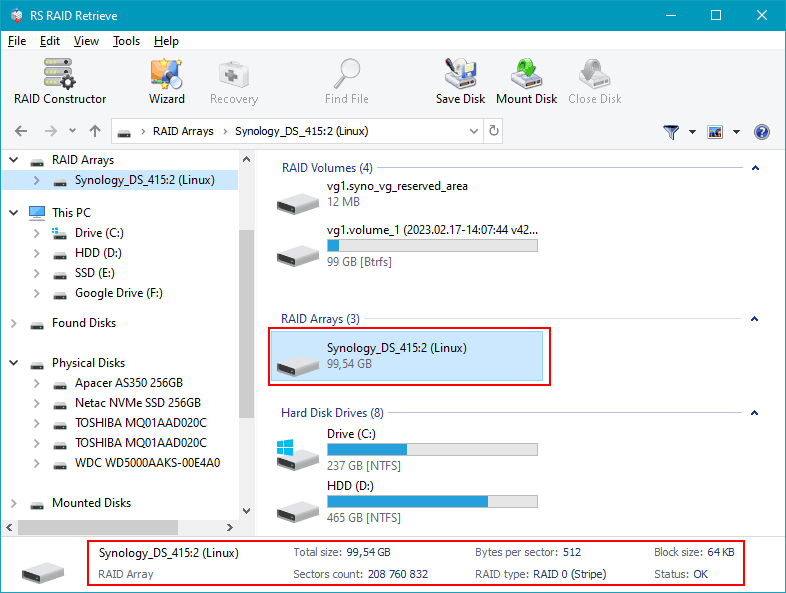
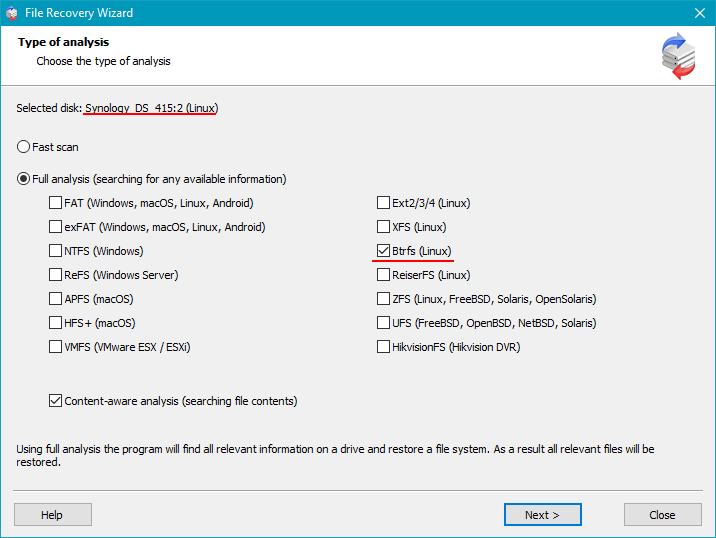
Step 5 Run the scan.
Let the software rebuild structure.
Step 6 Preview files.
Confirm integrity first.
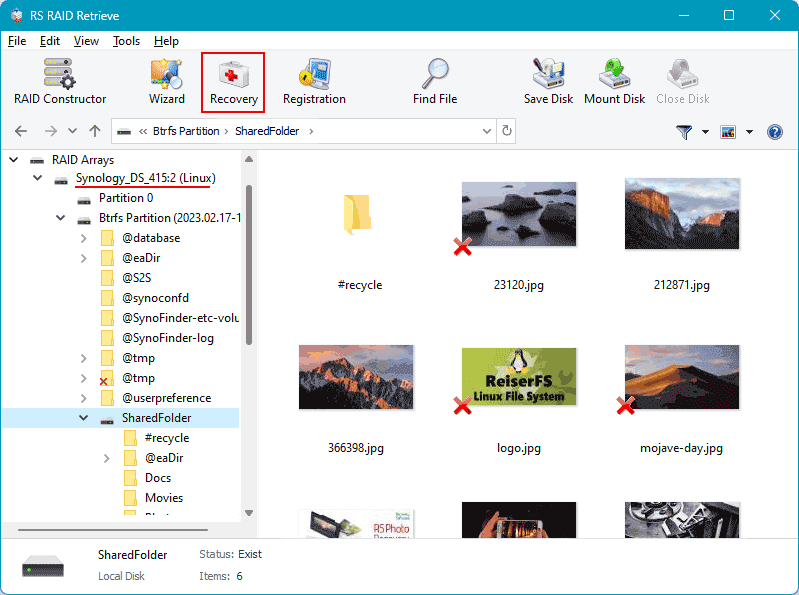
Step 7 Export to safe storage.
Do not use source disks.
Tip: Writing to source drives is a common avoidable mistake.
Why RS RAID Retrieve Is Safer Than Manual RAID Reconstruction
Manual reconstruction often looks simple until parameter testing starts. With RAID 5 and RAID 6, one wrong assumption may return damaged data even when the array seems readable.
RS RAID Retrieve avoids much of that uncertainty by working with the disks directly. In many hardware RAID recovery cases, that is a safer path.
It can identify array parameters, build a virtual RAID, analyze the file system, and export recovered files without writing to source disks.
Conclusion
A failed controller can make an array look lost when the data is still sitting on the disks. That is often where recovery begins.
With RAID 5 and RAID 6, the outcome often depends less on luck and more on avoiding destructive steps. In many hardware RAID recovery cases, software reconstruction is the safer route.