A failing RAID array on NAS Synology DS214+ can instantly make the entire storage pool inaccessible. RAID 1 mirror inconsistencies, metadata corruption, failed resync operations, or unexpected disk dropouts are common triggers for data loss. In this article, we outline the most frequent RAID-related issues affecting the NAS Synology DS214+ and explain how to recover data safely without risking overwriting or additional damage.
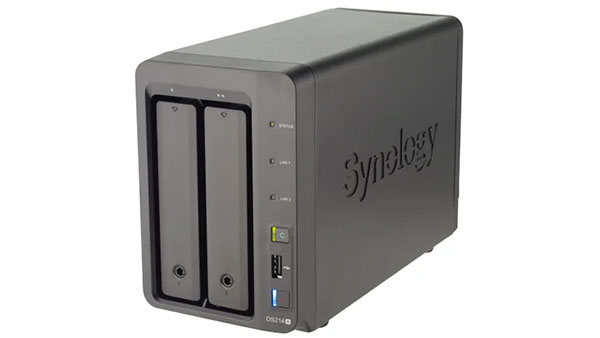
NAS Technical Basics: What’s Inside Your Storage Device
The NAS Synology DS214+ is built to give home users and beginners a simple way to store and protect their files. With 2 drive bays, it supports RAID 0 and RAID 1 — two basic modes that either boost speed or keep a safe backup copy of your data. The device uses EXT4 or Btrfs file systems, which help the system stay stable and recover quickly after minor errors.
If a disk stops working or files are removed accidentally, data recovery software can scan the NAS and rebuild lost information based on the remaining RAID structure.
Key Points of Recovering Data from Synology DS214+
A two-disk NAS like Synology DS214+ usually works in RAID 0 or RAID 1. If you used RAID 0, both disks are needed; if RAID 1, one disk may be enough. When the NAS stops working, the drives must be removed and scanned on a computer. Specialized tools rebuild the array and extract the files.
Main Features of the Synology DS214+ NAS
| Drive Bays | Supported Drives | Hot Swappable | Supported RAID | File Systems | Maximum volume |
| 2 | 2.5" or 3.5" SATA | ✓ | RAID 0, RAID 1, SHR, JBOD | EXT4, BTRFS | 16 Tb |
As a data recovery engineer examining a Synology DS214+ the typical storage architecture layers are: software RAID (mdadm/SHR) at the device layer, optional LVM volume groups above the array, and file systems such as ext4 or btrfs on logical volumes managed by DSM 6.2. Model-specific failure points include corrupted or mismatched RAID superblocks during degraded rebuilds, SHR metadata divergence when drives are moved between enclosures, and LVM metadata loss or PV/UUID mismatches. The platform’s limited memory footprint (512 MB) and DSM version can exacerbate incomplete metadata commits and cause array assembly timeouts; kernel or package faults in DSM 6.2 can leave mdadm sets in an inconsistent state.
The mechanism of logical inaccessibility typically follows a layered failure: a damaged RAID layer prevents correct LVM activation, which in turn leaves ext4 or btrfs volumes unmounted or corrupted. Recovery principle is to operate outside the NAS: image each drive, import images into a forensic Linux environment and attempt controlled assembly with mdadm using original superblock parameters or SHR-aware reconstruction tools, then recover LVM metadata and mount file systems read-only for extraction. For btrfs, use metadata-recovery utilities; for ext4, use filesystem repair and file-level extraction. Never perform writes on original disks during diagnosis.
Step-by-Step NAS Data Recovery Guide for 2-Disk Systems
When a 2-disk NAS stops responding, shows a “RAID degraded” warning, or refuses to mount shared folders, recovering your data is still possible by performing a structured diagnostic workflow. This method mirrors the approach used by professional data recovery labs and helps protect every sector of your disks during the process.
-
Step 1 Shut down the NAS and remove both drives.
Power off the device completely and wait until all LEDs stop blinking. Carefully extract the disks and label them by slot number. Maintaining the correct sequence is essential for RAID logic reconstruction.
-
Step 2 Connect the drives to a workstation.
Use direct SATA connections for the most accurate readout. If you must use USB adapters, choose models with stable controllers. Both disks must be attached simultaneously so the software can parse metadata blocks and RAID superblocks correctly.
-
Step 3 Launch RS RAID Retrieve.
The software analyzes disk signatures, RAID headers and file system markers (EXT4, Btrfs, XFS). It works in a non-destructive read-only mode, preserving original sectors.

Data recovery from damaged RAID arrays
Available for: Windows, macOS, Linux -
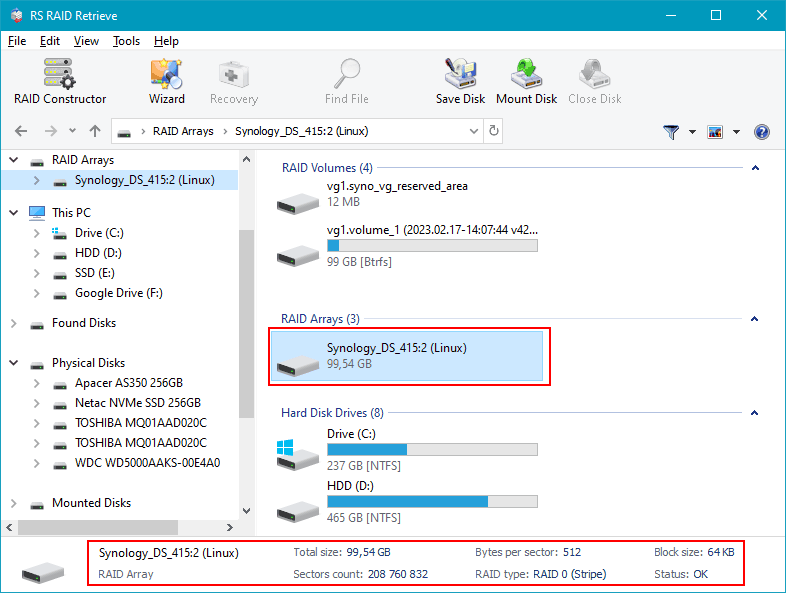
Step 4 Review the identified RAID configuration.
RS RAID Retrieve usually detects stripe size, RAID level, and disk order automatically. If the system previously suffered power loss or partial rebuild, verify parameters manually.
-
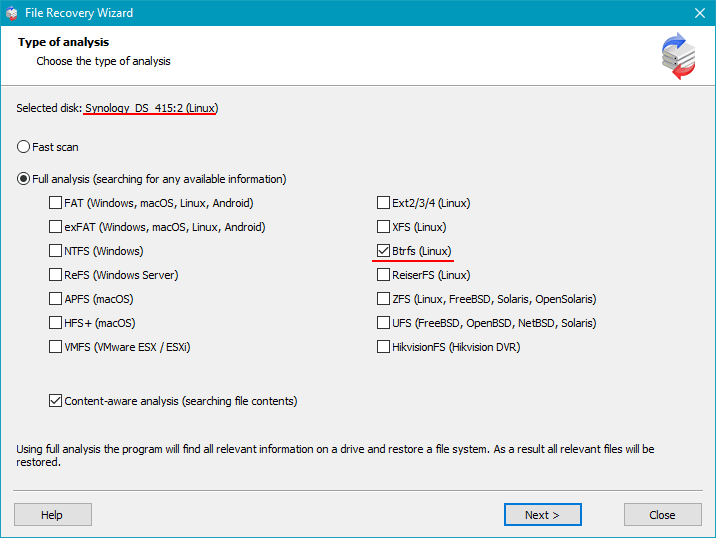
Step 5 Run a deep data scan.
The tool searches for lost inodes, directory trees, and fragmented data blocks, allowing recovery even when the partition table is corrupted or the file system is unreadable.
-
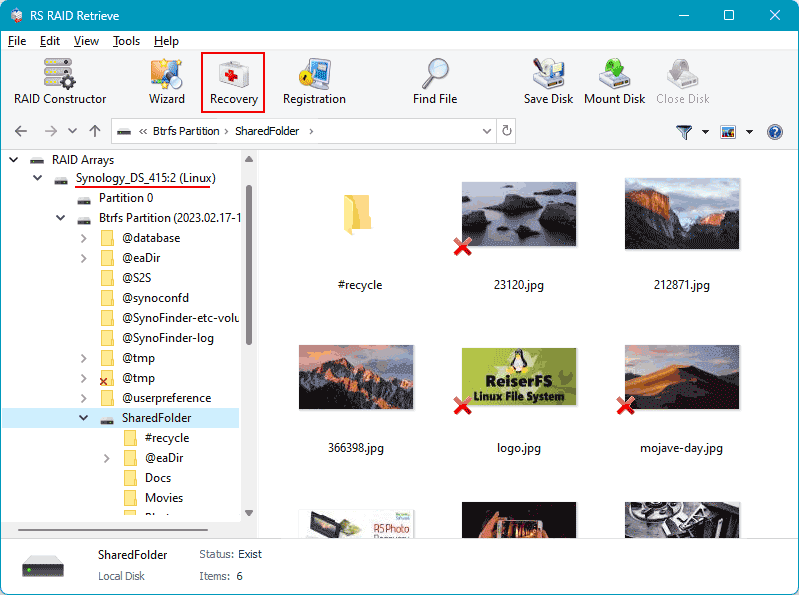
Step 6 Inspect the recovered structure.
Browse the reconstructed folder tree and preview documents, media files, archives and system data. Ensure that mission-critical files are intact before saving.
-
Step 7 Export the recovered data to another storage device.
Use a clean drive with sufficient capacity. Never save the recovered files back to the original NAS disks.
Tip: Avoid attempting RAID rebuild on the NAS before recovery — it can overwrite critical metadata and make the process harder.
Common Causes of Data Loss in NAS Devices
Data loss in NAS systems often occurs due to RAID failures, accidental deletion, firmware corruption, disk degradation, and power outages. Misconfigured RAID arrays or simultaneous disk failures also frequently lead to inaccessible volumes or damaged file structures.
Why RAID Fails in a 2-Disk NAS Synology DS214+ — And How to Protect Your Data Before It’s Too Late
When a 2-disk NAS Synology DS214+ experiences RAID failure, it rarely happens “all at once.” Instead, subtle warning signs appear long before the system collapses — and ignoring them often leads to total data loss. Understanding these signals can save not just files, but years of memories, business records, and irreplaceable digital assets.
Early warnings you shouldn’t ignore. Most RAID failures begin quietly: a disk slows down, the NAS takes longer to respond, or your usual fast file access suddenly becomes sluggish. These signs are emotional red flags — your NAS is trying to “tell you” something is wrong.
Why does RAID in a 2-disk NAS fail? Even reliable Synology DS214+ units depend on perfectly synchronized drives. When one disk behaves even slightly out of rhythm — increased SMART errors, unstable sectors, overheating — the entire array becomes vulnerable. In RAID 0, a single failing disk destroys everything instantly. In RAID 1, users often discover the truth only after both disks degrade in sequence.
Typical triggers that lead to RAID collapse include:
- Silent disk degradation masked by automatic NAS error correction;
- Power interruptions that desynchronize RAID metadata;
- Wear-and-tear on consumer-grade drives used 24/7;
- Firmware glitches causing a RAID rebuild loop that never finishes.
And here’s the emotional reality: the moment files stop opening, or the NAS shows “Degraded / Crashed Volume,” panic kicks in. But this is exactly when calm, correct actions matter most. Every minute of blind troubleshooting risks overwriting the only remaining good data blocks.
Your best move? Power down the NAS, avoid rebuild attempts, and start professional data recovery immediately. For 2-disk NAS Synology DS214+ systems, timely intervention is the difference between full recovery and permanent loss.