A single disk failure in an Unraid array is a predictable, manageable event — provided you respond to it correctly. The system keeps running, your data remains accessible, and there is a defined path to full recovery. None of this is accidental. It follows directly from how Unraid structures its arrays.
This article covers the mechanics behind that protection, the correct procedure for replacing a failed drive, and what to do when the standard path doesn’t work and data needs to be extracted from the outside.
How Unraid Stores Data: Independent Disks and XOR Parity
Unraid does not distribute file data across multiple drives in stripes the way RAID 5 does. Each data disk is a fully self-contained volume — formatted as XFS or BTRFS — that the operating system mounts independently. A file written to Disk 2 lives entirely on Disk 2. This is a deliberate design decision, and it has significant implications for both normal operation and failure scenarios.
The protection layer comes from a dedicated Parity disk. Unraid computes parity on a per-sector basis using XOR logic across all data disks. For any given sector offset, the parity disk holds the bitwise XOR of the corresponding sectors on every data disk.
XOR Parity — the math in plain terms:
For each sector position, Unraid computes:
Parity = Disk1 ⊕ Disk2 ⊕ Disk3 ⊕ ...
If any one disk is lost, its content can be reconstructed:
Lost_Disk = Parity ⊕ Disk1 ⊕ Disk2 ⊕ ...
Below is a simplified example with three data disks. Each row represents a single sector. The Parity column is the XOR of Disk 1 through 3. If Disk 2 disappears, every sector on it can be recalculated from the other three columns:
| Sector | Disk 1 | Parity | Disk 2 reconstructed |
|---|---|---|---|
| 0 | 10110010 | 00101111 | 10110010 ⊕ 01010101 ⊕ 00101111 = 11001100 |
| 1 | 00001111 | 01100101 | 00001111 ⊕ 10101010 ⊕ 01100101 = 11110000 |
One important constraint: this XOR mechanism protects against the loss of exactly one disk. Lose two data disks simultaneously with a single-parity array, and the reconstruction math no longer works — you have two unknowns per equation. That scenario is covered in the third article of this series.
Files stay on one disk
Unlike RAID 5, no file is split across drives. A healthy disk is directly readable even outside the array — a property that becomes critical in catastrophic failure scenarios.
XOR covers all data disks
The parity disk is computed from every data disk in the array. Adding a disk expands parity coverage automatically after the next parity sync.
One failure is recoverable; two is not
Single parity covers exactly one simultaneous disk loss. Dual parity (available in Unraid) extends this to two, at the cost of an additional dedicated disk.
Data Emulation Mode: What It Is and What It Isn’t
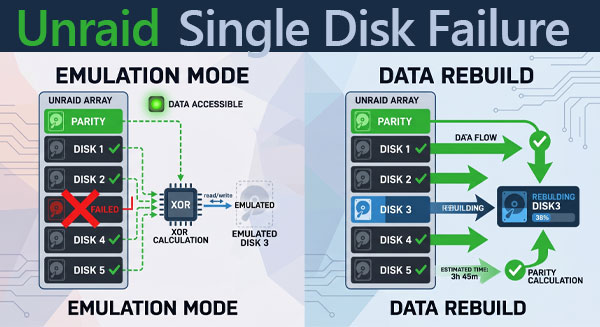
When Unraid detects that a disk has gone offline, it does not halt the array. Instead, it enters Data Emulation mode: the missing disk is replaced by a virtual construct assembled on-the-fly from the parity disk and all remaining data disks.
From the perspective of a client reading a file that was stored on the failed disk, nothing changes. Unraid intercepts the read request, identifies the relevant sectors, reconstructs them via XOR, and returns the data. Writes to the emulated disk are also handled — they update parity and the surviving disks while the failed one is out of the picture.
What emulation mode actually means for performance:
Every read from an emulated disk requires simultaneous reads from all other data disks plus the parity disk. On a large array, this places measurable I/O load on all spindles. Sequential throughput drops; random access latency increases. The array remains functional, but it is not in a normal operating state.
Emulation mode is not a permanent solution. It is a bridge — one that depends entirely on none of the remaining disks failing before you complete a rebuild. This is the window of maximum vulnerability in an Unraid array.
What works in emulation mode
Reading files from the failed disk’s share. Light writes. Normal access from all network clients. Monitoring via the WebGUI.
What doesn’t
Sustained heavy writes under load. Any tolerance for a second disk failure. Parity check results that are meaningful — a correcting parity check during emulation can corrupt data.
Do not run a correcting parity check while in emulation mode.
A correcting check will overwrite sectors it considers inconsistent — but during emulation, parity is by definition computed from an incomplete disk set. Running it will write incorrect parity and potentially corrupt data on healthy disks. If you need to run a parity check, make it read-only (non-correcting).
Replacing the Failed Disk: Step-by-Step Rebuild
The rebuild process writes the reconstructed contents of the failed disk onto a replacement drive. Unraid reads every sector from the remaining disks and parity, computes the missing disk’s data via XOR, and writes it to the new disk. When the process completes, parity is again valid and the array returns to full protection.
Stop the array
From the Main tab in the WebGUI, click Stop Array. Do not pull a disk while the array is running unless the drive has already failed and the system has already marked it offline.
Replace or reassign the disk
Physically swap the failed drive for a replacement of equal or greater capacity. If the original drive is merely flaky rather than dead, you can reassign the same disk to the same slot — Unraid will rebuild onto it. Be aware that rebuilding onto a questionable drive is a risk; a new drive is always the better choice.
Assign the new disk in the WebGUI
On the Main tab, the slot that held the failed disk will show as empty or will still display the old serial. Select the new disk from the dropdown. Confirm the assignment before proceeding.
Start the array — rebuild begins automatically
Click Start. Unraid will detect that the newly assigned disk needs to be rebuilt and will begin the process immediately. The Main tab shows rebuild progress and estimated time to completion. During this phase, the array continues to serve data while actively writing reconstructed content to the new disk.
Wait for completion — do not interrupt
Do not stop the array, reboot, or make configuration changes during rebuild. An interrupted rebuild leaves parity invalid. If a power failure is a concern, complete the rebuild on UPS-backed power. Rebuild speed depends on array size and disk performance; expect 8–15 hours for a 12 TB drive on a mixed-spindle array.
✓ Rebuild complete
When the progress indicator disappears and the Main tab shows all disks with normal status, the array has returned to full protection. Run a non-correcting parity check afterward to verify parity validity.
SMART Monitoring During Unraid Disk Rebuild: What to Check
A rebuild is the most read-intensive sustained operation an Unraid array ever performs. Every sector of every remaining data disk, plus the entire parity disk, is read sequentially. A drive that was marginal but functional under normal workloads may fail under this sustained sequential read load.
If a second disk fails during rebuild, the array loses emulation capability entirely. There is no second parity disk to fall back on in a single-parity configuration. You are left with a degraded array and potentially unrecoverable data on two disks.
Check SMART data before starting a rebuild
From the Main tab, click each disk and review its SMART report. Look for reallocated sectors (Reallocated_Sector_Ct), pending sectors (Current_Pending_Sector), and uncorrectable errors (Offline_Uncorrectable). Non-zero values on any of these attributes warrant serious attention before you proceed. Consider whether the array is healthy enough to survive a rebuild before initiating one.
SMART attributes to check before rebuild:
- Reallocated_Sector_Ct (ID 5) — sectors remapped due to read errors. Increasing values indicate a drive in decline.
- Current_Pending_Sector (ID 197) — sectors flagged for reallocation, waiting for a successful read. Non-zero is a warning sign.
- Offline_Uncorrectable (ID 198) — sectors that could not be read during offline scanning. Any non-zero value is significant.
- Spin_Retry_Count (ID 10) — relevant for older HDDs; increasing values indicate mechanical stress.
How to Recover Files from a Crashed Unraid Array Using RS RAID Retrieve
The standard rebuild path assumes that the array can be started, that Unraid recognizes the disk configuration, and that the remaining disks are healthy enough to sustain a full sequential read. When any of these conditions is not met — the boot device is corrupted, parity is invalid, or the rebuild aborted midway — the built-in tools reach their limit. The same applies when you need to recover files from a crashed Unraid array without waiting for a full rebuild cycle.
In these situations, the most direct approach is to connect the physical disks to a Windows machine and work with them directly using RS RAID Retrieve. The program understands Unraid’s array structure, can reconstruct the logical volume from the available disks, and presents the XFS or BTRFS file systems in a browsable format — a capability Windows cannot provide natively. This makes it a practical option for NAS data recovery when Unraid itself cannot be started.
RS RAID Retrieve — what it does with Unraid disks
The program reads the disk metadata that Unraid writes to each member disk, identifies the array configuration automatically, and assembles a virtual representation of the array. You can then scan and browse file systems, preview files before recovery, and copy data to a healthy destination without modifying the source disks.

Data recovery from damaged RAID arrays
Power down the Unraid server and remove the disks
Shut down cleanly if the system is still accessible. If it is not, cut power. Label each disk with its slot number before removing it — this information is useful if you need to rebuild the configuration manually later.
Connect the disks to a Windows PC
Use SATA ports on the motherboard where available. For additional drives, a PCIe SATA expansion card is preferable to USB-SATA adapters, which can introduce I/O errors on large sequential reads. Connect all available disks, including the parity disk — the software needs it for reconstruction.
Launch RS RAID Retrieve and let it scan
On startup, the program reads metadata from all connected disks and attempts automatic array detection. For Unraid arrays, it identifies the Unraid array structure and each member disk’s role. If the automatic scan completes successfully, the reconstructed array appears in the drive list with its file system accessible.
If auto-detection fails, use Manual Mode
Open the RAID Constructor and select Unraid as the array type. Add the available disks. For missing disks, add empty placeholders using the “+” button. Set the sector offset — Unraid typically uses 64 or 2048. You can confirm the offset by opening any data disk in the hex viewer and locating the start of the XFS or BTRFS superblock.
Scan and recover
Right-click the reconstructed array in the Drive Manager and select Open. For a single-disk failure scenario, a Fast Scan is usually sufficient to locate all files. If files are missing from expected locations, run a Full Analysis — this performs a deeper scan of the file system structures and can recover files whose directory entries have been lost.
Copy recovered files to a healthy destination
Select the files and folders you need, click Recovery, and specify an output path on a separate disk. Do not write recovered data back to any of the source disks. Verify file integrity after the copy — open a sample of recovered documents, images, or archives before considering the recovery complete.
What RS RAID Retrieve can and cannot do in this scenario
Accessible with surviving disks + parity
Files stored on the failed disk can be reconstructed if parity is valid and all other disks are present. The program performs the same XOR math that Unraid would use during a normal rebuild.
Partial access without parity
If the parity disk is also unavailable, data on surviving data disks is still directly accessible — each disk is a complete, independent file system. You can recover files from healthy disks even without parity. Files that were on the failed disk are lost in this case.
Not recoverable: two data disks lost, single parity
With two unknown disks in the XOR equation, reconstruction is not possible. Files stored on both failed disks cannot be recovered through parity math. This scenario is addressed separately in Unraid Data Recovery Beyond Parity Limits.
Closing: When the Built-in Tools Are Enough
For a straightforward single-disk failure on a healthy array with valid parity, the Unraid WebGUI and its native rebuild process handle everything. No third-party tools are needed. The key variables are: valid parity, healthy remaining disks, and an intact Unraid boot device.
RS RAID Retrieve becomes relevant when any of those conditions is absent — a corrupted boot flash drive, an aborted rebuild, an unreliable replacement disk, or an Unraid array that crashed and won’t start. In those cases, connecting the disks to a Windows machine and using RS RAID Retrieve is the fastest path to recover files from Unraid without rebuilding the server environment first.
Summary: choose your recovery path
- Array starts, parity valid, one disk failed → replace disk, let Unraid rebuild natively.
- Boot device dead, disks intact → recreate config via Tools → New Config, then rebuild.
- Rebuild aborted or files needed immediately → RS RAID Retrieve from a Windows machine.
- Two or more disks failed → covered in Unraid Data Recovery Beyond Parity Limits.
Before any recovery operation: do not write to the source disks.
Whether you are using Unraid’s native rebuild or external recovery software, the source disks should be treated as read-only. Any writes — including Unraid parity updates, file system repair attempts, or OS automount activity — carry the risk of overwriting data you are trying to recover. If the array cannot be started safely in read-only mode, work from the disconnected disks directly in RS RAID Retrieve.