The disk is physically present, SMART shows no errors, and the Unraid array started without issue — but one share is gone and the WebGUI shows the disk as Unmountable. This is a filesystem corruption event, and it is a different class of problem from a hardware failure.
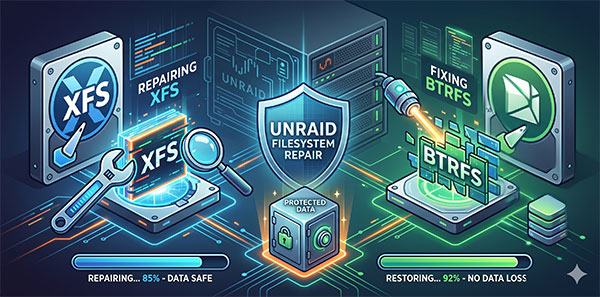
Parity cannot help here. The parity disk holds a bitwise mirror of the data sectors, not a record of filesystem metadata integrity. If the journal or superblock on a data disk is corrupted, parity faithfully preserves that corruption. Recovering from this state requires working directly with the filesystem repair tools — xfs_repair for XFS volumes and btrfs check for BTRFS — from the Unraid terminal.
| Situation | Filesystem | Action | Expected outcome |
|---|---|---|---|
| Disk Unmountable, SMART clean | XFS | Maintenance Mode → xfs_repair /dev/sdXp1 → reboot |
✅ Disk mounts, data intact |
| xfs_repair fails: dirty log error | XFS | xfs_repair -L /dev/sdXp1 (zeroes journal) |
⚠️ Disk mounts; files open at crash may be partial or empty |
| Disk Unmountable, SMART clean | BTRFS | btrfs scrub (mounted) → btrfs check /dev/sdXp1 (read-only) → assess errors |
✅ Minor errors: disk mounts after check |
| btrfs check reports extent or chunk tree errors | BTRFS | Skip --repair → RS RAID Retrieve for file-level recovery first |
⚠️ Partial recovery; structural repair may cause additional loss |
| Disk Unmountable, SMART shows bad sectors | XFS / BTRFS | RS RAID Retrieve → Full Analysis → recover to separate disk → plan disk replacement | ⚠️ Files recoverable; hardware failing — repair will not hold |
| Terminal tools cannot mount disk; files missing after repair | XFS / BTRFS | Connect disks to Windows PC → RS RAID Retrieve → Fast Scan or Full Analysis | ✅ File-level recovery without mounting the filesystem |
| Format was pressed on Unmountable disk | Any | No recovery path — parity now reflects an empty disk | ❌ Data permanently lost |
How Unraid Uses Independent File Systems Per Disk
In a logical failure scenario, the architecture of Unraid becomes the central factor in understanding what is damaged and what is not.
Unlike RAID 5 or RAID 6, where a stripe spans multiple physical disks, Unraid writes files whole to individual disks. Each data disk is a self-contained volume — formatted as XFS or BTRFS — mounted independently by the OS. The Unraid array layer above it handles share aggregation and parity updates, but the filesystem layer below it is standard Linux.
XFS
Default in UnraidCharacteristics relevant to repair:
- Journal-based metadata recovery
- Repair requires the disk to be unmounted
- In Unraid: requires Maintenance Mode
- Primary tool:
xfs_repair - Log corruption requires
-Lflag (destructive)
BTRFS
Optional in UnraidCharacteristics relevant to repair:
- Copy-on-write; built-in checksums on data and metadata
- Check can run on a mounted volume
- Repair mode (
--repair) is aggressive — use with caution - Primary tools:
btrfs check,btrfs scrub - Subvolume recovery possible even with partial corruption
The practical consequence of this architecture: filesystem corruption on Disk 3 has no effect on the filesystems of Disk 1, Disk 2, or any other disk. Each disk’s data is isolated. You are repairing one volume, not the entire array. The exception is the parity disk — it has no filesystem and should never be subjected to filesystem repair tools.
Parity disk has no filesystem — never run xfs_repair or btrfs check on it.
The parity disk stores XOR data across fixed sector offsets. It has no partition table visible to filesystem tools, and attempting to repair it as a filesystem will corrupt the parity data, leaving the entire array unprotected. Identify your parity disk in the WebGUI before opening any terminal.
What Causes Filesystem Corruption in Unraid
Filesystem corruption in Unraid is almost always traceable to one of three root causes. Understanding which one applies affects the repair approach.
Unclean shutdown
A power cut or forced reboot while the array is active leaves in-flight writes uncommitted. The journal contains incomplete transactions. On next mount, the filesystem detects the inconsistency and refuses to mount. This is the most common cause.
Faulty RAM
ECC memory is not standard on most Unraid deployments. A single bit flip in a write buffer can corrupt filesystem metadata — directory entries, inode tables, or the superblock — in ways that look identical to a power event but are harder to prevent.
Disk sector errors
Reallocated or pending sectors in a drive’s SMART data indicate areas the disk cannot reliably read or write. If metadata structures land on these sectors, the filesystem becomes corrupted even without a power event. A disk showing filesystem corruption with non-zero SMART error counts likely has a hardware problem underneath.
Before running any repair tool — check SMART first:
- Open the Unraid WebGUI → Main tab → click the affected disk → SMART report.
- If
Reallocated_Sector_Ct,Current_Pending_Sector, orOffline_Uncorrectableare non-zero, the filesystem repair may succeed temporarily but the underlying hardware is failing. Plan for disk replacement regardless of repair outcome. - If SMART is clean, the corruption is likely a one-time event from a power or software issue and repair is more likely to hold long-term.
The Format Button: What It Actually Does and Why Not to Press It
When a disk goes Unmountable, the Unraid WebGUI displays a Format option alongside the diagnostic buttons. For users unfamiliar with how Unraid handles parity, this creates a dangerous assumption: that pressing Format will somehow restore the disk to a working state, with parity reconstructing the lost files.
Format does not recover data. It destroys it permanently.
Pressing Format on an Unmountable disk wipes the filesystem entirely and creates a new empty volume. Parity is then recalculated against this now-empty disk. The original data is gone — not corrupted, not recoverable, gone. Parity will then correctly reflect an empty disk, making any subsequent recovery attempt futile.
This is the most common data loss scenario in Unraid beyond hardware failure, and it is entirely user-initiated. The data that was on the disk before Format was, in most cases, recoverable with the tools described in this article.
The correct sequence when a disk is Unmountable: diagnose first, repair second, format only as an absolute last resort — and only after all data has already been recovered to another location.
Repairing an Unmountable XFS Disk in Unraid: xfs_repair Step by Step
xfs_repair requires the target filesystem to be completely unmounted before it runs. In a running Unraid array, all data disks are mounted. To unmount a specific disk for repair without stopping shares entirely, Unraid must be placed in Maintenance Mode — a startup mode that brings up the array with no shares mounted and no disks actively in use.
Step 1: Start the array in Maintenance Mode
From the Unraid WebGUI, go to Main. Before clicking Start, check the Maintenance Mode checkbox that appears below the array start controls. Click Start. The array starts, but no disks are mounted to shares. This is the required state for xfs_repair.
Unraid 7.0 and later: use the WebGUI repair buttons first.
Starting with Unraid 7.0, the WebGUI exposes CHECK and FIX buttons directly on the disk view. These run xfs_repair with appropriate flags automatically. If your version supports this, try the GUI path first before opening a terminal — the outcome is identical, but the interface handles Maintenance Mode and device path selection for you.
Step 2: Identify the correct device path
This step prevents a common and serious mistake. In Unraid, each data disk has two device paths:
/dev/mdXp1— the MD (array) device, managed by Unraid’s array layer. Do not use this path for xfs_repair./dev/sdXp1— the raw disk partition, direct hardware path. Use this path.
To identify which /dev/sdX corresponds to the disk you want to repair, open a terminal (from the WebGUI: Tools → Terminal, or SSH) and run:
# List disks with their Unraid slot assignments
ls -la /dev/disk/by-id/
Match the serial number shown in the WebGUI SMART report to the symlink in /dev/disk/by-id/ to confirm the device path before proceeding.
Step 3: Run xfs_repair — standard pass
# Replace sdX with your actual device identifier (e.g. sdb, sdc)
xfs_repair /dev/sdXp1
xfs_repair will run through multiple phases, checking inodes, directories, and the free space map. On a healthy journal, it replays uncommitted transactions and exits with a summary. If it completes without fatal errors, attempt to mount the disk by rebooting without Maintenance Mode.
Step 4: If xfs_repair fails with a dirty log — the -L flag
If the repair exits with a message like “ERROR: The filesystem has valuable metadata changes in a log which needs to be replayed” and refuses to proceed, the journal log is unreadable. The only option at this point is to zero the log with the -L flag.
The -L flag discards the journal — understand what this means
Zeroing the log forces xfs_repair to abandon any pending metadata transactions that were not yet committed to disk. In practice, this means that files that were being written at the moment of the crash may be partially lost or appear with zero size. Files that were fully written before the corruption event are unaffected.
Use -L only after a standard repair attempt has failed. Do not use it as a first step.
# Force repair by zeroing the dirty log
# Use only after standard xfs_repair has failed
xfs_repair -L /dev/sdXp1
Step 5: Verify the repair
After a successful repair, run xfs_repair once more in check-only mode (-n flag) to confirm no further inconsistencies exist:
# Dry-run check — makes no changes, reports remaining issues
xfs_repair -n /dev/sdXp1
If the dry-run returns clean, reboot normally (without Maintenance Mode). The disk should mount and its share should reappear. Run a non-correcting parity check afterward to confirm parity validity.
✓ Expected output after a successful repair
xfs_repair will print phase completion lines (Phase 1 through 7) and exit with: “done”. No errors should appear in phases 3–7. Any files moved to /lost+found during repair are accessible there after the disk mounts — they can be moved back to their original locations if you know where they belong.
Repairing a Corrupted BTRFS Volume in Unraid
BTRFS corruption in Unraid is less common than XFS corruption, partly because BTRFS uses copy-on-write semantics — it never overwrites existing data, writing new versions of blocks to unused space first. This makes it more resilient to incomplete writes. However, metadata corruption can still occur, and the repair path is different from XFS in several important ways.
Step 1: Start with btrfs scrub — not btrfs check
Before running any repair, run a scrub on the mounted volume. Unlike xfs_repair, BTRFS scrub can run while the filesystem is mounted. It verifies checksums on all data and metadata blocks and reports any mismatches. On a single-disk Unraid volume without BTRFS RAID, scrub cannot automatically correct errors — there are no redundant copies — but it will identify exactly which blocks are damaged, which is useful input before deciding on a repair strategy. Start the array normally (not in Maintenance Mode) and open a terminal:
# Replace /mnt/diskX with the actual Unraid disk mount path
btrfs scrub start /mnt/diskX

# Monitor progress
btrfs scrub status /mnt/diskX
If scrub completes with no errors, the disk is healthy and the Unmountable status may have been a transient event. Reboot and check if the disk mounts normally.
Step 2: Run btrfs check in read-only mode
If scrub reports errors or the disk remains Unmountable after a scrub attempt, proceed to btrfs check. Stop the array to unmount the disk first, then run in read-only mode to assess the scope of damage before attempting any repair:
# Stop array first, then check without making changes
btrfs check /dev/sdXp1
Review the output carefully. btrfs check will list specific tree errors and orphaned items. Minor inconsistencies — orphaned inodes, incorrect root back-references — can be repaired safely. Errors in the extent tree or chunk tree indicate deeper structural damage and recovery via repair mode may be incomplete.
Step 3: Repair mode — use with caution
btrfs check –repair can cause additional data loss
Unlike xfs_repair, which is designed to be run routinely, the BTRFS developers explicitly caution against using --repair mode without guidance from a developer or without a disk image backup first. In cases of severe extent tree corruption, repair mode may delete files it considers orphaned rather than recovering them.
If the read-only check shows extent tree errors and you have irreplaceable data on the disk, skip repair mode and proceed directly to RS RAID Retrieve for file-level recovery before attempting any structural repair.
For minor, well-understood corruption — free space cache errors, orphaned inodes, incorrect root back-references — repair mode is generally safe:
# Only for minor, well-scoped corruption
# Image the disk first if data is critical
btrfs check --repair /dev/sdXp1
Step 4: Recover individual subvolumes
If the top-level BTRFS tree is damaged but data subvolumes are intact, it is sometimes possible to mount a specific subvolume directly and copy data out of it without repairing the overall tree:
# List subvolumes on a partially readable volume
btrfs subvolume list /mnt/diskX

# Mount a specific subvolume by ID if the default mount fails
mount -o subvolid=256 /dev/sdXp1 /mnt/recovery_point
If any subvolume mounts successfully, copy the data off immediately to a healthy disk before attempting further repair on the damaged volume.
When Terminal Tools Fail: Recovering Files from a Corrupted Unraid Disk with RS RAID Retrieve
Both xfs_repair and btrfs check operate at the filesystem structure level — they attempt to make the volume mountable again. When that is not possible due to severe metadata corruption, or when a repair completes but files are still missing or empty, the next step is file-level recovery from the raw disk data.
This is where RS RAID Retrieve operates. The program reads sector data directly, bypasses the damaged filesystem structures, and reconstructs directory trees and file content from the underlying allocation tables. It handles both XFS and BTRFS, which Windows cannot natively mount — so working from a Windows PC with the disk connected externally is the standard workflow.
What RS RAID Retrieve does with a corrupted Unraid disk
The program identifies the Unraid array structure from disk metadata, reconstructs the logical volume, and then scans the file system at the sector level. Even when xfs_repair has moved files to /lost+found or metadata is too damaged to mount, the program can often recover file content and original directory paths by reading allocation data directly.

Data recovery from damaged RAID arrays
Stop the Unraid server and remove the affected disk
Shut down cleanly if the system is still accessible. Connect the corrupted disk to a Windows PC — use a direct SATA connection where possible. Also connect the remaining array disks and the parity disk; RS RAID Retrieve uses them to reconstruct the full array configuration and correctly identify each disk’s role within the Unraid structure.
Launch RS RAID Retrieve — automatic array detection
On startup, the program scans all connected disks, reads Unraid metadata from each, and reconstructs the array configuration automatically. The corrupted disk appears in the drive list alongside healthy members. Windows will not assign drive letters to XFS or BTRFS volumes; this is expected and does not indicate a problem with the connection.
Select scan type based on the extent of corruption
Right-click the reconstructed array or the individual disk in the Drive Manager and select Open. For filesystem corruption where the partition table and superblock are intact, a Fast Scan is sufficient and will show the directory tree with recoverable files highlighted. If the superblock itself is damaged or the Fast Scan returns an empty file tree, run Full Analysis — this performs a sector-by-sector signature scan and can recover files even when directory metadata is gone, though file names and paths may not be preserved.
Preview files before committing to recovery
RS RAID Retrieve can preview file content before writing anything to disk. Use this to verify that recovered files are intact — open a sample of documents, images, and archives directly in the preview pane. Files that show correctly in preview will recover correctly. Files that show as empty or corrupted in preview are unlikely to recover usable content regardless of the tool used.
Copy recovered files to a healthy destination
Select the files and directories to recover, click Recovery, and specify an output path on a separate, healthy disk. Do not recover files back to the source disk or to any disk currently in the Unraid array. Verify a sample of recovered files after copy before declaring the recovery complete.
Recovery outcomes by corruption type
Journal corruption / unclean shutdown
The most recoverable scenario. File allocation structures are typically intact. RS RAID Retrieve can reconstruct the full directory tree and recover files with original names and paths. Fast Scan is usually sufficient.
Partial metadata corruption
Directory trees may be incomplete. Some files may appear without names in the recovery view. File content is often intact even when metadata is not. Full Analysis recovers more files at the cost of losing original directory structure for affected areas.
Superblock and extent tree destroyed
If the disk was formatted after going Unmountable, or if physical sector damage has destroyed the primary and backup superblocks, file-level recovery is not possible. This outcome is rare in pure logical failure scenarios but common when Format was pressed or when the disk had advanced hardware degradation.
Filesystem corruption in Unraid is a recoverable event in the majority of cases — provided the correct sequence is followed and the Format button is never pressed before data is safe. The decision path is straightforward:
Logical failure does not mean parity is invalid — but do not trust it blindly either.
After a filesystem repair, the parity disk still holds the XOR of the disk’s sectors — including the sectors that were corrupted before repair. Once the disk is repaired and mounts cleanly, run a non-correcting parity check to identify any inconsistencies. If errors are found, run a correcting check to bring parity back in sync with the current state of the disk. Do this before the array returns to normal production use.
Frequently Asked Questions
ddrescue -d -r3 /dev/sdXp1 /path/to/image.img /path/to/map.log. Once you have the image, run xfs_repair against the image file rather than the live disk — xfs_repair /path/to/image.img. If the repair produces a worse result than expected, you still have the original sector-level copy to work from. The one constraint: the destination for the image must be a disk large enough to hold the full raw size of the source partition, not just the used space.
/lost+found and names them by their inode number. If you remember approximate file sizes, creation dates, or content types, you can narrow down candidates using stat to check inode metadata and file to identify content type from the binary header — file /mnt/diskX/lost+found/123456789 will tell you whether an inode contains a JPEG, a video container, a compressed archive, and so on. For media files, most can be identified and renamed based on content. For databases or application data with no readable header, identification is harder and may require comparing file sizes against known-good backups or application logs that recorded original file names.