Losing important files from an external hard drive on Mac can feel like a disaster, especially when those files contain precious photos, critical work documents, or irreplaceable memories. If you’re facing this situation, take a deep breath—in most cases, you can recover files from external hard drive Mac successfully.
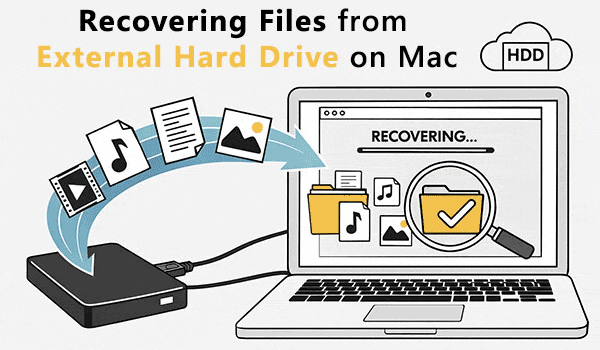
External hard drives are essential tools for expanding storage capacity and backing up important data on macOS. However, they’re vulnerable to various issues that can lead to data loss. Whether you’ve accidentally deleted files, formatted the drive, or encountered file system corruption, this comprehensive guide will walk you through proven methods for Mac external hard drive data recovery.
Understanding Data Loss and Your First Steps
Before attempting external hard drive recovery Mac, understanding what happened to your data and taking the right immediate actions can mean the difference between successful recovery and permanent loss.
Common Data Loss Scenarios
Accidental Deletion
You deleted files and later realized you need them. When files are deleted from an external hard drive Mac, they move to the Trash, giving you a chance for easy recovery. However, if you emptied the Trash or used “Delete Immediately” (Option + Command + Delete), the files bypass Trash entirely but remain physically on the drive until overwritten.
Drive Formatting
Formatting an external hard drive erases the file system structure, making all data inaccessible. Whether you formatted by mistake in Disk Utility or intentionally prepared the drive for different use, a standard “quick format” doesn’t immediately erase actual data—it just removes the directory telling your Mac where files are located. Formatted drive recovery Mac remains possible until new data overwrites the old.
File System Corruption
The file system acts like a table of contents for your drive. When corrupted due to improper ejection, power failures, or software conflicts, your Mac may not be able to read the drive or access files. The good news: your data often remains physically intact even when the file system is damaged, making corrupted hard drive recovery feasible.
Physical Damage
Dropping your external HDD or external SSD, exposing it to extreme temperatures, or water damage causes physical harm to internal components. Physical damage is the most serious cause of data loss, often requiring specialized equipment to recover data from external hard drive Mac.
Virus or Malware Attacks
Though less common on macOS, malicious software can corrupt, encrypt, or delete files on external drives, particularly those previously connected to Windows PCs.
Power Failures and Improper Ejection
Sudden power loss while writing data or disconnecting without proper ejection interrupts operations, potentially corrupting files or the entire file system.
Signs Your External Hard Drive Has Problems
Recognizing warning signs early helps you take action before complete failure when you need to restore external hard drive Mac:
Drive Not Visible
External hard drive not showing up in Finder or desktop
Error Messages
“Disk not readable” or other system warnings
Slow Performance
Unusually slow read/write speeds or freezing
Strange Sounds
Clicking, grinding, or beeping noises from drive
Understanding Recovery Possibilities
Success in Mac external hard drive data recovery depends on several critical factors:
Good News: In most cases, your data can be recovered! Quick formats, accidental deletions, and file system corruption typically have high recovery success rates when addressed promptly with the right tools.
Type of Format
Quick formats leave data intact and highly recoverable. Secure erase options that overwrite data multiple times make recovery nearly impossible.
TRIM and SSDs
For SSD external drives, TRIM technology automatically erases deleted data at the hardware level to optimize performance. While TRIM is typically disabled by default on external SSDs connected via USB, if enabled, it makes software-based recovery extremely difficult. Traditional HDDs don’t use TRIM, making hard drive recovery Mac more straightforward.
Time and Drive Usage
The sooner you attempt recovery, the better. Every time you use the drive after data loss, you risk overwriting deleted files with new data.
Physical vs Logical Damage
Logical errors like corruption can usually be fixed with data recovery software Mac. Severe physical damage requires professional equipment and clean room facilities.
Critical First Steps
Your immediate actions determine external hard drive data recovery Mac success:
Stop Using the Drive Immediately
This is the single most important rule for Mac data recovery. When you delete a file or format a drive, macOS marks that space as available but doesn’t erase the actual data. Every action on the drive—saving files, installing software, even system updates—risks overwriting your deleted data. Disconnect the drive if you’re not actively attempting recovery.
Don’t Attempt Repairs First
Resist the urge to run Disk Utility’s First Aid immediately. Repair operations can sometimes overwrite or modify data, especially with severe corruption. Prioritize data recovery first, then worry about repairing the drive.
Check Backup Status
Before spending time on recovery, verify whether backups exist. Check Time Machine backup, iCloud Drive, Dropbox, Google Drive, and any manual backups you created.
Create a Disk Image If Possible
If your drive is accessible but showing signs of failure, creating a disk image preserves your data before complete failure. A byte-to-byte backup can be scanned for recovery without risking further damage to the original drive.
Method 1: Recovering Files from Mac Trash
Start with the simplest solution to recover deleted files from external hard drive Mac. When you delete files from an external hard drive connected to your Mac, those files move to the Trash folder.
How Mac Trash Works with External Drives
Did You Know? Each storage device connected to Mac has its own hidden Trash folder. When you delete files from an external drive, they go to a hidden .Trashes folder on that specific drive. When you open Trash on Mac, it displays deleted files from all connected drives in one unified view.
Quick Recovery Steps
Connect Your External Hard Drive
Connect your external hard drive to your Mac and wait for it to appear on the desktop or in Finder.
Open Trash
Click the Trash icon in the Dock or press Shift + Command + Delete
Search for Your Files
Use the search function in the upper-right corner to quickly locate your deleted files.
Restore Files
Right-click on selected files and choose “Put Back” to restore them to their original location.
You can also drag files from Trash directly to your desired location for quick Mac file recovery.
When This Method Works
You haven’t emptied the Trash since deletion
Files were deleted using standard methods (Command + Delete or Move to Trash)
The external drive is connected to your Mac
You didn’t use “Delete Immediately” which bypasses Trash
Method 2: Restoring from Time Machine Backup
Time Machine offers elegant recovery if you previously configured it for your external drive. Unlike internal drives that Time Machine backs up automatically, external drives require specific configuration.
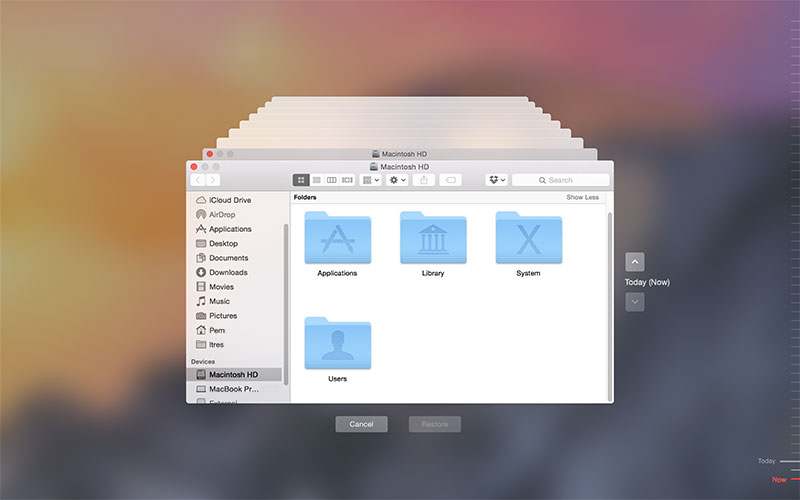
Important: This method only works if you configured Time Machine to back up your external drive BEFORE data loss occurred. If you haven’t set up Time Machine yet, skip to Method 3.
Quick Time Machine Recovery
Connect Both Drives
Connect your external hard drive and Time Machine backup drive to your Mac
Navigate to Folder
Open the folder where missing files were originally located
Enter Time Machine
Click Time Machine icon in menu bar or open from Applications > Utilities
Browse Timeline
Use the timeline on the right to navigate through different backup dates
Select and Restore
Choose the files you need and click “Restore” button
Preview Before Restore
Time Machine shows snapshots from different dates, allowing you to recover files Mac as they existed at specific points in time. You can preview files before restoring and select multiple items simultaneously.
Limitations
Previous backup configuration required
Backups must contain the lost files
Time Machine backup drive must be accessible
Backup files must be intact and uncorrupted
Method 3: Using RS Partition Recovery for Mac
When simple methods fail, professional data recovery software provides your best option for external hard drive recovery Mac. RS Partition Recovery is designed specifically to recover data from hard drives in challenging scenarios like formatted drives, corrupted file systems, or deleted partitions.
Why Choose RS Partition Recovery
Comprehensive Recovery
Works with formatted external hard drive Mac, corrupted drives, deleted or damaged partitions, and drives that won’t mount. Supports all Mac file systems: APFS, HFS+, FAT32, exFAT, and NTFS.
Deep Scan Technology
Quick scans locate recently deleted files, while deep scans examine every sector to find all recoverable data, even from heavily damaged drives.
File Preview
Preview documents, photos, videos, and other files before recovering, ensuring you retrieve the correct data.
Universal Compatibility
Works with external HDDs, external SSDs, USB flash drives, and memory cards.
Step-by-Step Recovery Process
Install RS Partition Recovery

All-in-one data recovery software
Download RS Partition Recovery for Mac from the official website. The software requires macOS 10.10 or later.
- Open System Settings > Privacy & Security > Full Disk Access
- Enable RS Partition Recovery
Critical: Install on your Mac’s internal drive, never on the external drive.
Connect and Launch
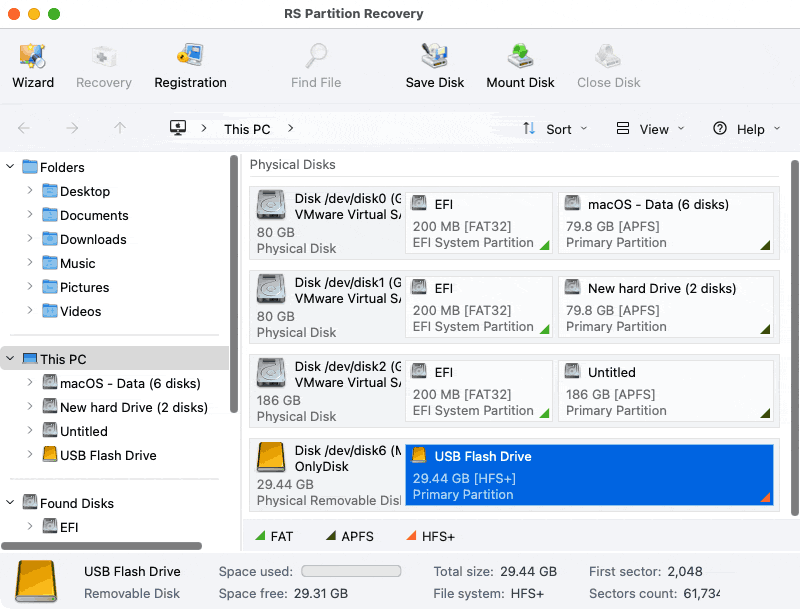
Connect your external hard drive via USB or Thunderbolt. Launch RS Partition Recovery. The main window displays all connected storage devices.
If the drive doesn’t appear in Finder, don’t worry—RS Partition Recovery often detects drives that macOS cannot mount.
Select Your External Drive
In the left panel, locate your drive in the device tree. Click to select the physical drive or a specific partition.
Choose Scan Type
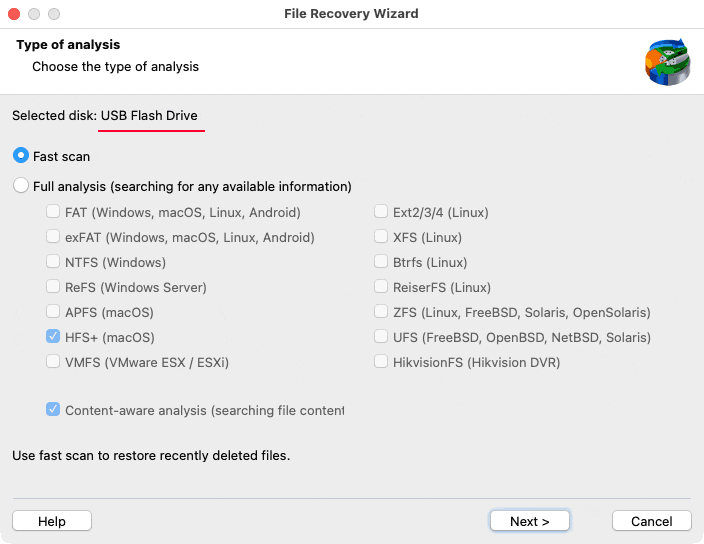
Start with Fast Scan for recently deleted files. If unsuccessful, use Full Analysis for formatted or corrupted drives.
Fast Scan
- Quick analysis (5-20 minutes)
- Recently deleted files
- File system structure intact
Full Analysis (Deep Scan)
- Comprehensive (1-12+ hours)
- Formatted drives
- Severe corruption
Browse and Preview Found Files
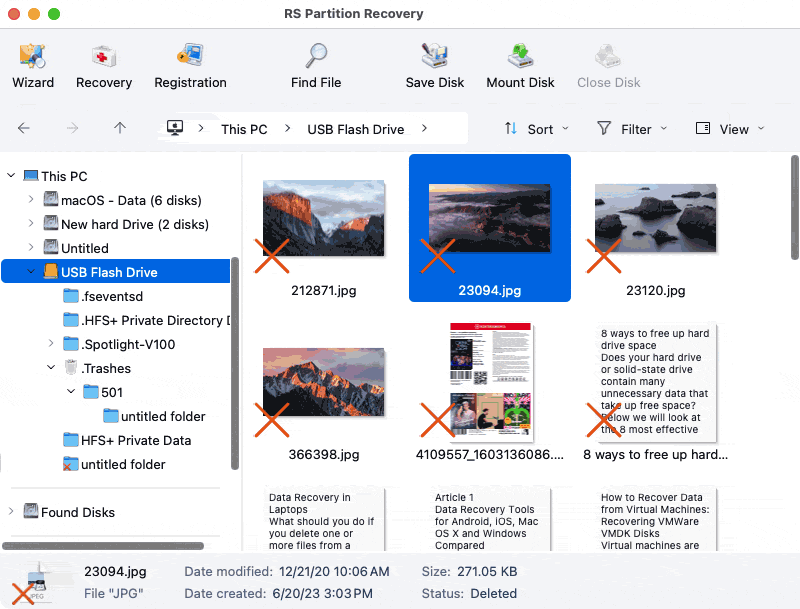
Once scanning completes, browse results by type or folder. Use Preview to ensure files are uncorrupted before recovery.
Select and Recover
Select desired files and click Recover. Review the total size of selected data before proceeding.
Choose Recovery Destination
Critical: Never save recovered files to the same external drive. Use your Mac’s internal drive or another storage device.
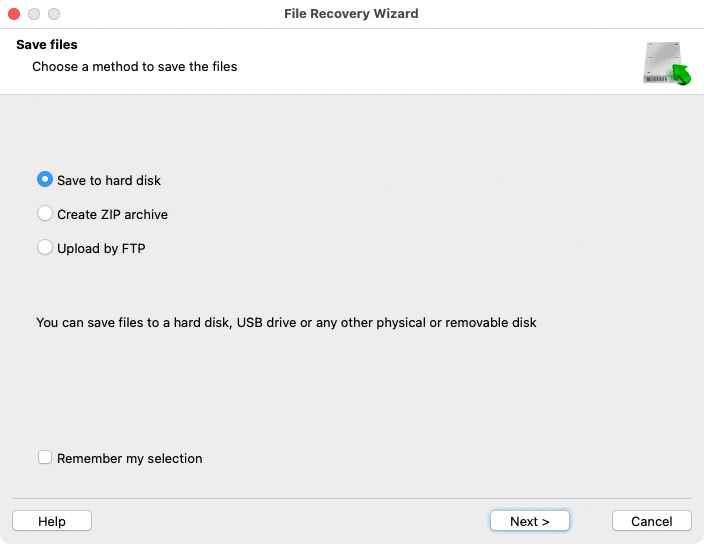
If files appear corrupted, try Full Analysis if you previously used only Fast Scan. Deep scanning often recovers files that quick scans miss or recovers them in better condition.
When Software Cannot Help
Certain situations exceed data recovery software Mac capabilities:
Severe Physical Damage
Clicking sounds, drive not spinning, visible damage
Extensive Overwriting
Heavy drive use after loss overwrote deleted files
Secure Erase
Multi-pass formatting physically overwrites data
Failed Encryption
Lost passwords or corrupted encryption keys
Method 4: Repairing Drive Problems with Disk Utility
Sometimes files aren’t lost—they’re inaccessible due to file system errors or corruption. Before resorting to data recovery software, try repairing the drive using macOS’s built-in Disk Utility.
When to Use First Aid
Use this method for Mac hard drive repair when:
Use When
- Drive recognized but files missing
- Error messages when accessing folders
- Drive extremely slow
- Some files accessible, others not
Warning
If data recovery is your priority, skip this and use RS Partition Recovery first. Repair operations can sometimes complicate recovery.
Using First Aid for Mac Hard Drive Recovery
-
Open Disk Utility (Applications > Utilities > Disk Utility)
-
Click View > Show All Devices
-
Select your external drive from the sidebar
-
Click First Aid in the toolbar
-
Click Run to begin
Disk Utility checks the partition scheme, verifies file system structure, checks for bad sectors, and attempts to repair errors found during corrupted hard drive recovery Mac.
Understanding Results
“Volume appears to be OK”
No problems found. If files still inaccessible, use recovery software.
“Corruption needs repair”
Errors fixed. Check files now. Back up immediately—drive may be failing!
“First Aid failed”
Serious problems. Proceed to RS Partition Recovery immediately.
Terminal and fsck Commands
For severe corruption that Disk Utility cannot fix, Terminal commands offer more aggressive Mac hard drive repair options.
Warning: Only use Terminal if comfortable with command-line interfaces. Incorrect commands can cause further damage during Mac data recovery.
Using fsck in Single User Mode
-
Restart your Mac holding
Command + Sto enter Single User Mode -
At the command prompt, identify your drive with:
diskutil list -
Run fsck on your external drive:
/sbin/fsck_hfs -fy /dev/diskX
(ReplacediskXwith your drive identifier andhfswith your file system type) -
If errors are found, run the command again until you see “The volume appears to be OK”
-
Restart with:
reboot
After restarting, check whether your external hard drive Mac is now accessible for Mac file recovery.
Understanding File Systems and Recovery
Different file systems affect Mac external hard drive data recovery success. Understanding these differences helps you make informed decisions during external hard drive recovery Mac.
Common Mac External Drive File Systems
APFS
ModernApple File System – Default since High Sierra
- ✓ Optimized for SSDs
- ✓ Snapshots & encryption
- ⚠️ Complex recovery
HFS+
LegacyMac OS Extended – Older Macs
- ✓ Well-supported
- ✓ Easier recovery
- ✓ Good for HDDs
exFAT
UniversalCross-platform – Mac & Windows
- ✓ No file size limits
- ✓ Good compatibility
- ✓ Easy recovery
NTFS
WindowsWindows native – Read-only on Mac
- ⚠️ Write requires software
- ✓ Recovery tools support
- ✓ From Windows drives
How File Systems Affect Recovery
Deletion Process
File systems mark space as available while data physically remains until overwritten. Recovery software finds this “orphaned” data.
Formatting Impact
Quick format: Structure removed, data intact, highly recoverable. Secure erase: Data overwritten, impossible to recover.
Corruption Types
Directory corruption affects access but data may remain intact. Recovery software can bypass corrupted file systems.
Conclusion
Recovering files from an external hard drive on Mac is often possible with the right approach. Whether the issue is accidental deletion, formatting, or file system corruption, you can follow a logical recovery path: first check the Trash, then restore from Time Machine backups if available, and finally use specialized tools like RS Partition Recovery for more complex cases. Acting quickly is important—stop using the affected drive immediately to avoid overwriting lost data and improve recovery chances. At the same time, prevention is the best strategy. Regular backups with Time Machine or cloud storage, safe drive handling, proper ejection, and routine health checks can significantly reduce the risk of data loss. By combining these habits with a clear recovery plan, you’ll be prepared not only to restore lost files when needed but also to protect your data before problems occur.