Have you ever felt that sinking feeling in your stomach when you realize you’ve just emptied the Trash on your Mac — and that important presentation you’ve been working on for weeks was in there? You’re not alone. This scenario plays out countless times every day for Mac users around the world. The good news? In most cases, your files aren’t actually gone. They’re just hidden, waiting to be recovered.
Contents
- Why Recovering Deleted Files on Mac is Possible
- Why SSD Drives Make Mac Recovery Time-Critical
- What to Do After Emptying Trash on Mac
- Methods to Recover Emptied Trash on Mac
- How to Prevent Data Loss on Mac
- How to Recover Data from External Mac Drives
- Recovering Mac Files Without Time Machine
- Protecting Your Mac Data: Final Thoughts
This comprehensive guide will walk you through everything you need to know about recovering deleted files after emptying the Trash on your Mac. We’ll explain what really happens during file deletion on macOS, explore proven recovery methods from simple to advanced, and share practical advice to help prevent data loss from happening again. Whether you need to restore a single document or recover an entire folder of emptied Trash files, this guide has you covered.
Why Recovering Deleted Files on Mac is Possible
Before diving into how to recover emptied Trash on Mac, it’s worth understanding what actually happens when you delete files on Mac. This knowledge will help you make better decisions during the recovery process and understand why timing is so critical.
When you drag a file to the Trash on Mac, your computer doesn’t erase it from the hard drive. Instead, it simply moves the file to a special folde r— the Trash bin — where it sits until you decide to either restore it or empty the Trash. It’s essentially a waiting room for deleted files you’re not quite ready to permanently remove.
But here’s where it gets interesting: even when you empty the Trash on your Mac, macOS still doesn’t completely erase your files. What it does is remove the file’s entry from the file system directory — think of it like removing a book’s listing from a library catalog while the book itself remains on the shelf. The operating system marks that space as “available for reuse,” but the actual data stays put on your storage device until something else overwrites it.
This is why Mac Trash recovery is possible. Your deleted files are still physically present on the disk, just invisible to the normal file browsing system. As long as that space hasn’t been overwritten with new data, specialized recovery tools can locate and restore your files from the emptied Trash.
Why SSD Drives Make Mac Recovery Time-Critical
The moment you empty your Trash on Mac, you’re essentially in a race against time. Every action you take on your computer — downloading files, installing applications, saving documents, even browsing the web — creates new data that could potentially overwrite the space where your deleted files live.
This is particularly critical if you’re using a Mac with an SSD drive, which includes most Macs manufactured after 2016. SSDs use a technology called TRIM that actively erases deleted data to maintain drive performance. When TRIM kicks in, your deleted files are truly gone, with no possibility of recovery. The TRIM process can happen within seconds or minutes of emptying the Trash, which is why immediate action is so important.
“The biggest mistake people make after accidentally deleting important files is continuing to use their computer normally. Every minute of normal use significantly reduces the chances of successful recovery, especially on modern SSD-equipped Macs. The first thing you should do is stop what you’re doing.”
What to Do After Emptying Trash on Mac
If you’ve just realized you’ve emptied the Trash and need those files back, here’s what you should do immediately to maximize your chances of successful Mac Trash recovery:
Stop using your Mac. Close any applications you don’t absolutely need. Don’t download anything, don’t install software, and don’t save new files. Every action risks overwriting your deleted data. If you were in the middle of something important that requires saving, save it to an external drive or cloud storage — not to your Mac’s internal drive where the deleted files were stored.
Don’t restart your Mac unless absolutely necessary. The startup process writes temporary files and system logs that could overwrite your deleted data. If your Mac prompts you to install updates, decline for now.
Check if the files are truly gone. Before panicking, take a breath and verify that you actually emptied the Trash. Open the Trash bin from your Dock and look through its contents. If your files are still there, you can simply right-click and select “Put Back” to restore them instantly to their original location. This is the easiest way to recover deleted files on Mac when they haven’t been permanently removed yet.
Methods to Recover Emptied Trash on Mac
Now let’s explore your options for recovering emptied Trash files on Mac, starting with the easiest approaches and moving toward more advanced solutions. Each method has its strengths, and the best choice depends on your specific situation — whether you deleted files recently, have backups enabled, or need to recover data from an emptied Trash without any backup.
Using Data Recovery Software for Mac
When backups aren’t available or don’t contain the files you need, data recovery software becomes your best option for recovering emptied Trash on Mac. These specialized programs scan your storage device at a deep level, looking for traces of deleted files that the operating system can no longer see.
Recovery software works by examining the raw data on your drive and looking for file signatures — unique patterns that identify different file types. A JPEG image has a different signature than a PDF document or a Word file, and Mac data recovery software can recognize these patterns even when the file system no longer has a record of the file’s existence.
Modern recovery tools offer two scanning approaches for Mac Trash recovery. A quick scan examines the file system for recently deleted files where the directory entries still exist but have been marked as deleted. This is faster and often recovers files with their original names and folder structure intact. A deep scan goes further, analyzing the entire drive sector by sector to find file remnants even when the file system has been damaged or reformatted. Deep scans take longer but can recover data in situations where quick scans come up empty.
For Mac users looking to recover emptied Trash, RS Partition Recovery offers comprehensive support for both APFS and HFS+ — the file systems used by modern and older Macs respectively. The software can handle everything from simple trash recovery to more complex scenarios involving damaged drives or reformatted partitions.
The recovery process itself is relatively straightforward.
Step 1: Download and Install RS Partition Recovery

All-in-one data recovery software
Step 2: Launch the Software and Select the Drive
Open RS Partition Recovery. You’ll see a list of all available drives and partitions on your Mac. Select the disk that originally stored the data before it was moved to the Trash.
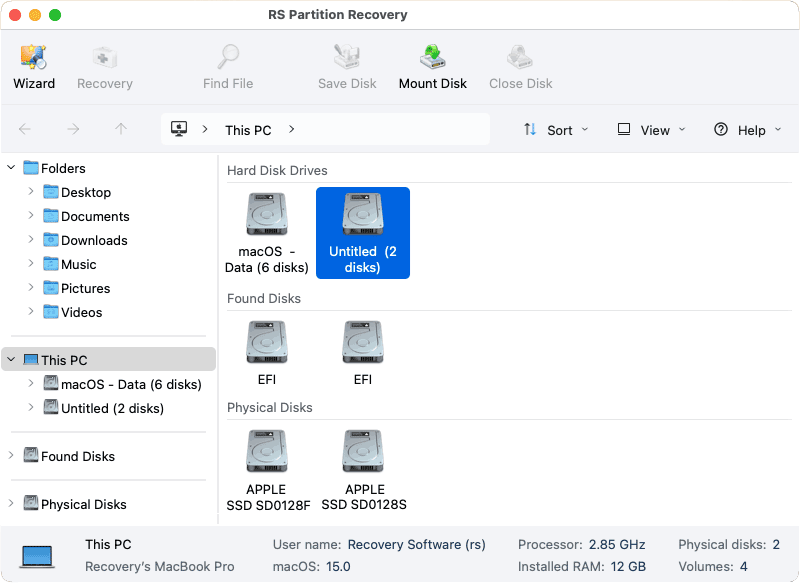
For most users, this will be your Mac’s internal drive, typically named “Macintosh HD” or something similar.
Step 3: Choose the Scan Type

RS Partition Recovery offers two scanning modes:
Fast Scan (Normal Analysis): This mode is faster and ideal for situations where you’ve recently emptied the Trash. It scans the file system and recovers data based on existing file system records. If the file information hasn’t been corrupted or overwritten, Quick Scan can often recover files with their original names, folder structure, and metadata intact. This should be your first choice for recently deleted files.
Full Analysis (Deep Scan): This mode takes significantly more time but provides more thorough results. It performs a content-aware analysis of the entire disk surface, matching every sector against a built-in database of known file signatures. This is particularly effective when the file system is damaged, formatted, or when Quick Scan doesn’t produce adequate results.
For recovering recently emptied Trash, start with Quick Scan. If it doesn’t find your files, you can always run a Deep Scan afterward.
Step 4: Wait for the Scan to Complete
Depending on the size of your drive and the scan mode selected, this process can take anywhere from a few minutes to several hours. RS Partition Recovery will display progress indicators showing you how much of the drive has been analyzed and how many recoverable files have been found so far.
Step 5: Browse and Preview Recoverable Files
Once the scan completes, you’ll see the results organized by file type and location.
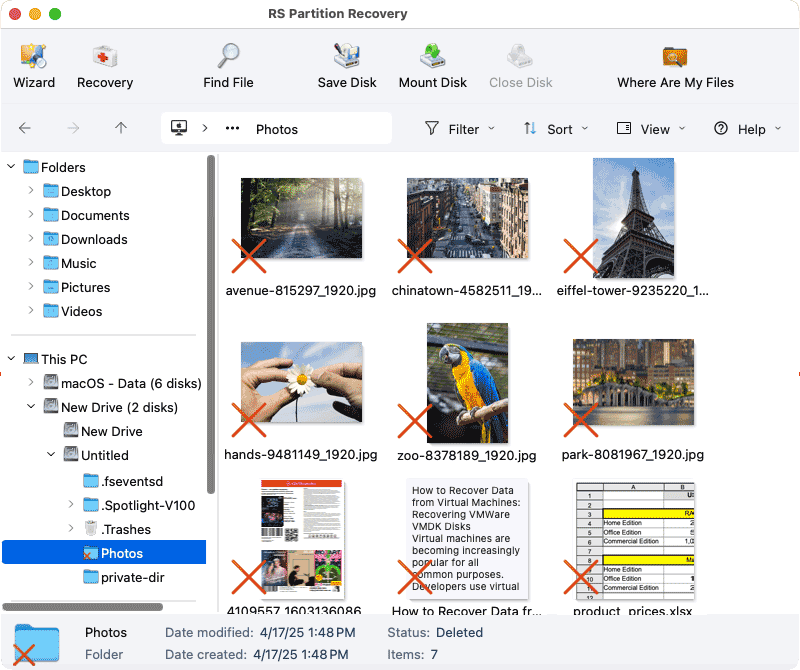
You can also view files by their original folder structure if that information was preserved during the scan.
RS Partition Recovery includes a powerful preview function that allows you to view the content of recoverable files before actually recovering them. This is incredibly valuable because:
- You can verify that the file contains the correct data
- You can confirm the file isn’t corrupted
- You don’t need to purchase the full version just to see if your files are recoverable
- You can save time by only recovering the exact files you need
To preview a file, simply click on it in the results list. Supported file types (documents, images, videos, etc.) will display in the preview pane, allowing you to verify their contents.
Step 6: Select Files for Recovery
After previewing and identifying the files you want to recover, select them by checking the boxes next to each file or folder. You can select multiple files at once, entire folders, or even all recoverable files if needed.
Step 7: Choose a Recovery Destination
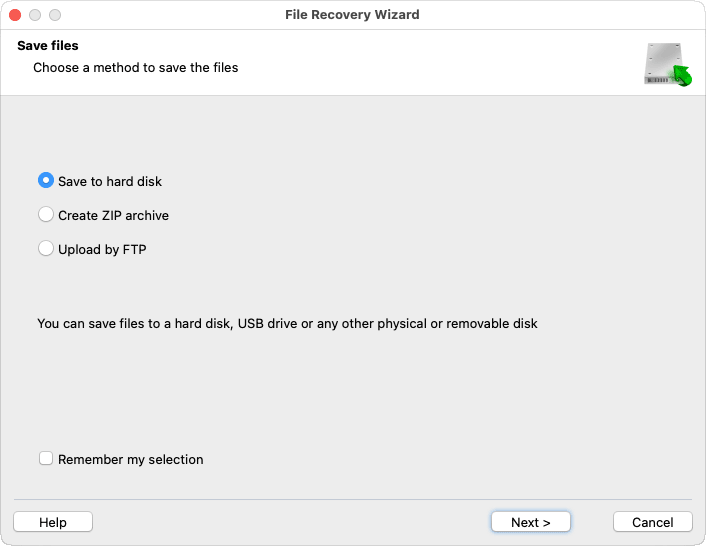
Click the “Recover” button, and you’ll be prompted to choose where to save the recovered files. This is a critical step:
Never save recovered files back to the same drive you’re recovering from. Doing so could overwrite other recoverable data that you haven’t restored yet. Instead:
- Save to an external hard drive if you have one available
- Save to a USB flash drive (if the files aren’t too large)
- Save to a different partition if your Mac has multiple partitions
- Save to a network drive if you have network storage available
Once you’ve selected a safe destination, click “OK” or “Save” to begin the recovery process.
Checking for Existing Backups
Your first and best option for Mac data recovery is always checking whether you have existing backups. If you do, you can restore your files without any special recovery software or complex procedures.
Time Machine is Apple’s built-in backup solution, and if you’ve been using it, recovering your deleted files from Mac is straightforward. Time Machine creates hourly backups of everything on your Mac, storing snapshots that let you “travel back in time” to when your files still existed.
Important Note: This method only works if you had Time Machine enabled and running before the files were deleted. If you never set up Time Machine, you won’t have any backups to restore from. However, even if you don’t have an external Time Machine backup drive connected, macOS creates local snapshots on your internal drive that can save recently deleted files.
Here’s how to recover deleted files using Time Machine:
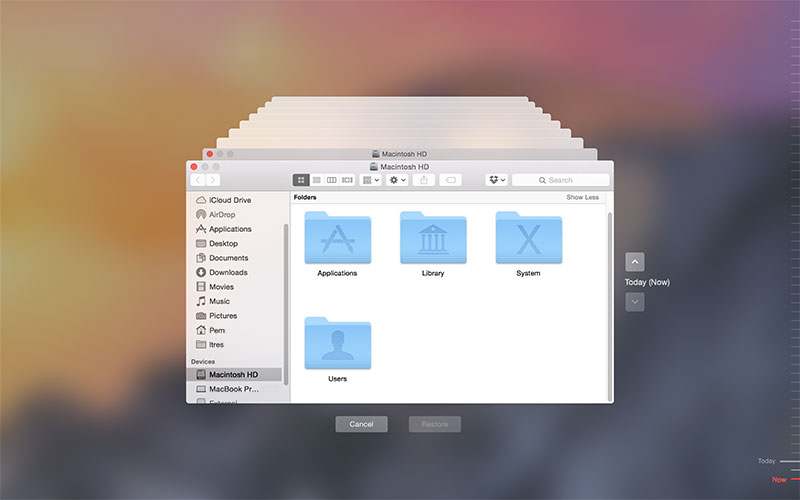
- Step 1: If you have an external Time Machine backup, connect the storage device to your Mac. If you’re relying on local snapshots, you can skip this step.
- Step 2: Open the folder that originally contained the deleted files. For example, if you deleted a file from your Desktop, open the Desktop folder. This is important because Time Machine will show you the backup history of whatever folder you’re currently viewing.
- Step 3: Click the Time Machine icon in the Menu Bar (usually in the top-right corner) and select “Enter Time Machine.” Alternatively, you can open Time Machine from Applications or Spotlight Search.
- Step 4: You’ll see your Finder window transform into a timeline view with a series of windows stacked behind it. Use the timeline on the right edge of the screen to navigate backward through time to find the date when the file still existed. Each snapshot represents a different point in time when Time Machine created a backup.
- Step 5: Navigate through the backup snapshots by clicking on different dates or using the arrow buttons. Browse through the Finder window to locate the specific file or folder you want to recover.
- Step 6: Once you find the file, select it by clicking on it. You can press the spacebar to preview the file and make sure it’s the correct one before restoring it.
- Step 7: Click the “Restore” button located at the bottom-right of the screen. The file will be recovered to its original location.
Pro Tip: If you want to restore your files to a different location instead of the original folder, navigate to the file you need, then Control-click (or right-click) and select “Restore to…” from the menu. This gives you the option to choose a custom destination for the recovered file.
Even without an external backup drive, Time Machine creates local snapshots on your Mac’s internal drive when possible. These snapshots typically cover the last 24 hours, which can be a lifesaver if you deleted files recently and need to recover them quickly. Access them the same way you would regular Time Machine backups.
Local snapshots are created:
- Hourly for the past 24 hours (if you have sufficient disk space)
- When your Time Machine backup drive is not connected
- Automatically by macOS to help with recovery
However, local snapshots have limitations:
- They’re automatically deleted when your Mac needs disk space
- They typically only cover the last 24 hours
- They’re smaller and less comprehensive than full Time Machine backups
Cloud storage services offer another potential backup source for recovering deleted files on Mac. If you use iCloud Drive, Google Drive, Dropbox, or similar services, check their web interfaces for recently deleted files. Most cloud services maintain a trash or recently deleted folder that holds files for 30 days before permanent deletion.
Important Note: iCloud synchronization works in a way that can make recovery challenging. When you delete a file on your Mac, it’s also removed from iCloud across all your devices. However, iCloud has a Recently Deleted folder that holds deleted files for 30 days before permanently erasing them.
Google Drive is particularly useful because it handles file synchronization differently than iCloud. When you delete a file that’s synced with Google Drive, it moves to Google Drive’s trash but doesn’t immediately disappear from your Mac’s Trash. This gives you an extra opportunity for Mac file recovery.
Terminal Commands for Advanced Users
For those comfortable with the command line, Terminal offers additional options for file recovery and management. While these commands won’t recover files after the Trash has been emptied, they can help in several related scenarios.
Useful Terminal Commands for File Recovery:
cd ~/.Trash – Navigate to your Trash folder to view its contents from the command line
ls -la ~/.Trash – List all files currently in the Trash with detailed information including hidden files
mv ~/.Trash/filename ~/Desktop/ – Move a specific file from Trash to your Desktop (replace “filename” with the actual file name)
cp -R ~/.Trash/foldername ~/Documents/ – Copy an entire folder from Trash to Documents before emptying
find ~ -name "filename" -type f – Search your entire home directory for a file by name, useful if you’re not sure where it was deleted from
mdfind "filename" – Use Spotlight’s indexing from Terminal to search for files across your system
sudo tmutil listlocalsnapshots / – View available Time Machine local snapshots
tmutil restore -v /path/to/snapshot/file /path/to/restore/location – Restore files from Time Machine snapshots via Terminal
Commands to Check Drive Status:
diskutil list – Display all connected drives and partitions with their identifiers
diskutil info disk0 – Show detailed information about a specific disk (replace disk0 with your disk identifier)
df -h – Check available disk space on all mounted volumes
smartctl -a /dev/disk0 – View SMART status and health information for a drive (requires smartmontools installation)
These Terminal commands are particularly useful when you need to automate recovery tasks, work with multiple files simultaneously, or access files in situations where the graphical interface isn’t responsive. However, exercise caution when using Terminal commands—a single typo can have unintended consequences.
How to Prevent Data Loss on Mac
Recovering deleted files is possible, but prevention is always preferable to recovery. By implementing a few straightforward practices, you can dramatically reduce both the likelihood of data loss and the stress involved when accidents happen.
Configure Your Mac’s Safety Features
Mac includes several built-in safety features that many users don’t know about or have accidentally disabled. Take a few minutes to ensure these are configured properly.
Open Finder, go to Preferences, and click the Advanced tab. You’ll see an option called “Show warning before emptying the Trash.” Make sure this is checked. This single checkbox has probably saved more people from data loss than any other feature, simply by adding a moment of hesitation before permanently deleting files.
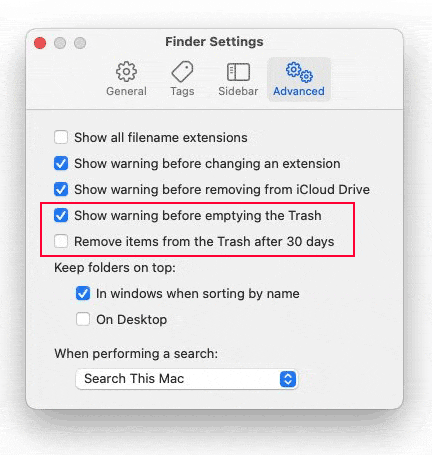
On that same screen, you’ll see another option: “Remove items from the Trash after 30 days.” Unless you’re critically short on storage space, consider leaving this unchecked. Automatic deletion is convenient for keeping your system tidy, but it also means files disappear without your explicit approval. With manual Trash management, files stay in the Trash until you consciously decide to remove them.
Creating a Reliable Mac Backup Strategy
Here’s an uncomfortable truth: most people don’t have adequate backups until after they’ve experienced significant data loss. Don’t be part of that statistic.
Time Machine should be your foundation. Purchase an external hard drive — you don’t need anything fancy or expensive, just something with at least twice the capacity of your Mac’s internal drive. Connect it, let macOS prompt you to use it for Time Machine, and you’re essentially done. Time Machine runs automatically in the background, creating hourly snapshots without any ongoing effort from you.
But Time Machine alone isn’t enough. What if your house burns down? What if both your Mac and your backup drive are stolen? This is where cloud storage becomes essential.
You don’t need to back up everything to the cloud—that would be expensive and unnecessary. Instead, identify your truly irreplaceable files: family photos, important documents, creative projects, financial records, and anything else that would be devastating to lose. Set up automatic synchronization for folders containing these files using iCloud Drive, Google Drive, Dropbox, or any reputable cloud service.
This two-tier approach—local Time Machine backups for everything, plus cloud storage for irreplaceable files—provides robust protection against virtually any data loss scenario. The local backup handles day-to-day recovery needs quickly and easily, while the cloud backup protects against catastrophic losses.
Best Practices for Mac File Management
Technology can only protect you so far. Your own habits and awareness play a crucial role in preventing data loss.
Get in the habit of reviewing what’s in your Trash before emptying it. This takes literally ten seconds and can save hours of recovery effort. When you open the Trash, quickly scan through the files. If anything looks even remotely important or unfamiliar, investigate before clicking “Empty Trash.”
For critical files — documents you’re actively working on, important emails, files you reference regularly—consider keeping them out of risky locations. Your Desktop might be convenient, but it’s also where accidental deletions most commonly occur. Create a dedicated folder structure for important work, and get in the habit of saving and organizing files properly.
When you do need to clean up files, consider a two-stage approach. Instead of immediately deleting files you think you don’t need, create a “To Delete” folder. Move questionable files there and let them sit for a week or two. If you haven’t needed them in that time, they’re probably safe to delete. This simple buffer zone prevents the “I deleted it yesterday and need it today” scenario.
How to Recover Data from External Mac Drives
Recovery from external drives — USB flash drives, external hard drives, SD cards — follows the same general principles as internal drive recovery, with a few additional considerations.
External drives often use different file systems than your Mac’s internal drive. A USB drive might be formatted as FAT32 or exFAT for cross-platform compatibility, while an external backup drive might use APFS or HFS+. Good recovery software supports all these file systems, so this usually isn’t an obstacle.
The bigger concern with external drives is their tendency to fail unexpectedly. Flash drives and SD cards have limited write cycles and can suddenly become unreadable. External hard drives can be knocked off desks or disconnected improperly. If an external drive starts behaving strangely—becoming slow, disconnecting randomly, or showing errors — back up whatever you can immediately and consider replacing it.
Recovering Mac Files Without Time Machine
What if you never set up Time Machine, or your backup drive failed? This is actually the most common scenario people face, and it’s where recovery software truly proves its value.
Without Time Machine, your main options are recovery software and cloud storage. If you’ve been syncing files to a cloud service, check there first—it’s faster and easier than running recovery scans. But if cloud storage wasn’t enabled or didn’t include the files you need, recovery software becomes your primary tool.
The lack of backups doesn’t mean your files are unrecoverable. It just means you’re completely dependent on the recovery software’s ability to find and restore deleted data before it’s been overwritten. This underscores why stopping all Mac usage immediately after realizing you’ve deleted important files is so critical.
Protecting Your Mac Data: Final Thoughts
Dealing with data loss is stressful, but it’s also an opportunity to improve your data management practices. If you’ve successfully recovered your files, take a moment to set up proper backups before returning to normal work. If the recovery wasn’t successful, consider what you can learn from the experience to prevent future losses.
Data loss is rarely a question of if, but when. Drives fail, files get accidentally deleted, software glitches occur, and mistakes happen. The difference between a minor inconvenience and a major disaster lies entirely in preparation. A robust backup strategy — Time Machine for comprehensive local backups, cloud storage for irreplaceable files, and perhaps recovery software on hand for emergencies—provides the safety net that lets you work confidently without constant worry about data loss.
Remember that modern Macs, with their SSD drives and TRIM technology, are particularly unforgiving when it comes to data recovery. The window of opportunity is measured in minutes, not hours or days. But with the right approach — immediate action, appropriate recovery tools, and ideally good backups — recovering from an accidentally emptied Trash doesn’t have to be the disaster it first appears to be.
The files you thought were gone forever are probably still there, waiting to be recovered. You just need to know where to look and act quickly enough to reach them before they disappear for good.