When the NAS Synology DS224+ stops responding or your data becomes inaccessible, the consequences can be critical. Disk failures, RAID corruption, firmware errors, or accidental deletions often leave users searching for a reliable recovery solution. In this guide, we show how to restore lost files from the NAS Synology DS224+ quickly and safely, using proven techniques that protect your storage from further damage.
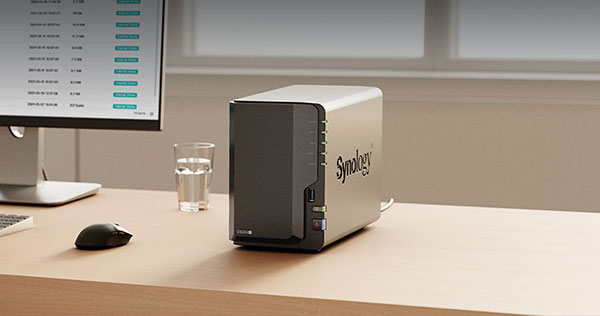
Technical Specifications of NAS Synology DS224+
The NAS Synology DS224+ is equipped with 2 drive bays, allowing users to build a balanced storage environment tailored to home or small office needs. Depending on the installed drives, the model supports RAID 0 and RAID 1, providing either improved performance or mirrored protection. It also works with EXT4 or Btrfs, both of which influence how metadata and snapshots are handled—important factors during data recovery.
When restoring data from the Synology DS224+, the RAID layout, block order and filesystem type should be considered, as they determine how files can be reconstructed after disk failure or accidental deletion.
How Data Recovery Works on Synology DS224+
Two-bay NAS models like Synology DS224+ store data either by splitting it between both disks (RAID 0) or by keeping a duplicate copy (RAID 1). Recovery becomes necessary when one or both drives stop working or when the file system is damaged. With RAID 0, even one failed disk makes the data unreadable, while RAID 1 usually preserves access unless both disks fail. To restore files, the drives must be removed from the NAS and scanned with dedicated recovery software.
Easy Guide: How to Recover Data From a Two-Disk NAS
If your two-disk NAS (Synology DS224+) suddenly stopped working, lost its RAID, or became inaccessible, don’t panic — recovering your files is usually possible. This beginner-friendly guide explains every step clearly, even if you’ve never worked with RAID before.
-
Step 1 Turn off the NAS and remove the drives.
Make sure the device is completely powered down, then gently remove both disks. Keep track of which disk was “Disk 1” and which was “Disk 2” — the order matters when rebuilding RAID.
-
Step 2 Connect the drives to your PC.
You can plug them directly into SATA ports or use USB adapters. The important part: both disks must be connected at the same time so the recovery software can detect the RAID structure.
-
Step 3 Start NAS recovery software.
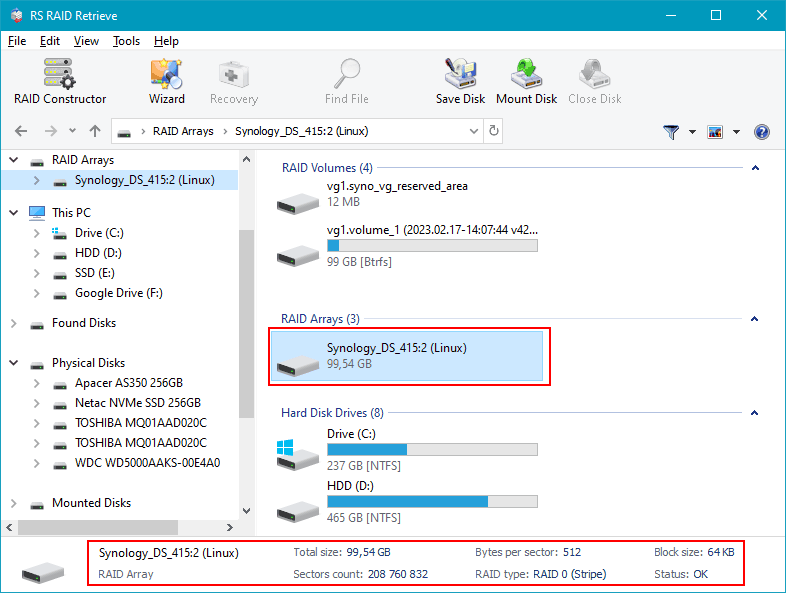
Open RS RAID Retrieve and let it scan the drives. The program will automatically search for RAID metadata and show the detected configuration at the bottom of the window.

Data recovery from damaged RAID arrays
Available for: Windows, macOS, Linux -
Step 4 Check the RAID configuration.
The software usually recognizes RAID 0 or RAID 1 automatically. If something doesn’t look correct, you can switch to manual mode and adjust block size, disk order and other parameters.
-
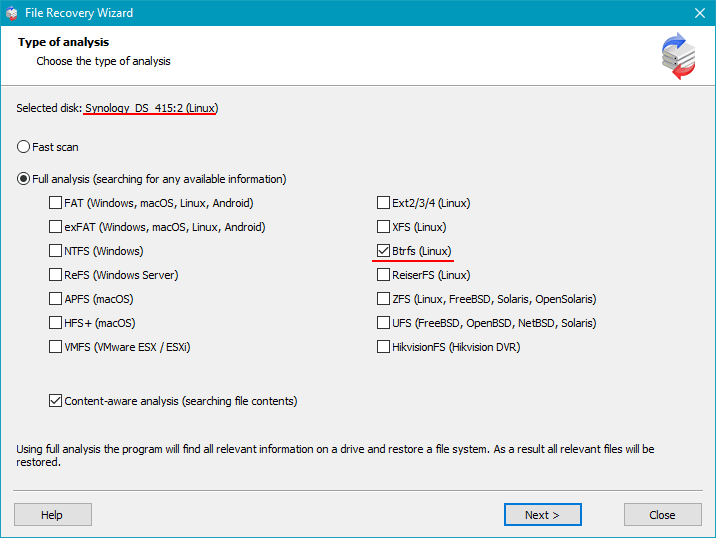
Step 5 Run a full scan.
The deep scan rebuilds folders, detects deleted files and searches for lost documents, images and videos across all sectors of the disks.
-
Step 6 Browse the scan results.
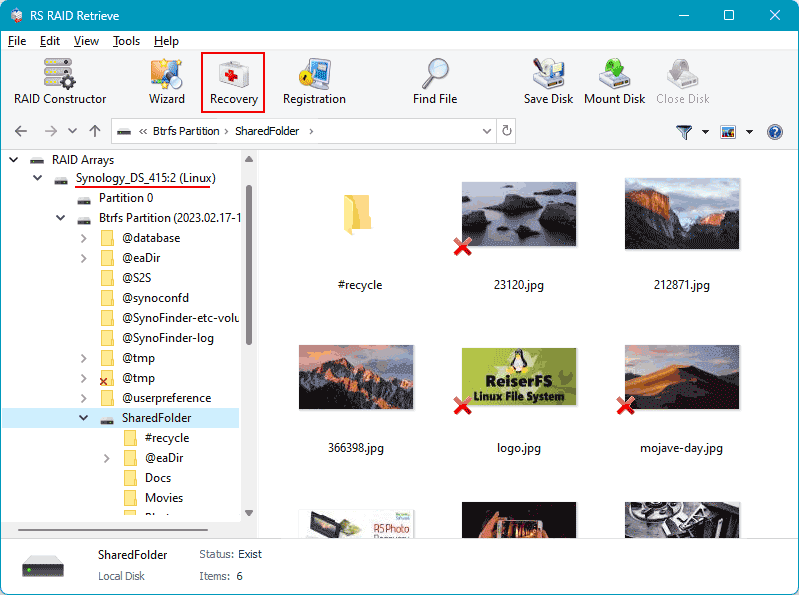
After the scan, you’ll see a tree of folders — similar to a regular file manager. Here you can check whether your photos, documents, videos and backups are available.
-
Step 7 Save the recovered files.
Choose a destination folder or an external disk. Don’t save the recovered data back to the original NAS drives to avoid overwriting.
Tip: If the NAS used EXT4 or Btrfs, deep scan significantly increases the chance of recovering damaged folders.
Советы по предотвращению потери данных с NAS
Frequently Asked Questions
Yes. To work, mount disks in the same way as connecting disk images. Menu: Tools - Mount Disk.